



How to Compare Diesel Prices on Your Truck Route

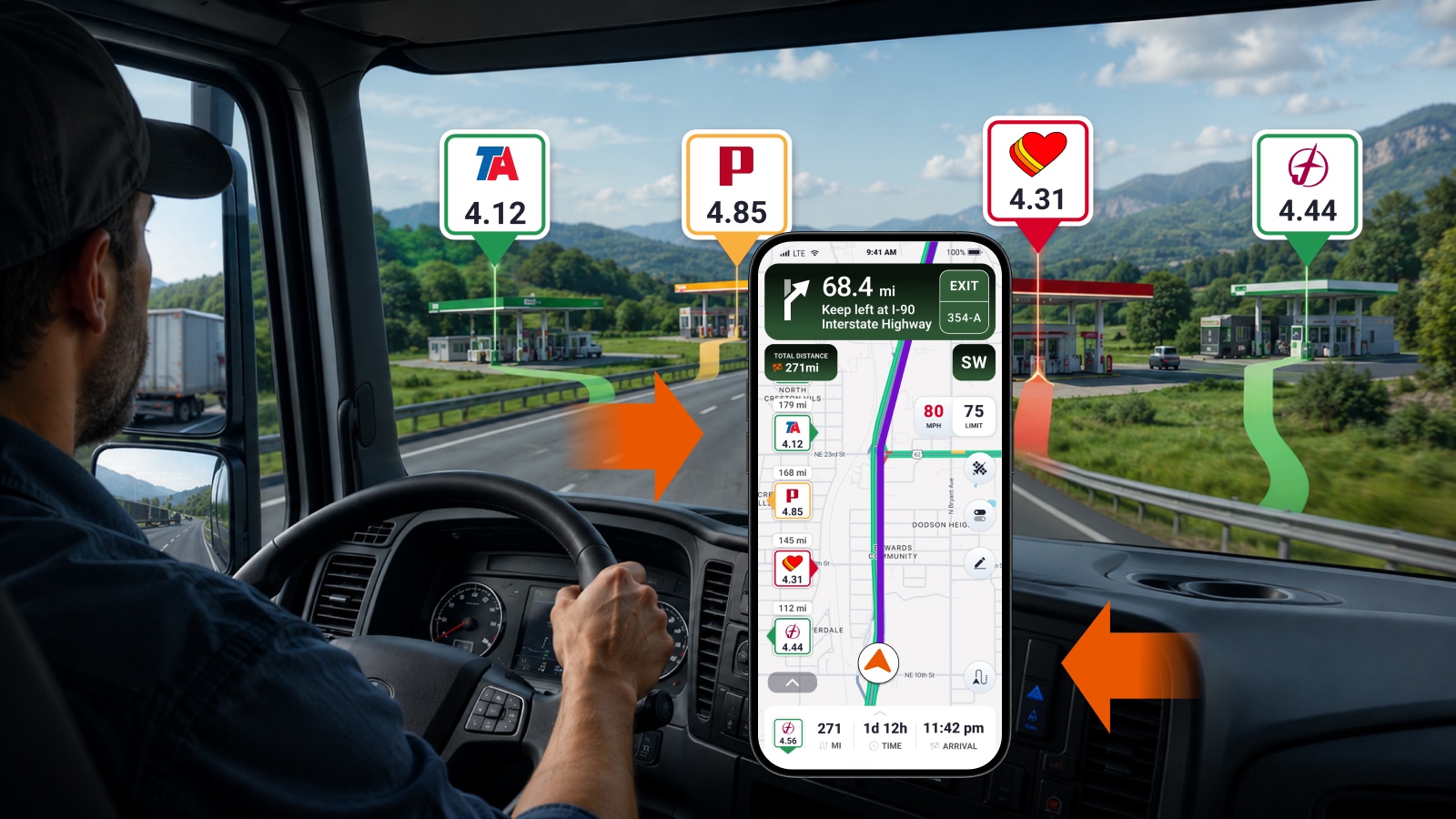
To compare diesel prices on your truck route, use Trucker Guide: build your route in Navigation mode, display truck stops along that route, switch the map to show diesel prices, and compare options directly before adding the best stop to your trip.
As fuel is one of the biggest expenses for owner-operators and professional truck drivers, making the right fueling decisions along your route can significantly reduce your overall costs. With the national average diesel price around 6 dollars per gallon in mid-2026, finding low-cost diesel locations along your route can save thousands of dollars per year.
We will show you exactly how to use our truck navigation to compare truck stop fuel prices and identify the best diesel prices along your route.
Quick Summary:
- Diesel averages $5 per gallon in mid-2026, making fuel the biggest expense for owner-operators and professional truck drivers.
- Finding low-cost diesel locations along your route can save thousands of dollars per year.
- Fuel costs directly impact your overall operating budget on every trip you drive.
- Real-time diesel price tracking prevents you from relying on outdated pump sign prices.
- Saving $0.15 to $0.30 per gallon on a 100 to 150-gallon fill equals $15 to $45 saved at each fuel stop.
- Multiple fuel fills each week turn into hundreds of dollars saved monthly and thousands of dollars saved over the year.
.png)
What Trucker Guide Does for Fuel Planning
Trucker Guide is the truck-safe navigation solution for long-haul drivers who need real-time traffic, fuel stop planning, and route reliability in one app. It works as a trucking fuel app for trucking by showing real-time diesel prices directly on your route.
For fuel planning, what matters most is:
⭐ Real-time diesel price tracking, so you are not relying on outdated info.
⭐ Truck-safe routing so fuel stops are actually accessible for your rig.
⭐ Large database of truck stops across the U.S. and Canada, so you always have plenty of options.
⭐ Offline functionality so you can still navigate and check stops in low-signal areas.
In practice, this allows for accurate route-based fuel comparison, so you can plan stops before you are forced to refuel.
How to Compare Diesel Prices on Your Route with Trucker Guide
Before comparing diesel prices, make sure truck GPS navigation mode is active so you can build and follow routes with full functionality.
Step 1. Build Your Best Route
Start by building the route you actually plan to drive. This ensures all the fuel options you see are relevant to your real trip.
Open the Trucker Guide and enter your destination in navigation mode. As soon as you confirm it, the system will generate up to 3 route options based on live traffic updates and current road conditions.
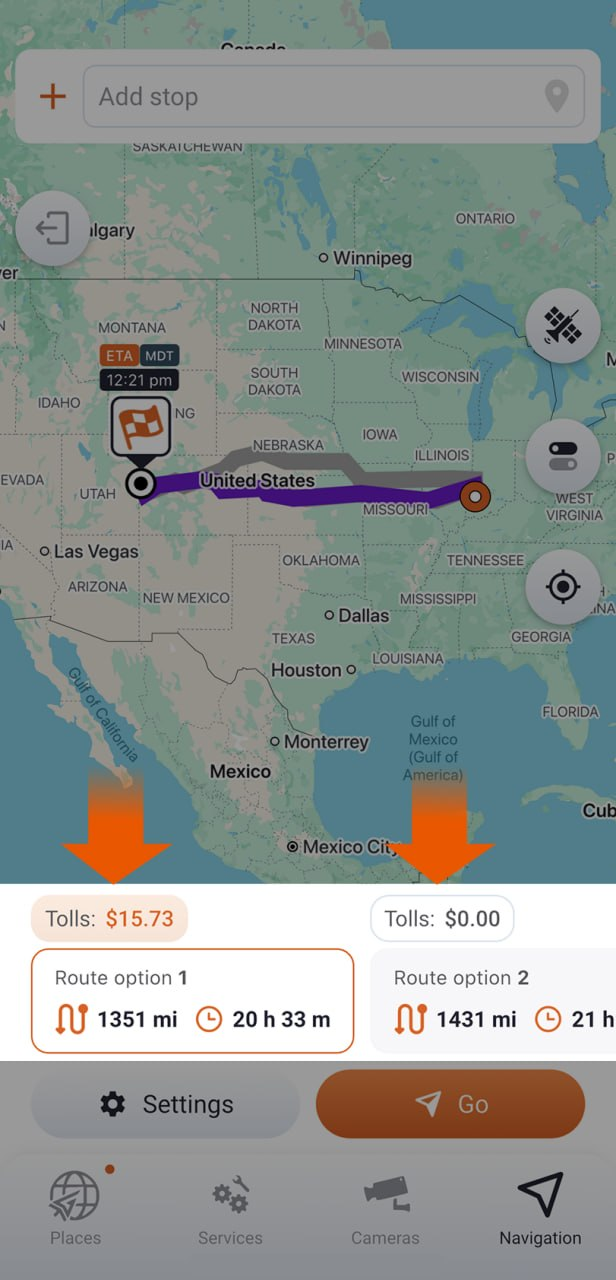
Review each option carefully. Check distance, estimated arrival time, and toll road availability so you can choose a route that fits both your schedule and your fuel budget. At this stage, also think ahead about where your fuel stops and breaks will fall based on your range and Hours of Service.
Once selected, your chosen route will appear as a clear line on the map. This route is the backbone for the rest of the steps, because all fuel comparisons will happen along this path.
Step 2. Add Points of Interest (Truck Stops)
Next, add truck stops to the map so you can see where you can actually fuel along the way.
Go to the bottom menu and choose the “Truck Stops” option. The app will show you a set of fueling options you can toggle on or off, such as:
- Local truck stops
- Love’s Travel Centers
- Pilot & Flying J
- TA Petro
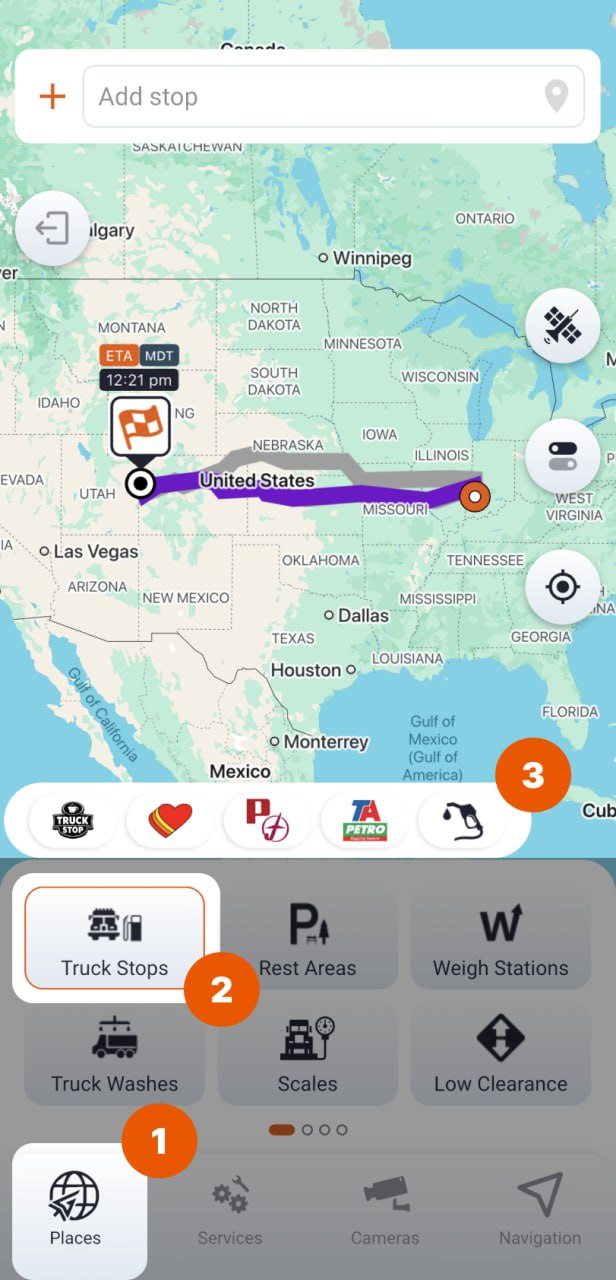
Now decide how you want to fuel on this trip. If you’re using a fuel card or company discounts, select only the chains that apply to you. The map will update and show those locations along your route, so you can compare diesel prices within your network and stay aligned with your fuel program.
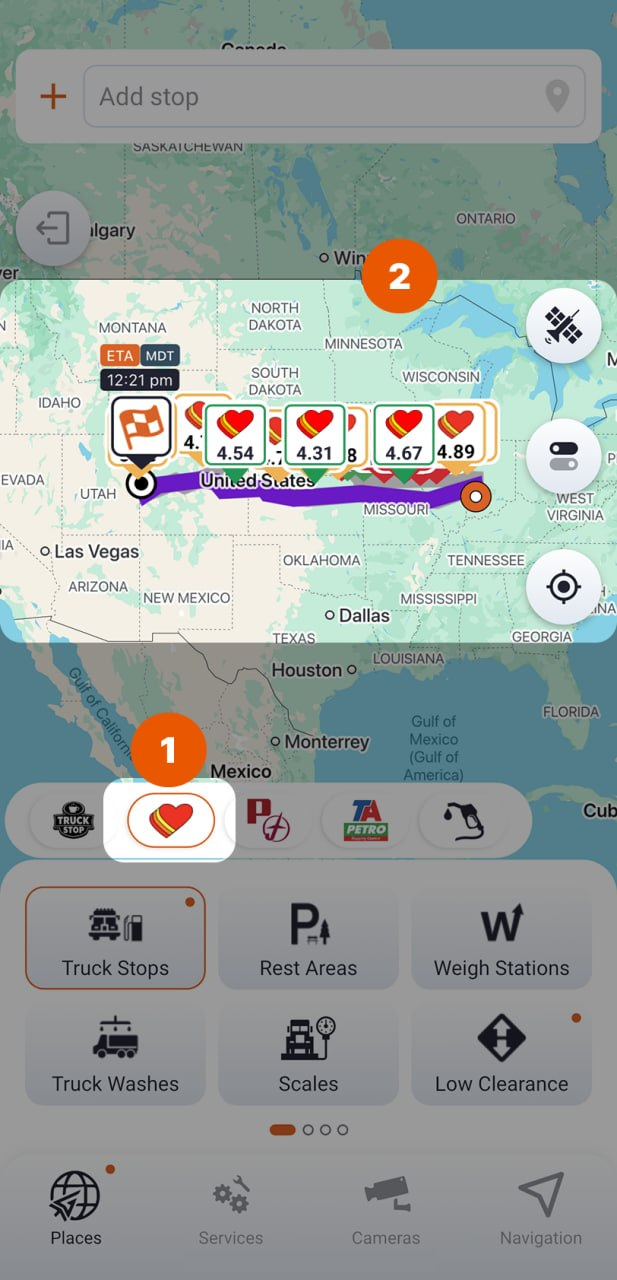
If your goal is to find the lowest price, tap “Truck Stops” again twice to enable all categories. This will display both major chains and independent stops, giving you a wider range of options along your route.
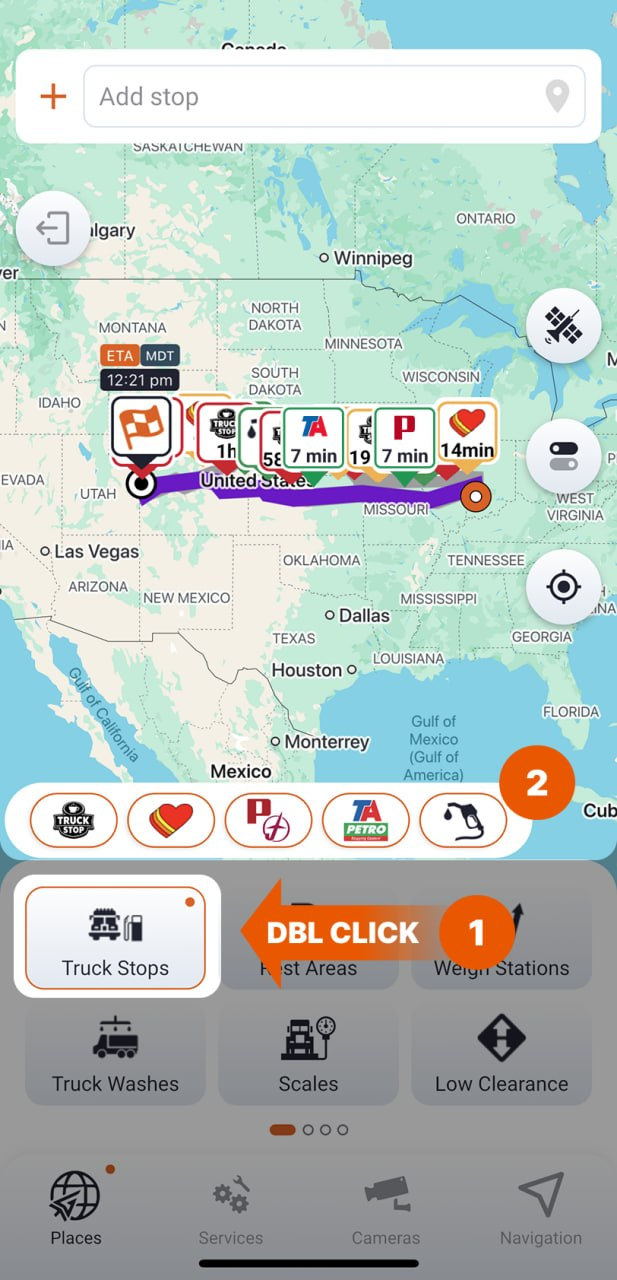
The map will update to show these truck stop icons along or near your route, so you can start to see where you’ll have fueling options.
Step 3. Switch the Map to Show Diesel Prices
On the map, each truck stop icon can display different information depending on your settings, such as parking availability (“1h”, “5 min”) or diesel prices.
If the map is showing parking status, switch it to diesel prices so you can compare fuel stops directly. Look to the right side of the screen and tap the “Settings” button.
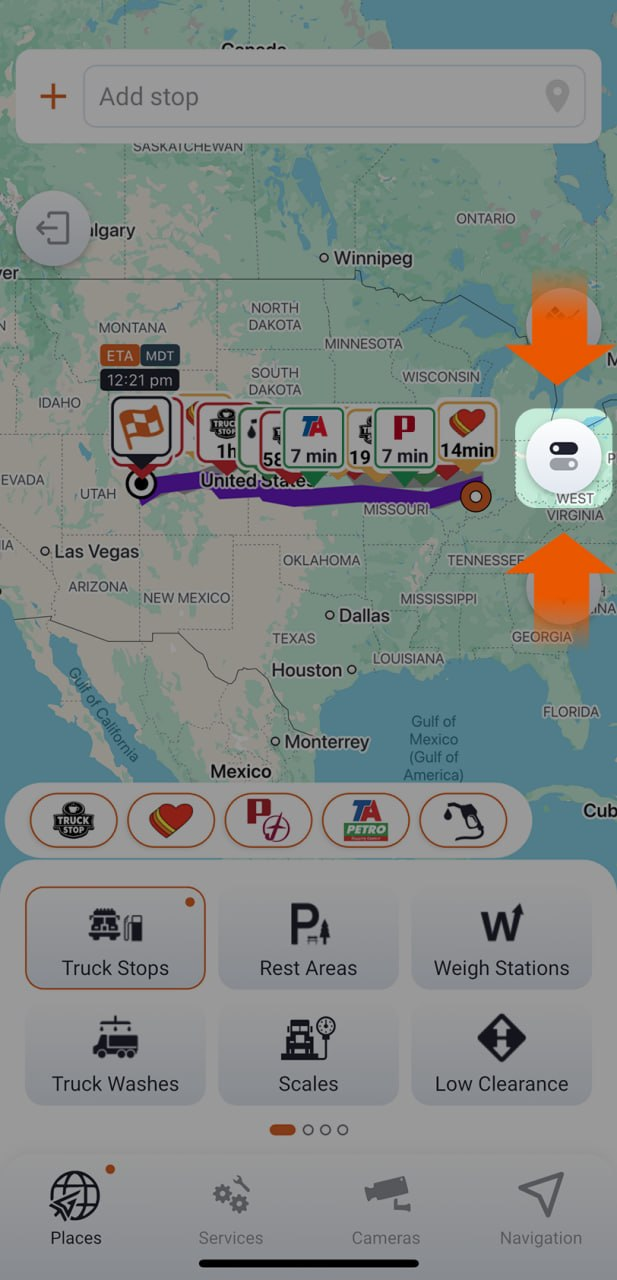
In the settings panel, find the option that controls what is displayed on truck stop icons and select “Diesel Prices.” The map will immediately update and replace parking information with fuel prices.
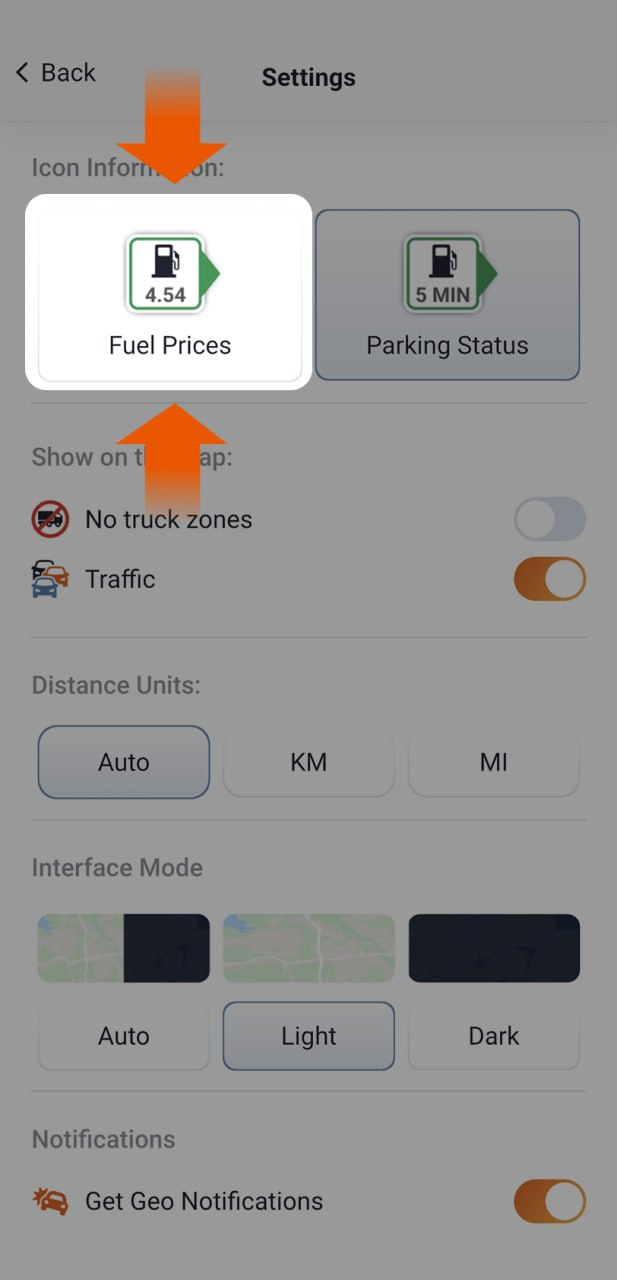
In the same panel, you can also adjust key driving preferences. You can allow or restrict no-truck zones depending on your route needs, as well as choose your preferred distance units, switch between light and dark interface modes for better visibility, and enable or disable turn-by-turn notifications.
Tap the “Back” button in the top left to return to the map.
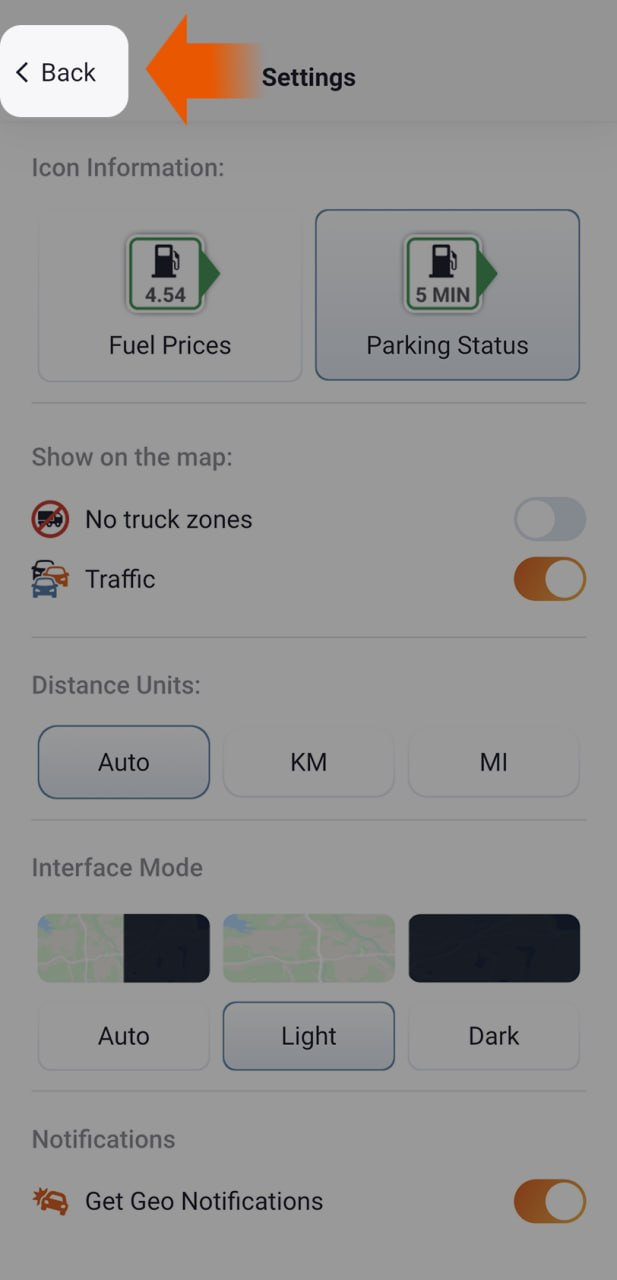
With this change, you can now see diesel prices across your entire route at a glance. This removes the need to open each stop individually and makes it easier to spot cheaper fuel prices.
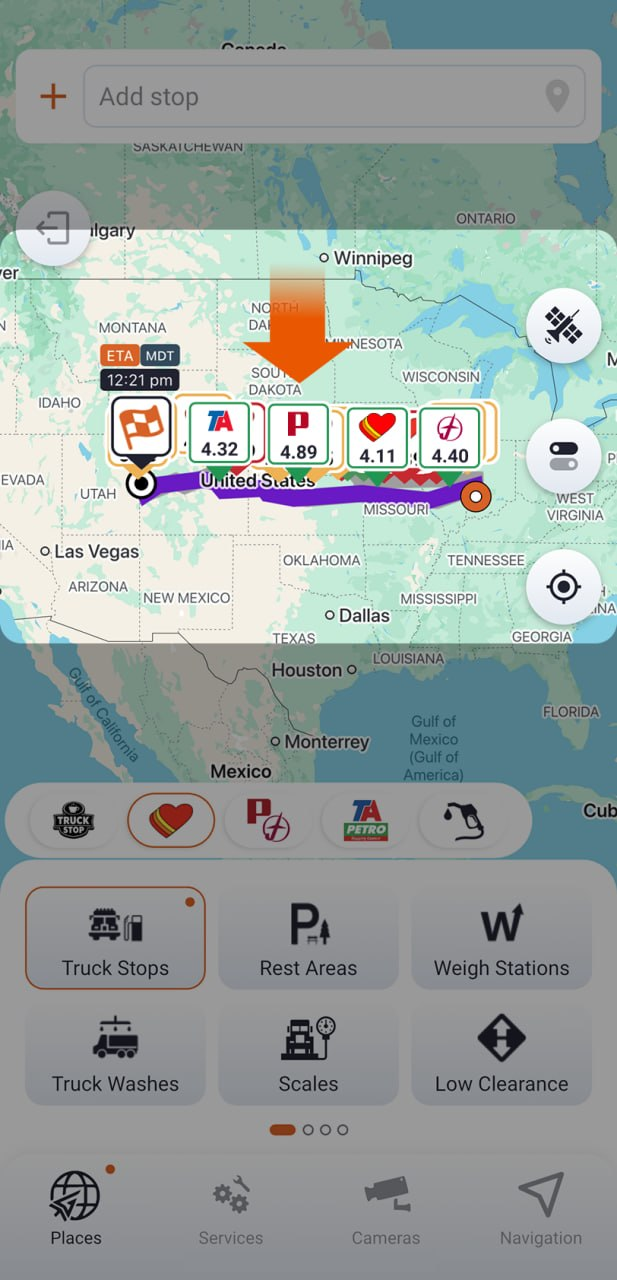
Step 4. View and Compare Fueling Options
With diesel prices visible, scroll along your route and look at the truck stop icons. Each one now shows its current price, allowing you to quickly compare options as you move forward on the map. When you find a location with a good price, tap the icon to open its information card.
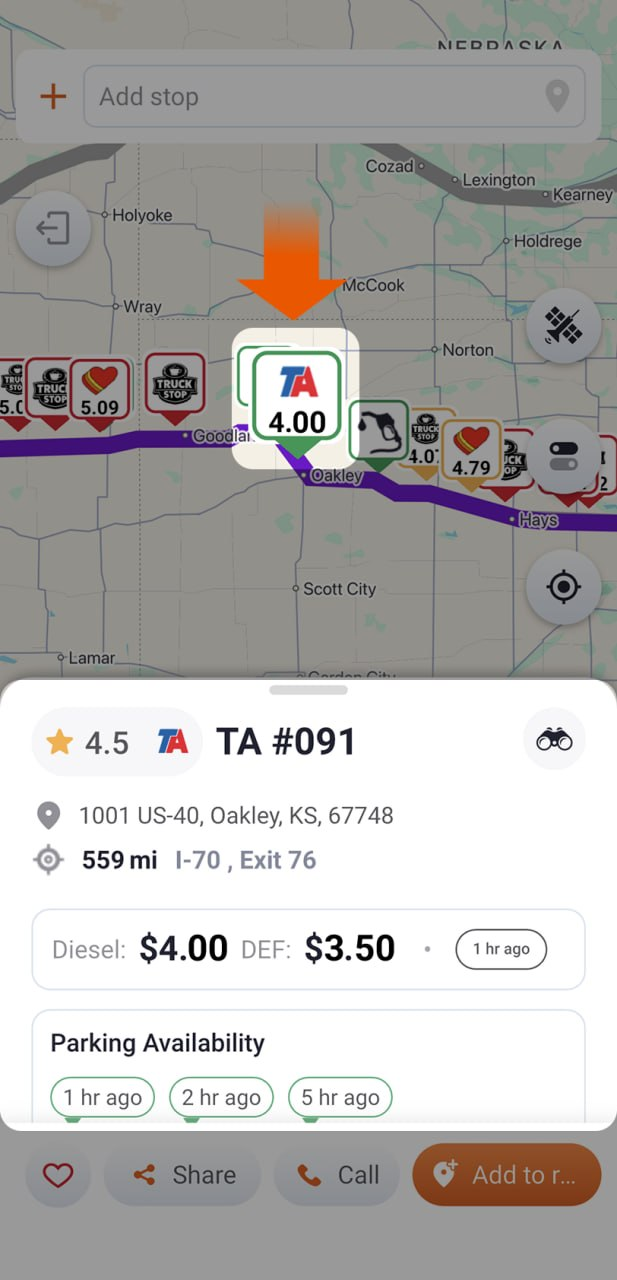
Then scroll through the card to review all available details:
- Address
- Diesel price section
- Truck parking availability
- Amenities (amount of parking, showers, services)
- Contact information
- Restaurants
- User reviews
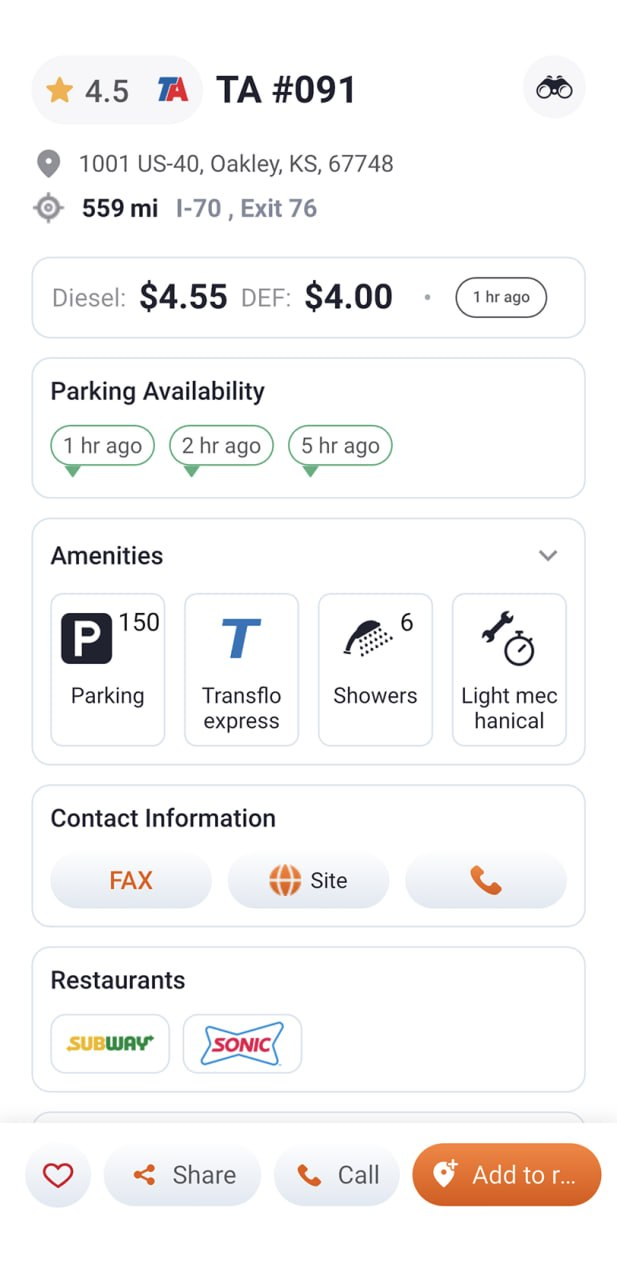
This step helps you confirm the stop is not only cheaper, but also practical. Checking parking and reviews helps avoid situations where a low-price stop is overcrowded or difficult to access, which can cost time and fuel.
If you need a better understanding of the location, switch to Satellite View.
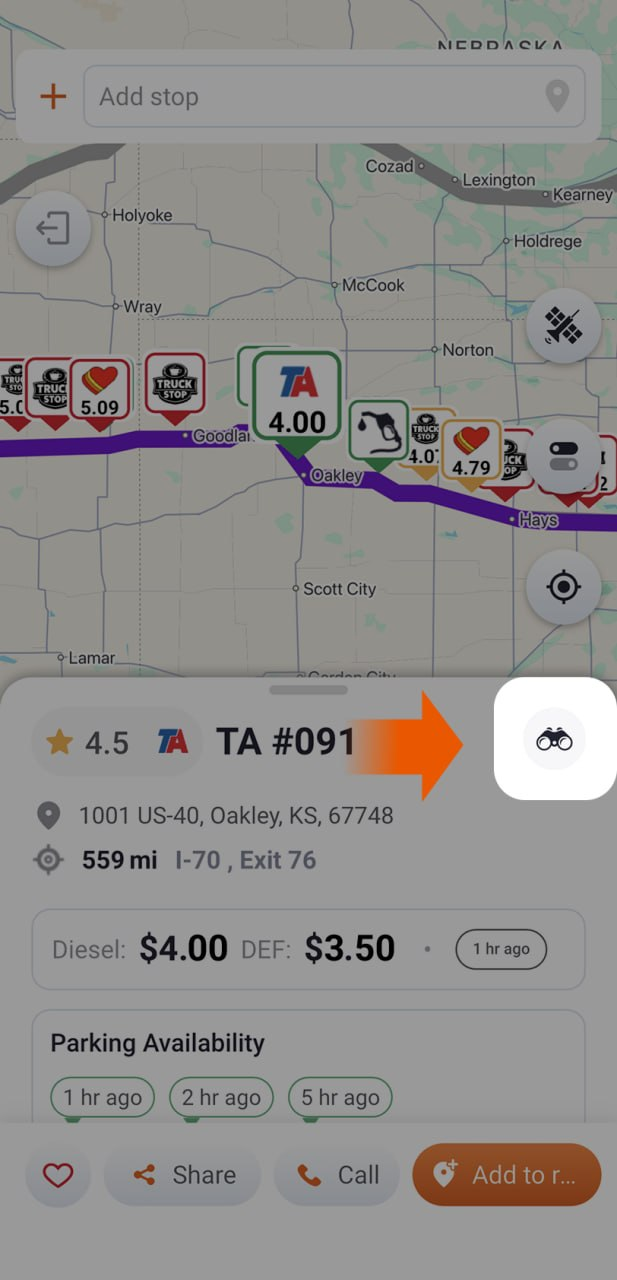
This allows you to see the actual layout, like entrances, fueling lanes, and parking areas, so you can judge whether it’s easy to get in and out, especially in tighter or unfamiliar locations.
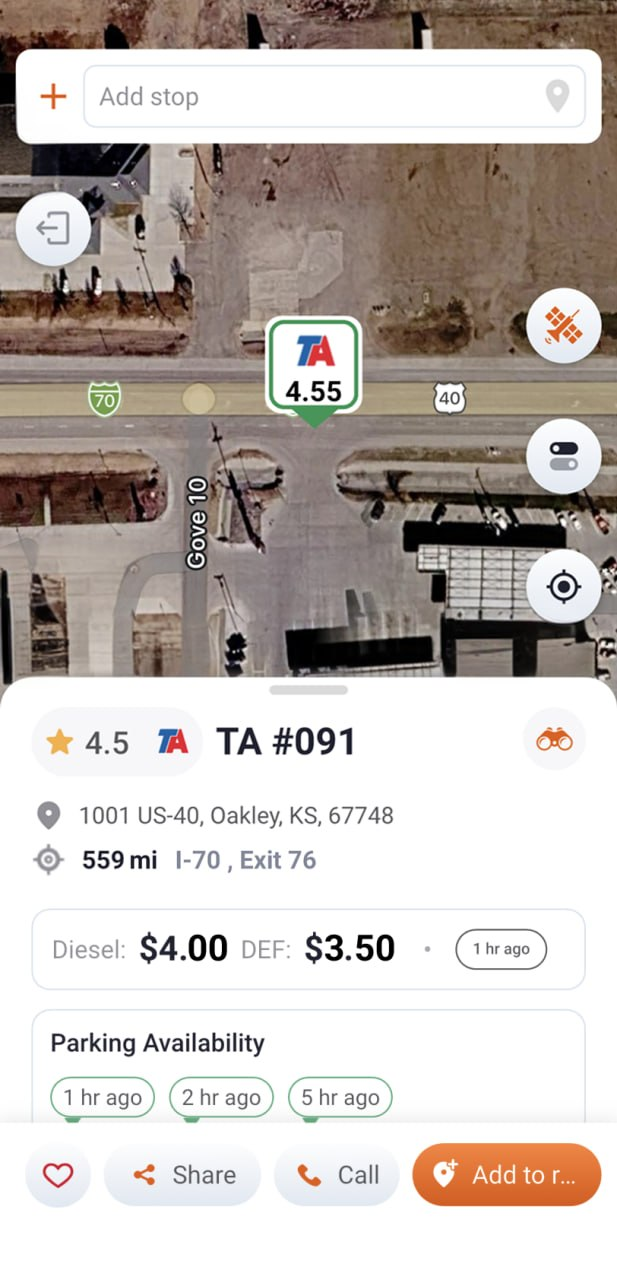
Step 5. Review the Route and Traffic Conditions
Saving money on fuel only helps if you’re not losing that savings in time and extra miles. Before adding a fuel stop to your trip, check the road and traffic conditions around it.
Look at traffic flow on the map first, then confirm with cameras. Tap the “Cameras” button in the menu and select a road camera close to your planned location or along the approach.
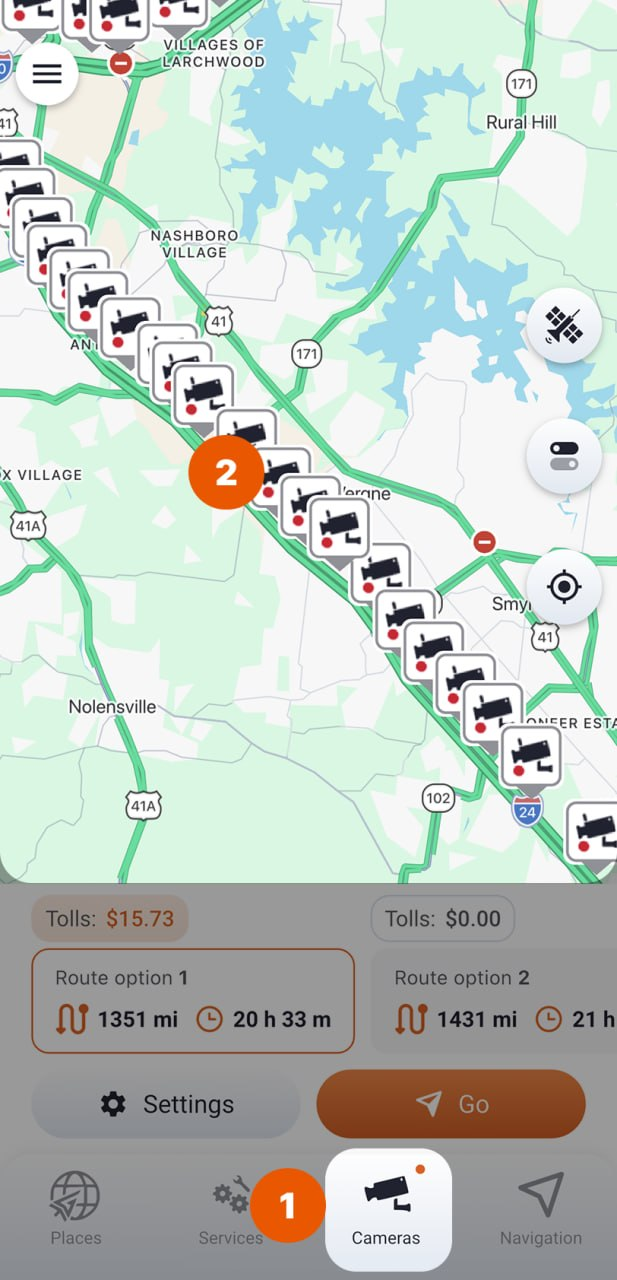
This gives you a real-time view of what’s actually happening on the road, helping you confirm whether delays are minor or something that could slow you down significantly.
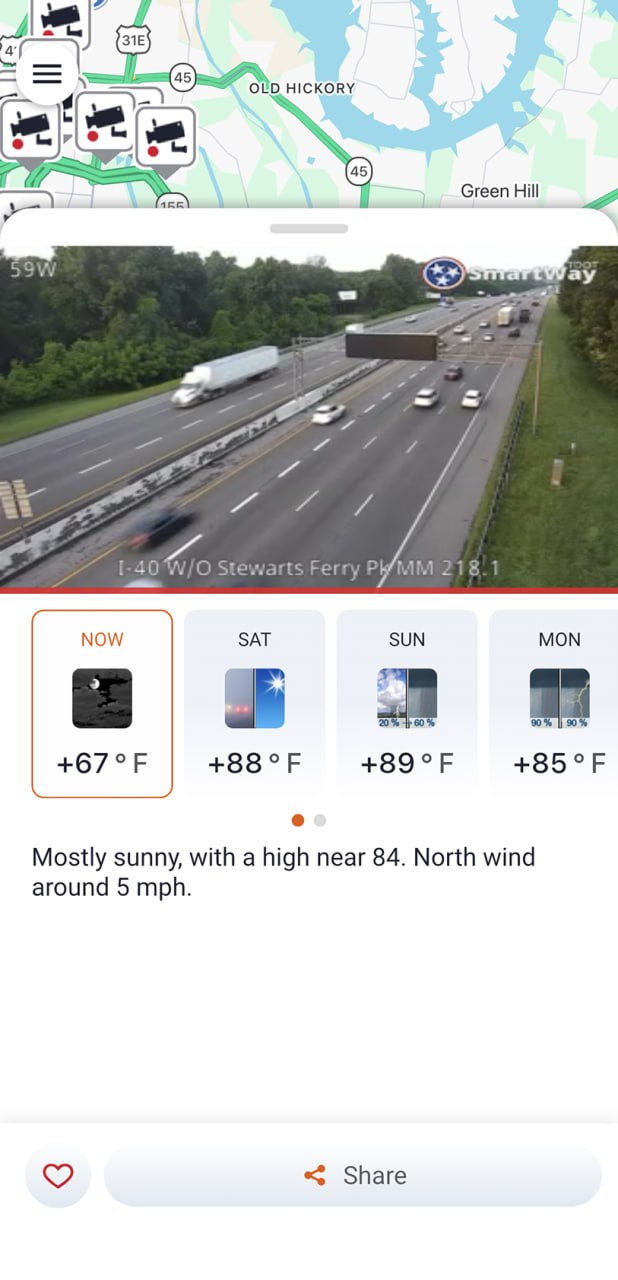
Using both the map and cameras together helps you avoid stops that look good on price but are inefficient to reach, so you keep both your time and fuel savings intact. Tap the “Cameras” button again to return to your map view.
Step 6. Add a Location to Your Route
When you’ve chosen a stop, tap it again to open the card and select “Add to Route.”
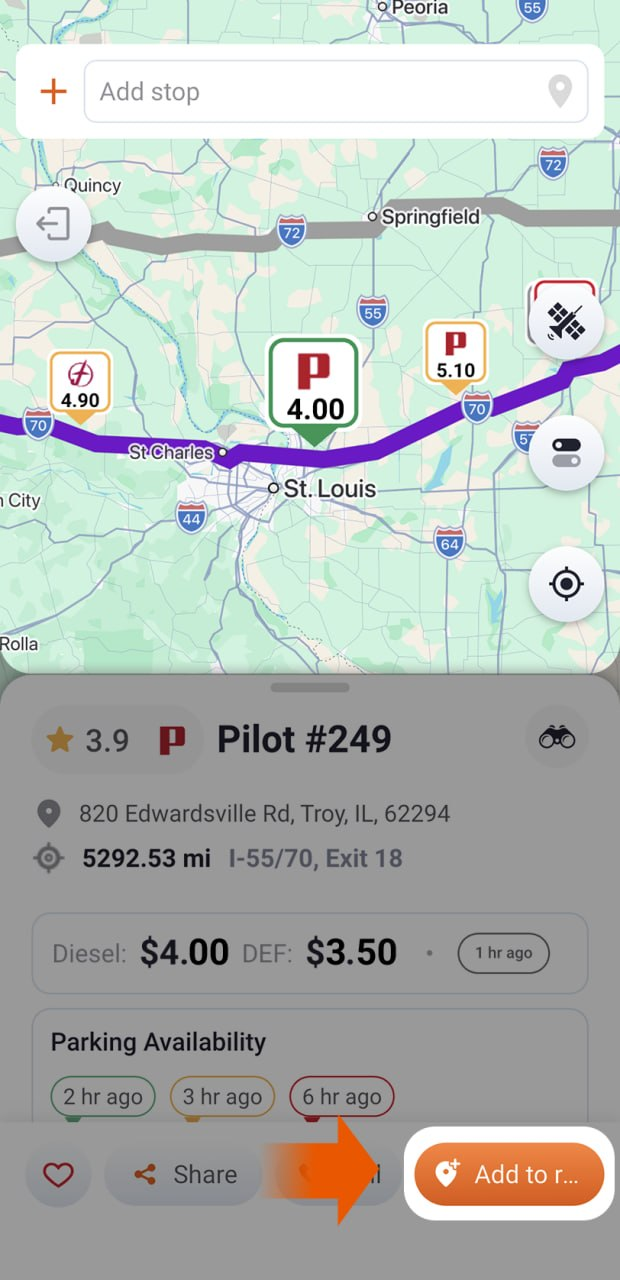
Trucker Guide will automatically rebuild your route and add the stop as a waypoint. The navigation line updates immediately, keeping your route truck-safe and aligned with your destination.
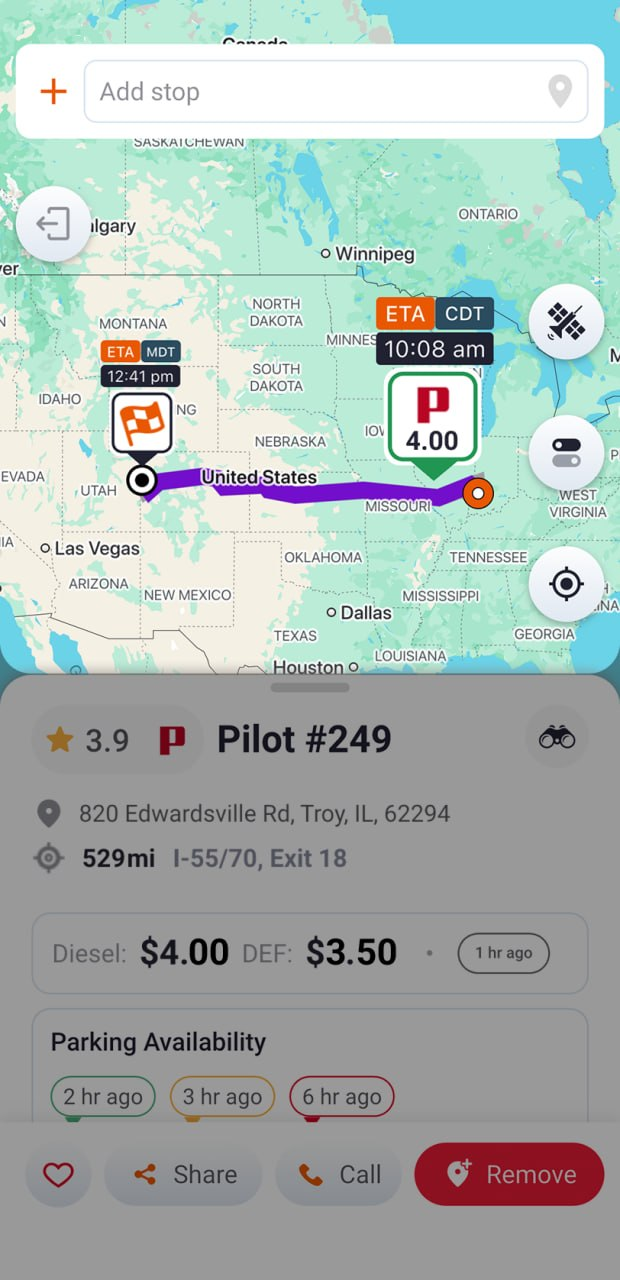
Before you start driving, take a moment to review the updated route. You can add additional POIs the same way if you want to plan fuel, rest, or parking stops in advance. This gives you a more complete and predictable trip instead of making decisions on the fly.
Once everything looks right, tap “Go” to start navigation.
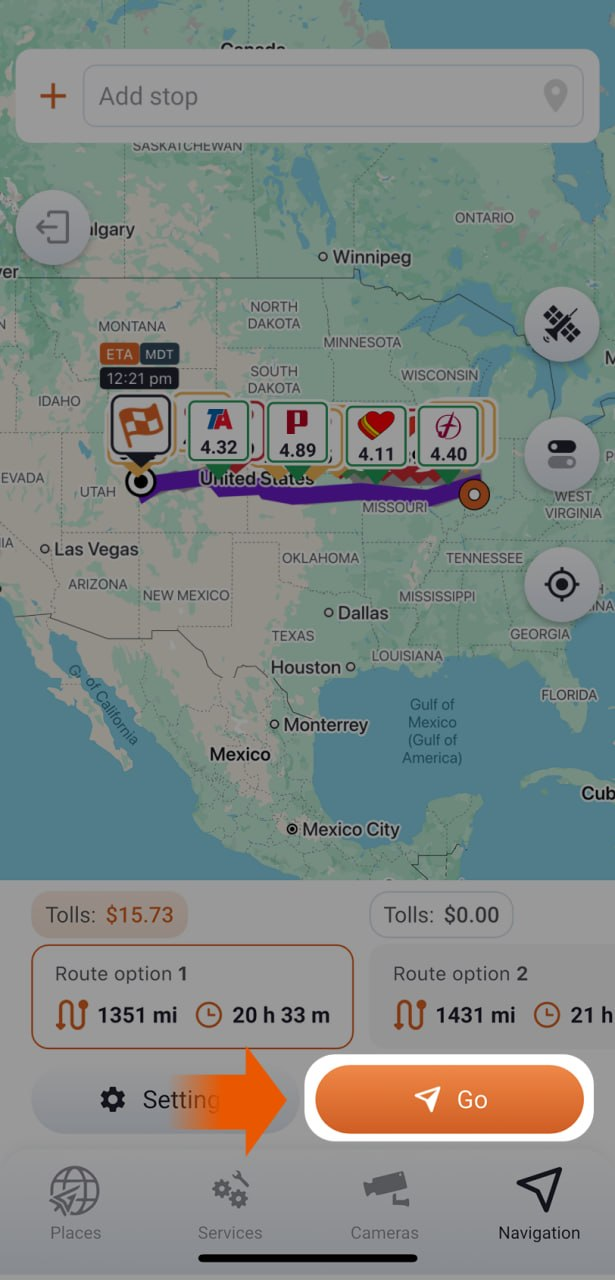
While navigating, you can adjust your plan at any time. Traffic builds up, fuel prices shift, or a better stop appears ahead. Instead of restarting your route, tap your current stop on the map or navigation bar and hit “Remove” to swap it out.
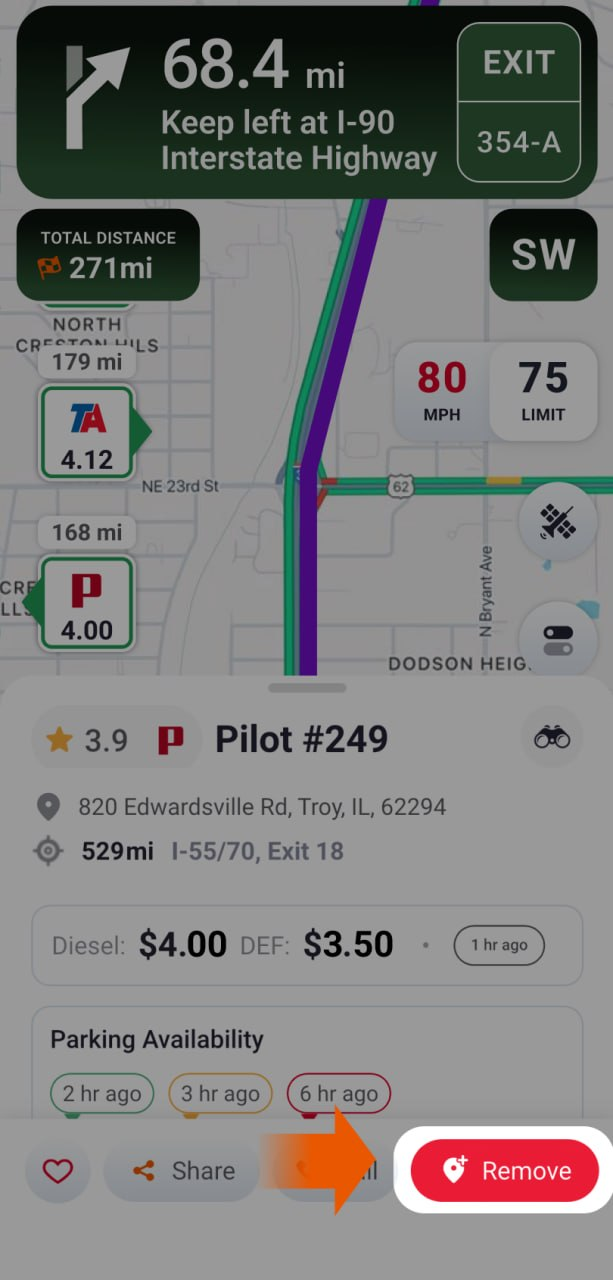
This keeps you flexible while you’re on the road, so you can react to better options as they appear instead of sticking with the first choice. Using Trucker Guide this way turns fuel planning into a controlled part of your operation instead of a last-minute decision.
Frequently Asked Questions
Which trucking app shows the cheapest diesel prices along a route?
Trucker Guide shows the cheapest diesel prices along your route by displaying real-time truck stop fuel prices directly on your navigation map. You can compare diesel prices at a glance and identify low-cost diesel locations.
What is the best fuel price locator app for US truck stops?
Trucker Guide is the best fuel price locator app for US truck stops. It combines real-time diesel price tracking with truck-safe routing, over 450K points of interest, and offline functionality to help you find affordable fuel on roads that work for your rig.
Can I find low-cost diesel locations before I start driving?
Yes. Once you build your route, switch the map to show diesel prices and scan ahead for cheaper fuel. This lets you make fuel decisions before you get low, not when forced to stop.
Does Trucker Guide update diesel prices in real time?
Yes. Trucker Guide provides real-time diesel price tracking from actual truck stop transactions, updated multiple times daily.
Can I adjust my fuel stop while navigating?
Yes. While navigating, you can add a new fuel stop by selecting it on the map and tapping “Add to Route.” To remove your current stop, select it and tap “Remove.” This lets you switch to better prices or avoid traffic without restarting navigation.
How much money can I save by comparing diesel prices on my route?
Saving $0.15–$0.30 per gallon on a 100–150 gallon fill equals $15–$45 per stop. Over multiple fills weekly, this becomes hundreds monthly and thousands yearly.


