



Trucker Guide 6.0.3 Update: New Route Planning & Navigation Features for Drivers

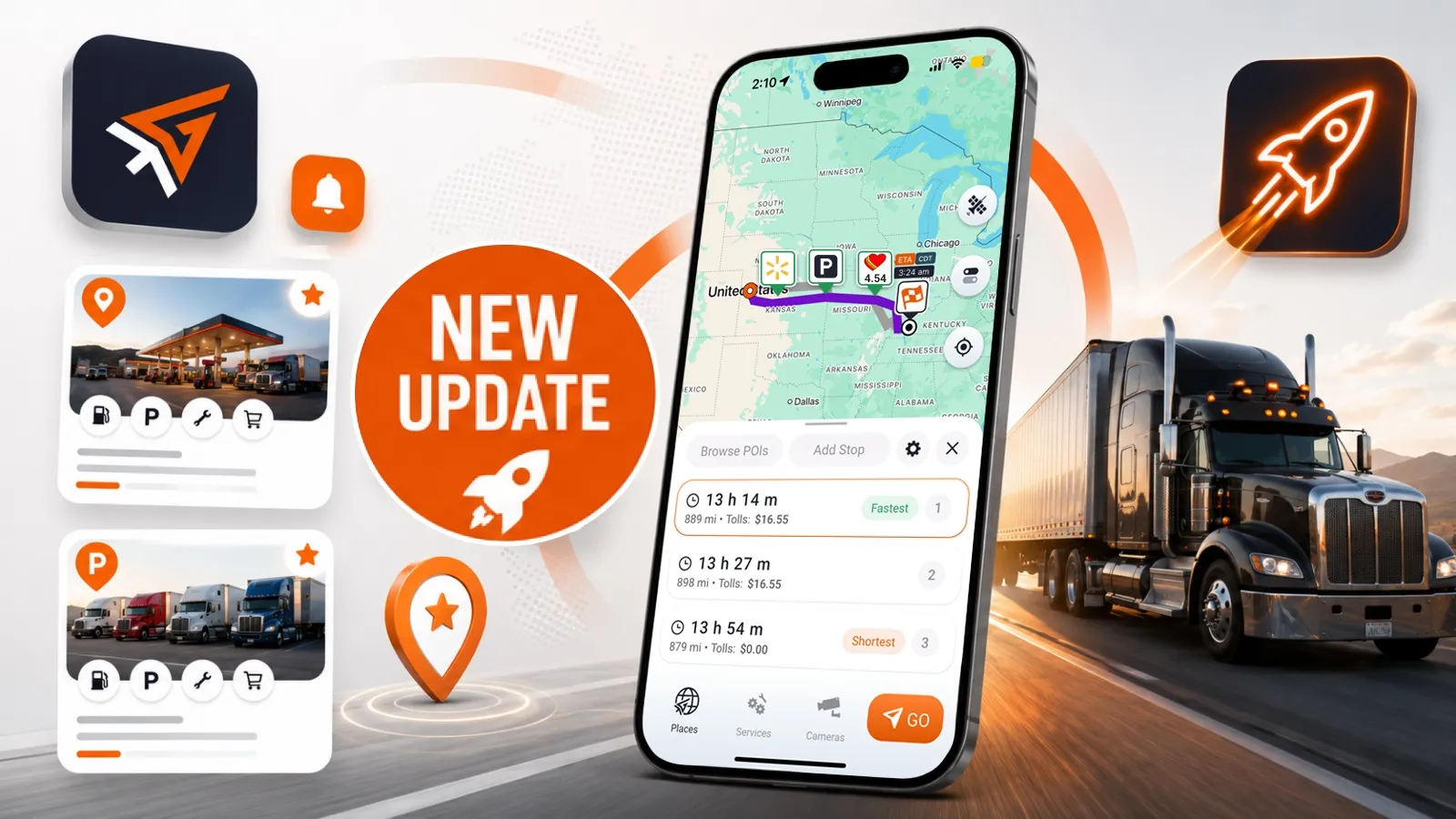
The latest Trucker Guide version 6.0.3 introduces a redesigned navigation system focused on faster route planning, easier access to important locations, and a smoother workflow for professional drivers.
This update brings a cleaner interface, a new route selection process, improved navigation screens, and practical tools that make everyday trip planning easier for professional drivers.
Key Updates:
- Redesigned home screen with faster access to search and saved places.
- Smarter location search with instant place suggestions.
- Improved Favorites management and custom saved pins.
- New route comparison flow with up to three route options.
- Faster access to truck settings, 450K+ POIs, and additional stops.
- Cleaner navigation and improved location cards.
.webp)
New Home Screen Layout
The updated home screen uses a new bottom panel layout that keeps the most important actions available without opening additional screens. The search bar is now always visible at the bottom, so drivers can start searching right away instead of opening a separate view.
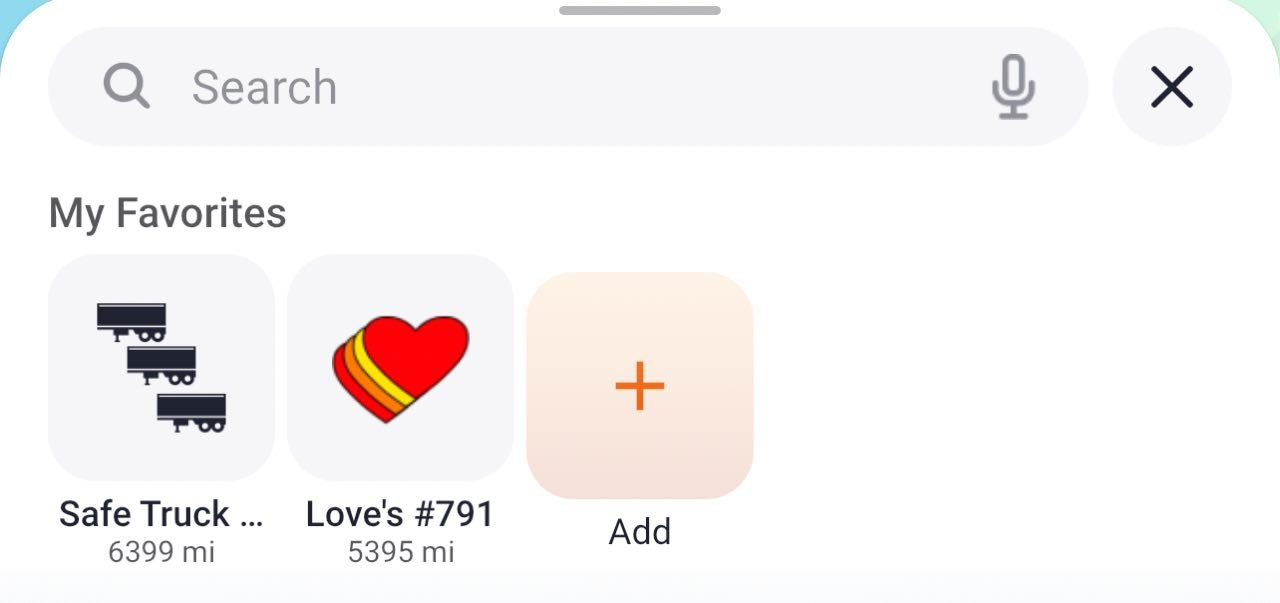
Just above it, My Favorites gives quick access to saved locations, while the main bar with Places, Services, Cameras, and Navigation stays exactly where users expect it.
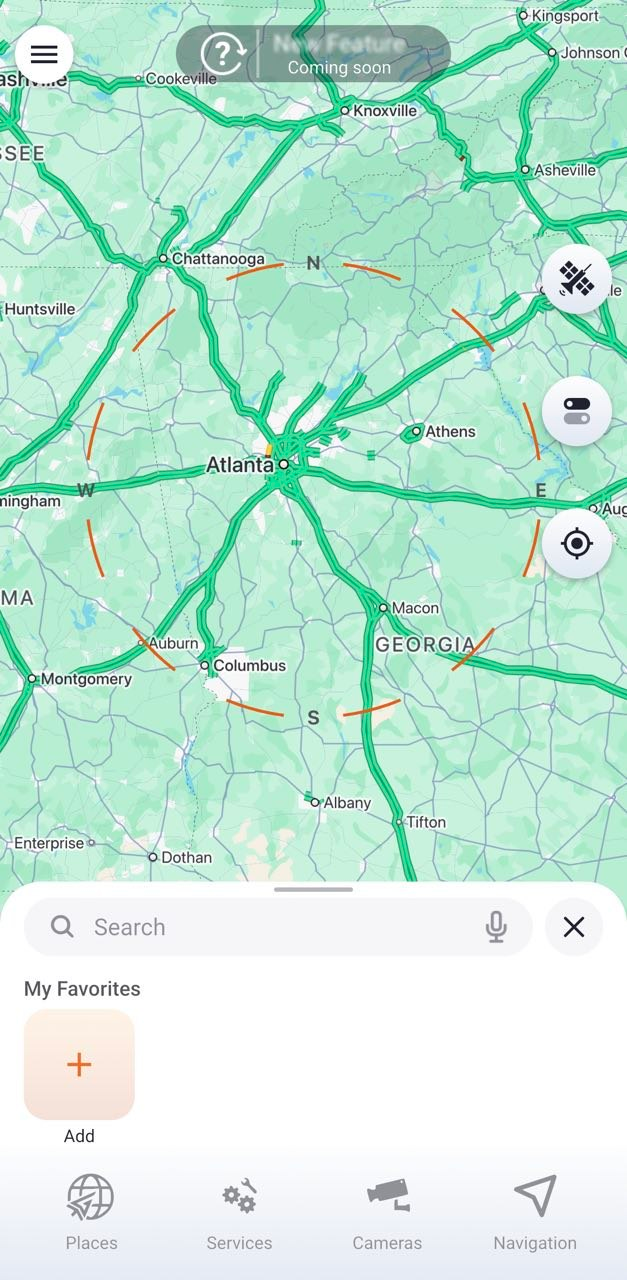
This change makes the home screen a true command center for everyday trips. Drivers can search for destinations, return to saved locations, and begin navigation faster, with a smoother experience and fewer steps.
Smarter Search Experience
Search now plays a more central role in the app experience. Drivers can enter a location name, such as “Love’s”, and instantly receive relevant suggestions for nearby places.
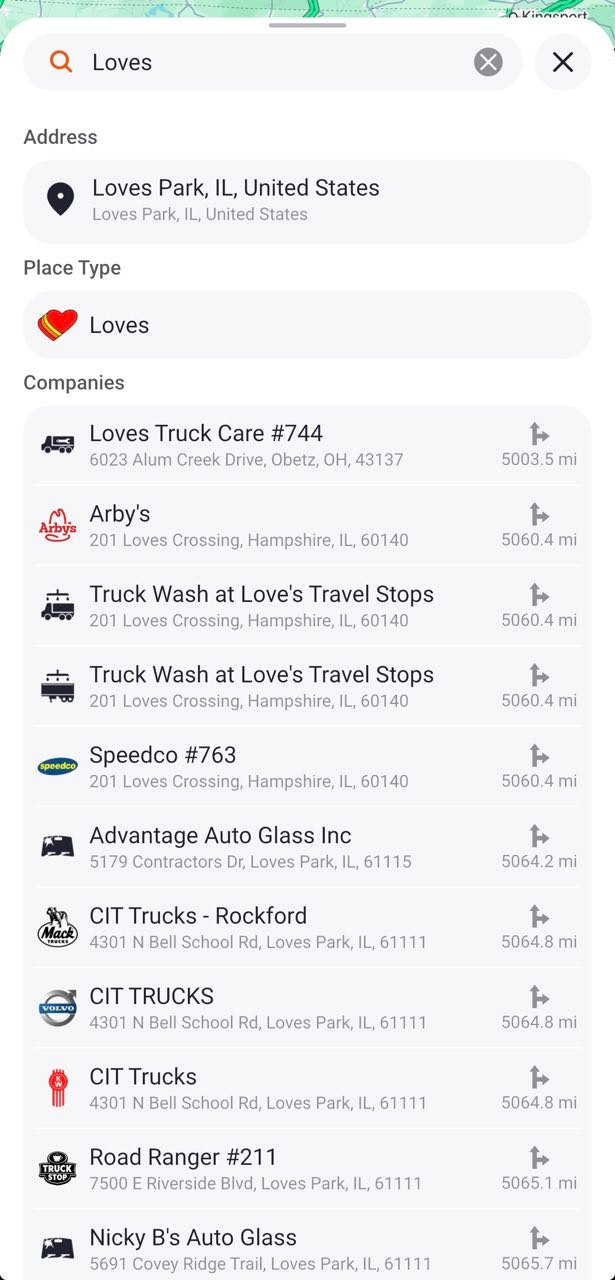
After selecting a result, the map automatically updates to display matching locations in the selected area.
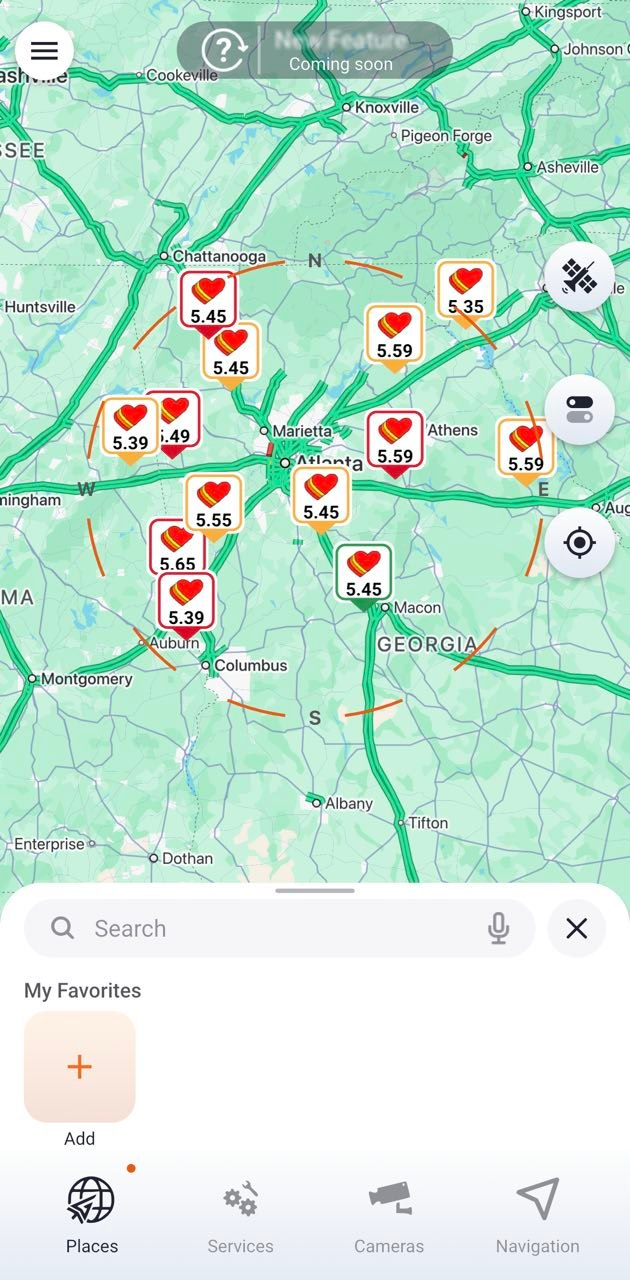
This turns search into a route planning tool rather than just a location lookup feature. It helps drivers explore available options, compare nearby businesses, and choose the right stop before adding it to their route.
For drivers who need to make quick decisions on the road, this creates a faster and more efficient planning experience.
Easier Way to Save Places
The new flow also makes it easier to save important locations. A place can be opened from the map, reviewed in its card, and saved with the “❤️” icon.
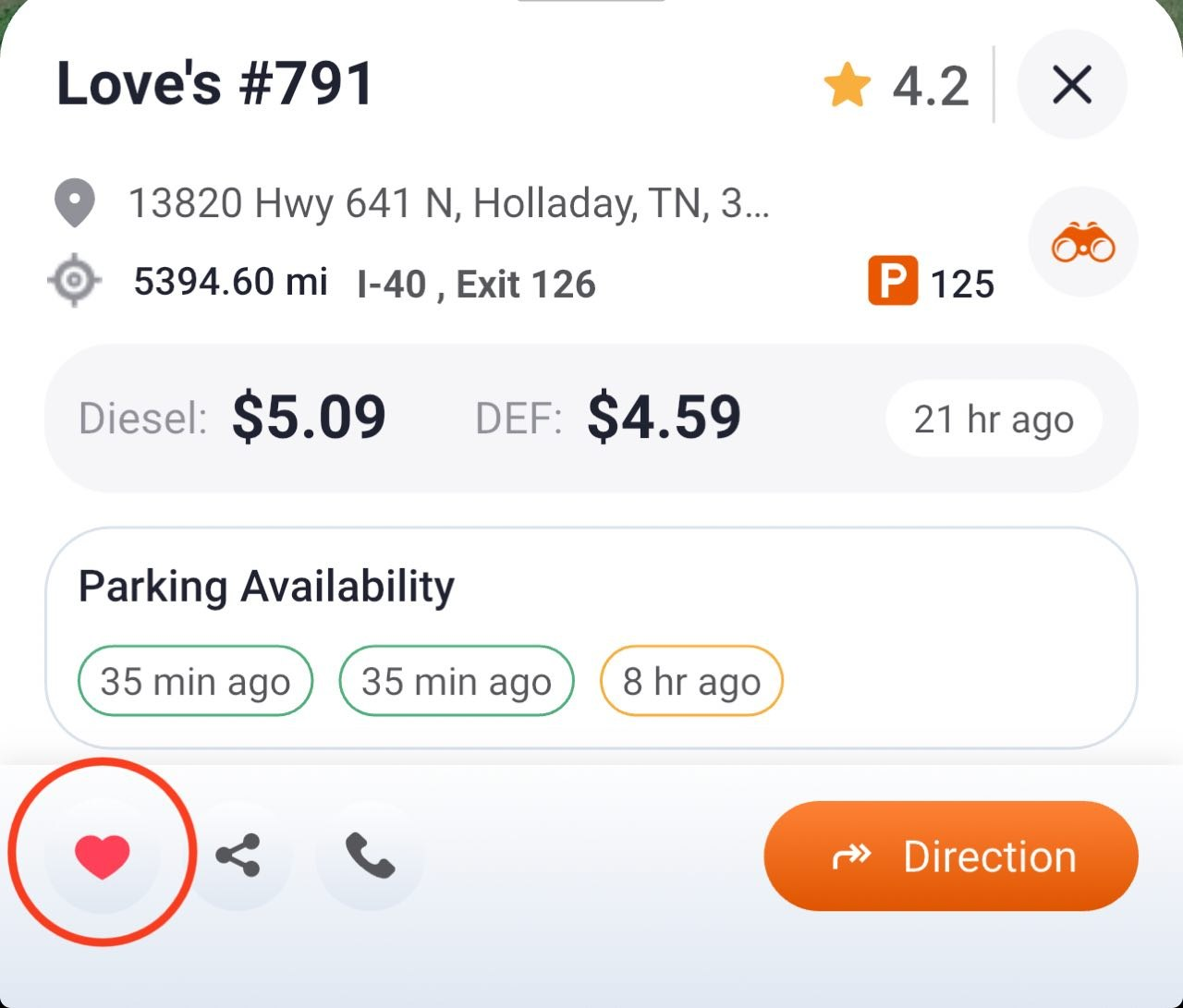
If you want to add a location manually, the Add button under the search bar provides another path.
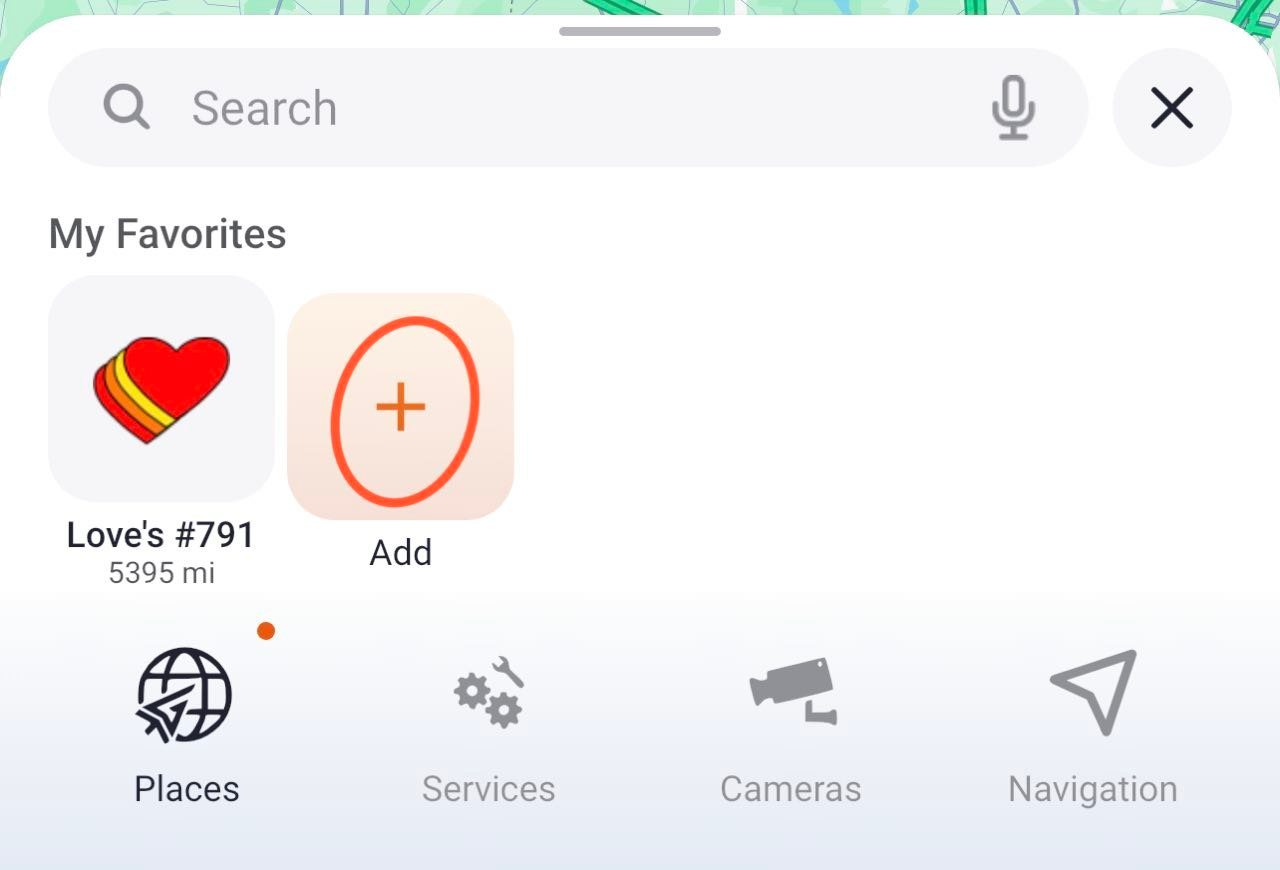
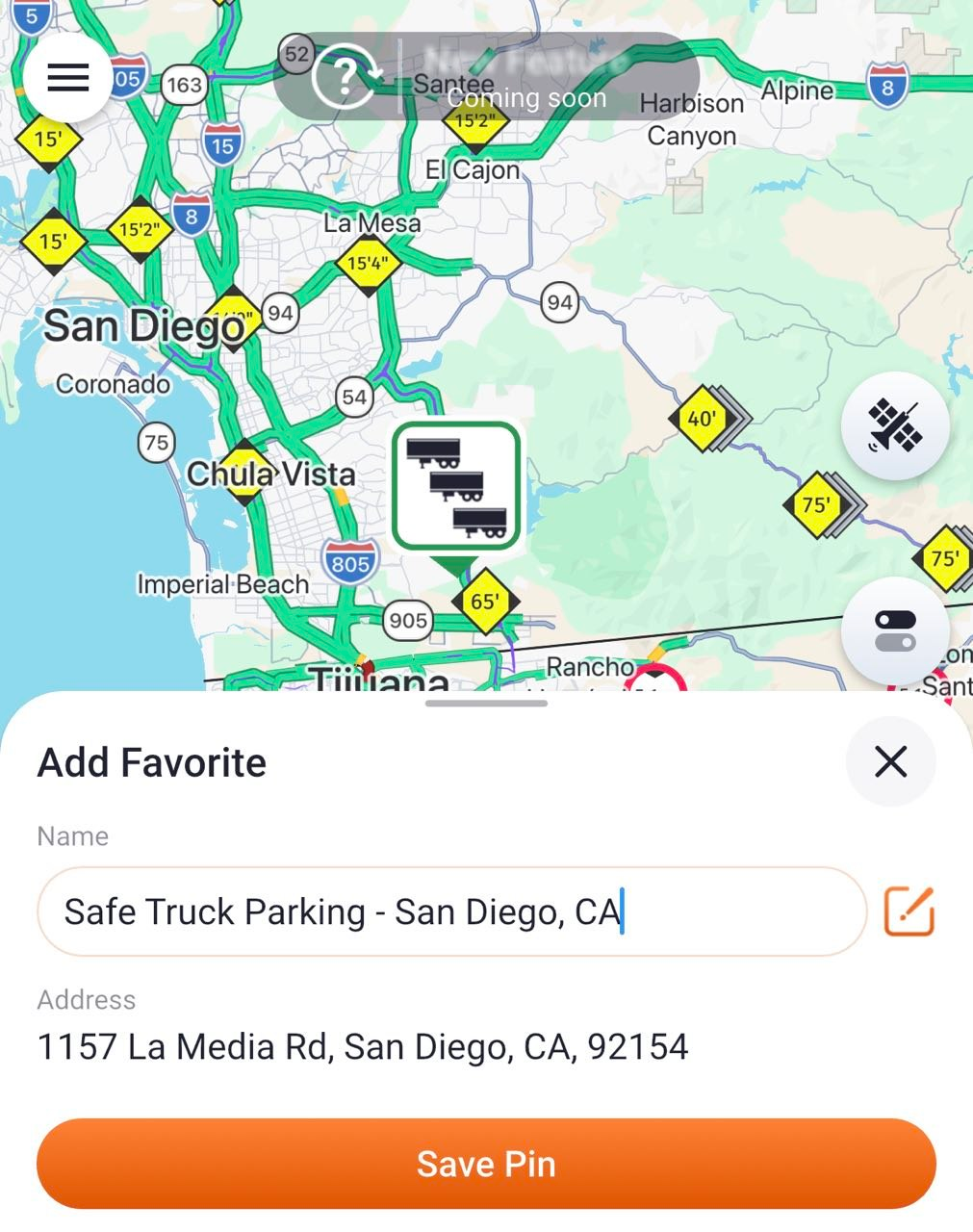
From there, you can search for a place, review the suggested result, adjust the name if needed, and save it as a pin. This gives drivers more control over how locations are organized and makes the process fit better into their own workflow.
You can also reorder your saved places, keeping your most frequently used or important locations at the top for quicker access.
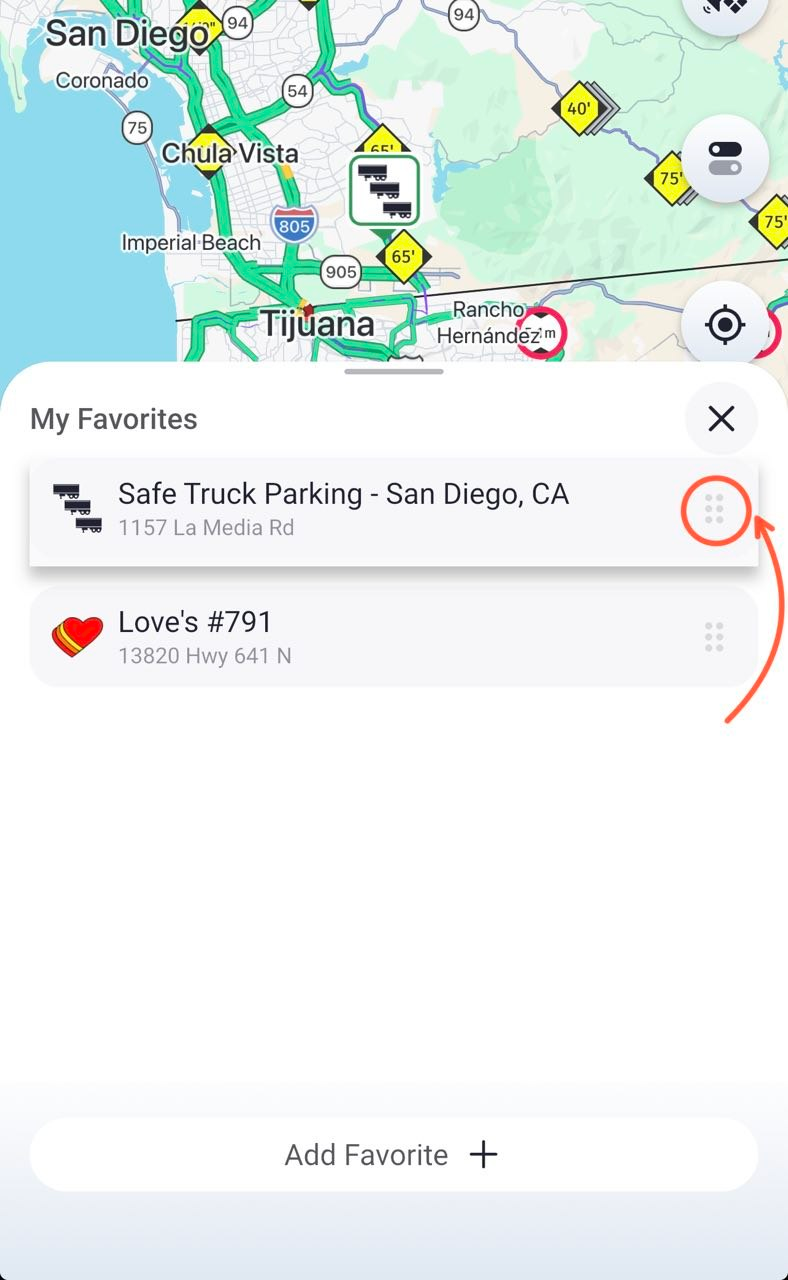
All saved locations are collected in My Favorites, which now acts as a quick access area for the places drivers use most often. This is especially useful for repeat routes, regular stops, and personal planning.
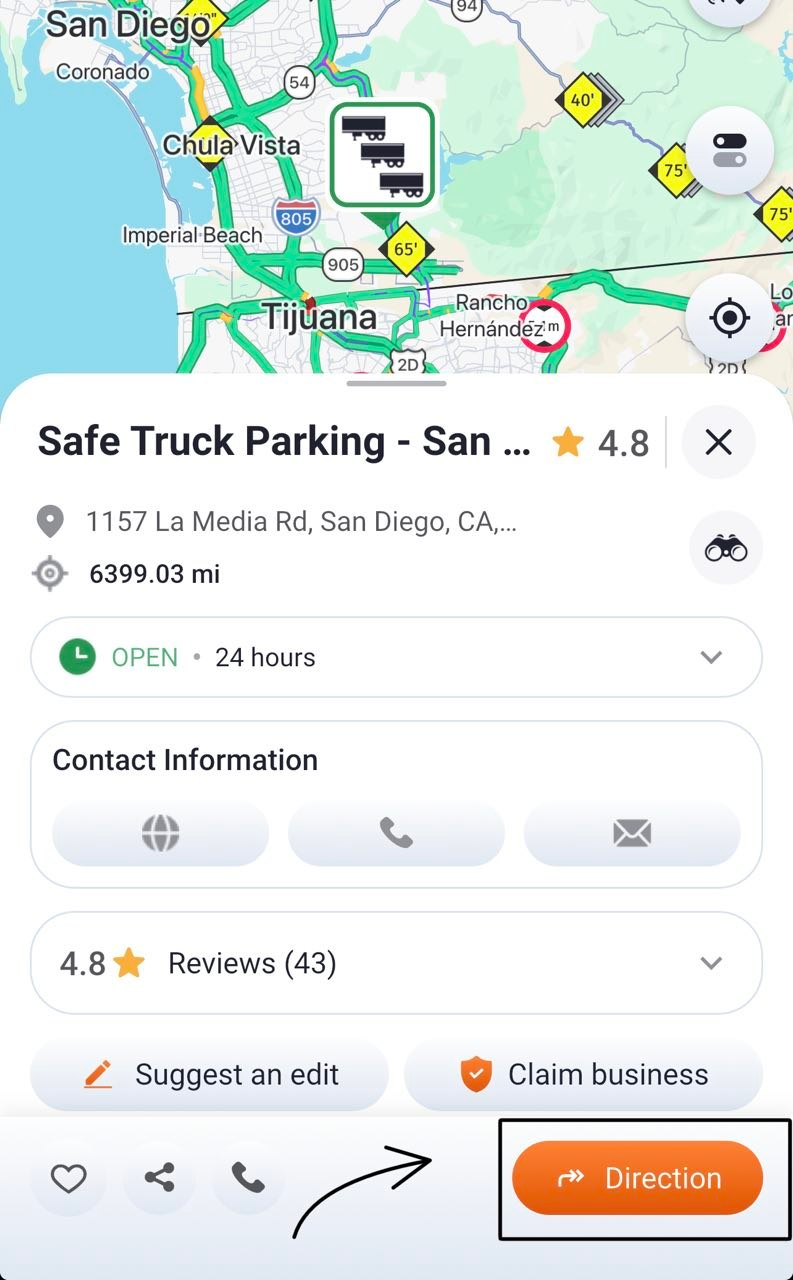
Once a location is selected, the next step is routing. Tap the saved place to open its card, then press Direction to generate route options.
From there, the updated route experience gives drivers a clearer structure for planning the trip.
More Structured Route Flow
Instead of immediately starting navigation, drivers can now review available routes before committing. This makes it easier to balance priorities such as arrival time, toll costs, and travel distance.
The fastest route is clearly highlighted, helping drivers quickly identify the recommended option while still having the flexibility to choose the route that best fits their needs.
You May Also Like: 7 Routing Checks for Truck Navigation App in 2026
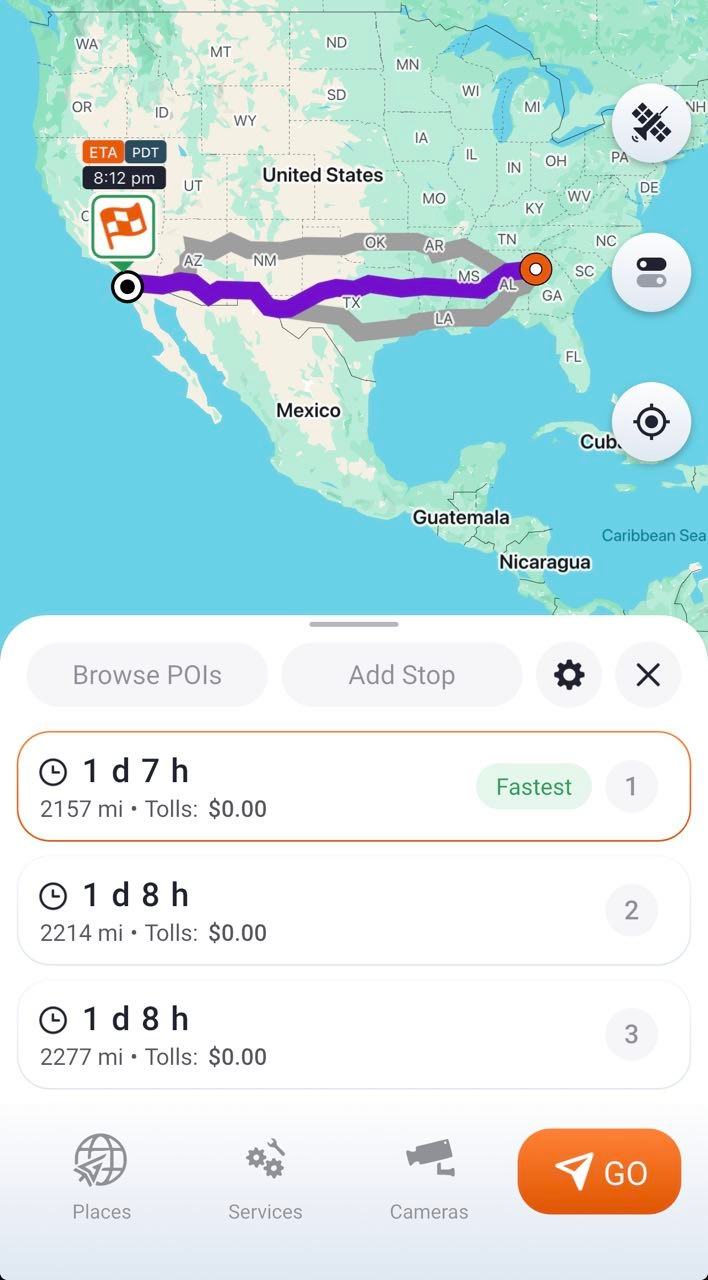
This is also where the new route tools become especially useful.
- Browse POIs helps you find additional locations along your route. Easily add essential truck stops, services, and other points of interest you may need during your trip.
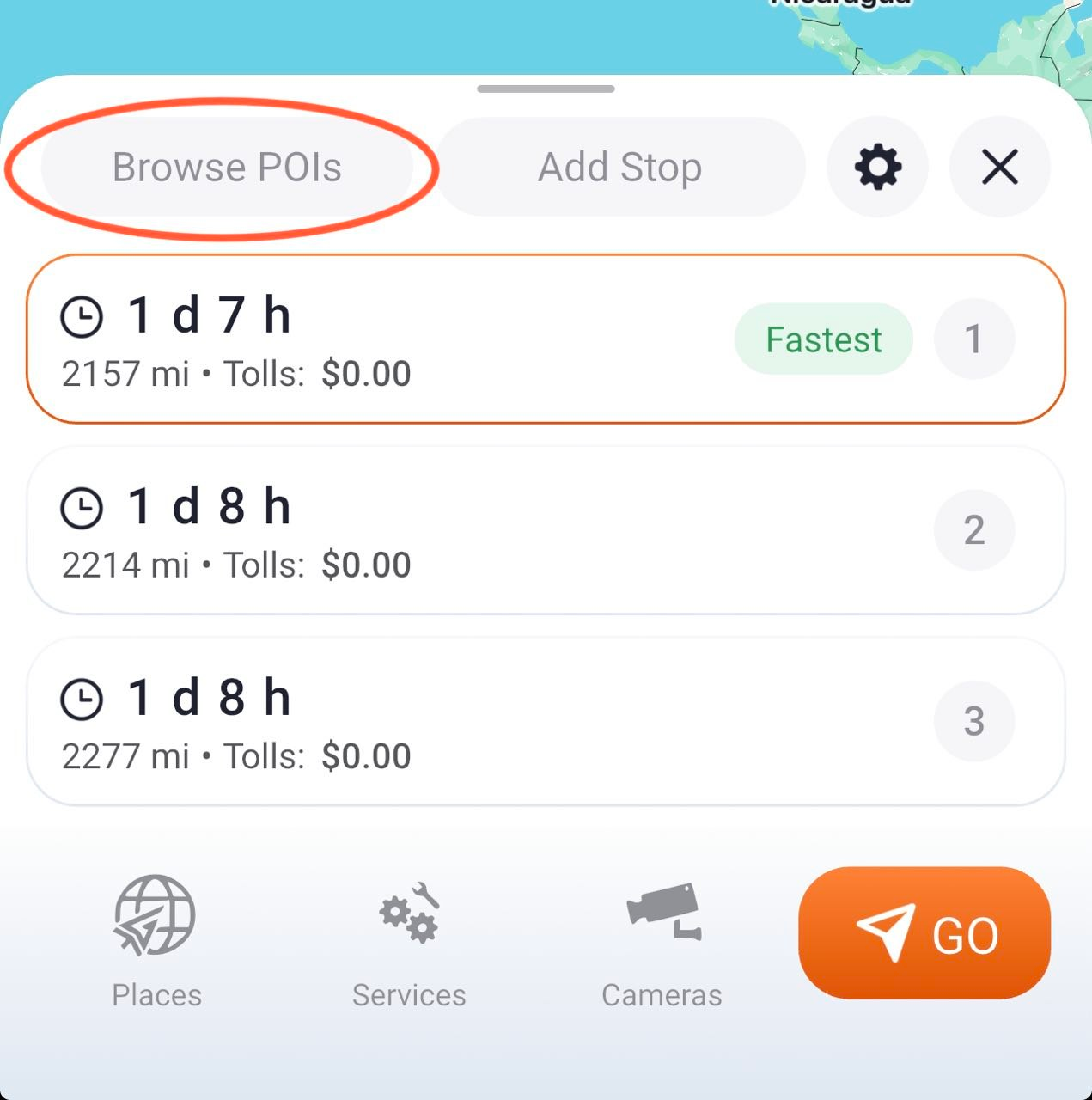
- Add Stop lets you insert an additional stop into your route without having to rebuild your trip from scratch.
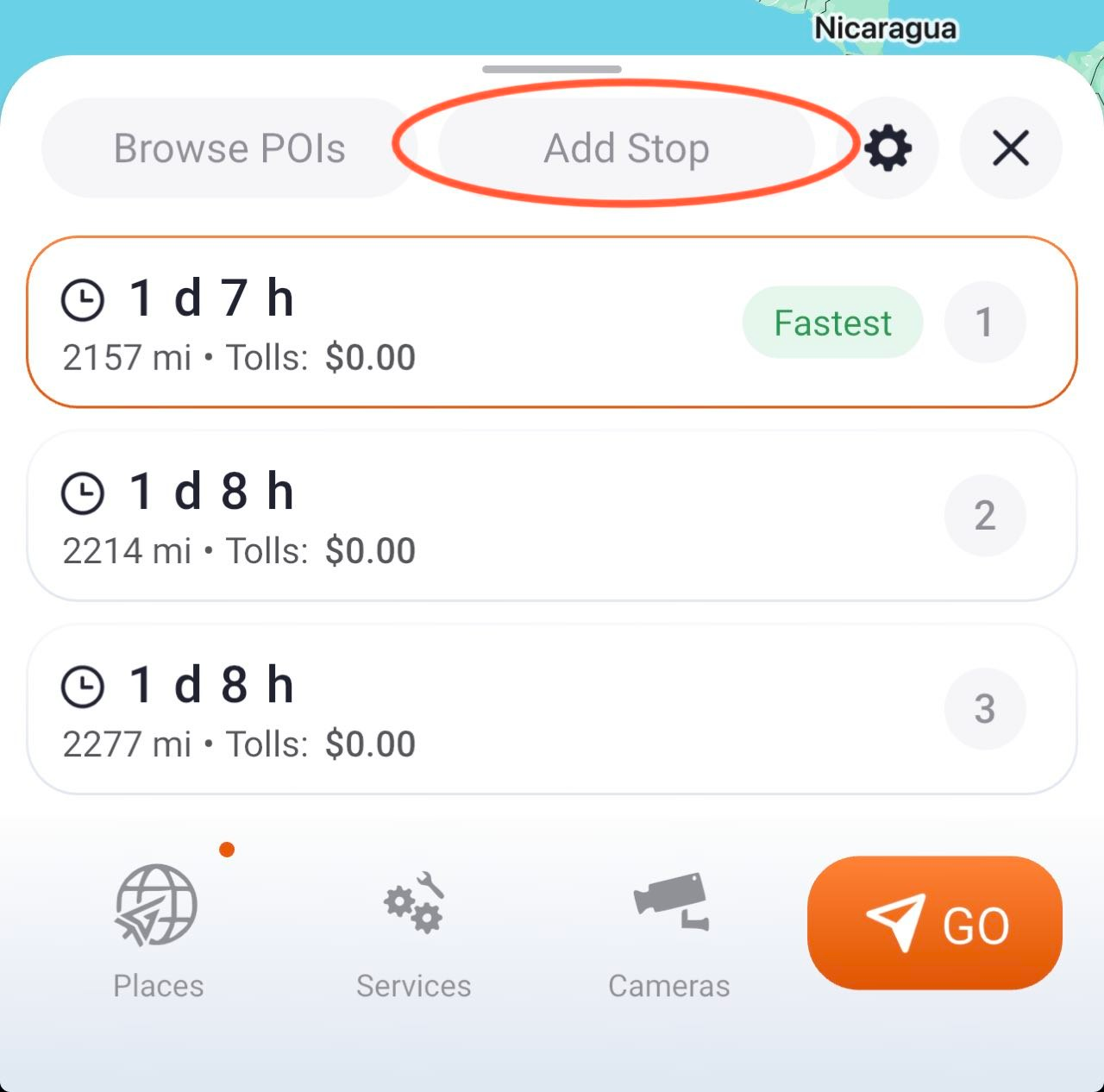
- Settings provides quick access to route-related options exactly where they're needed.
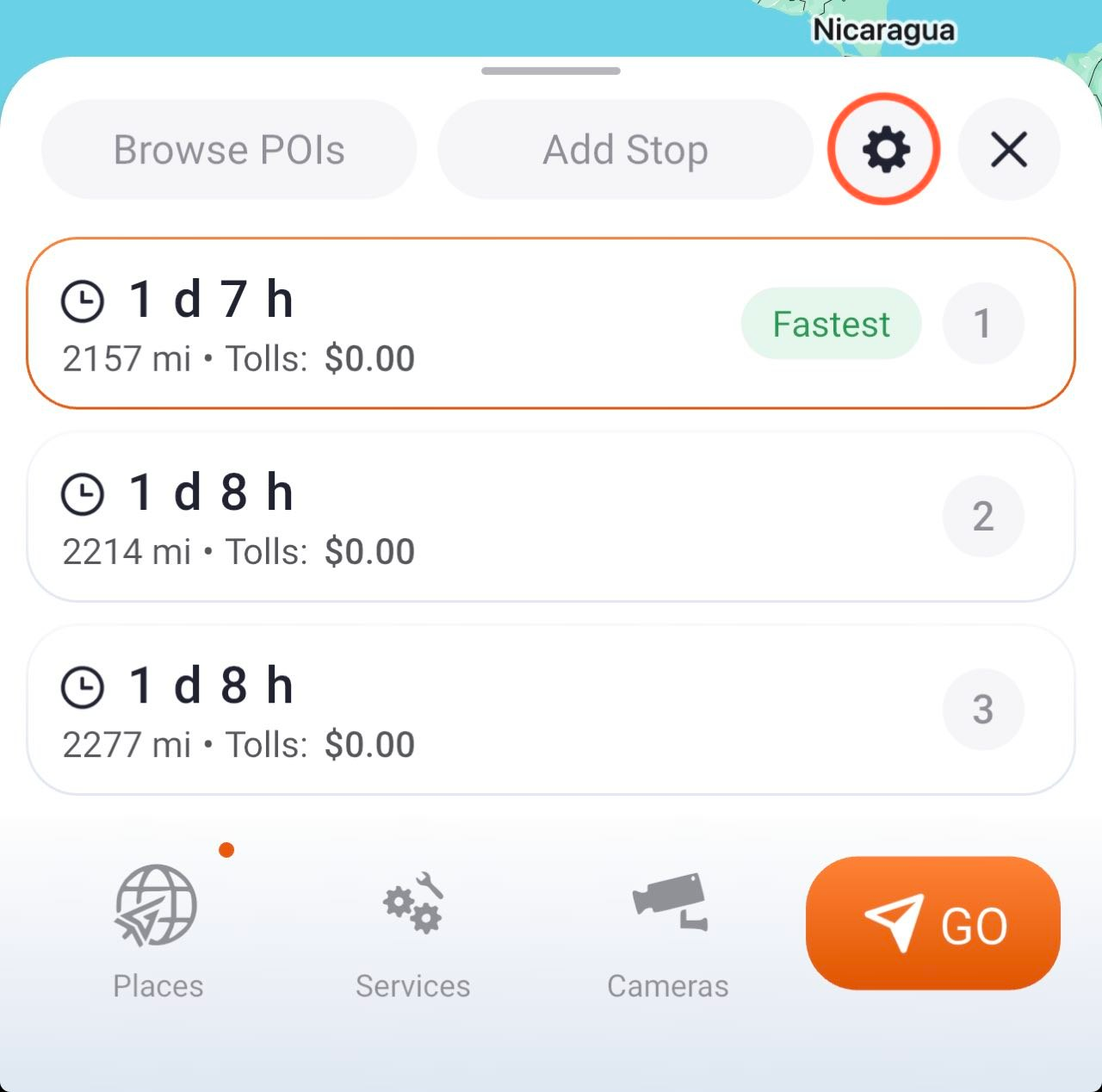
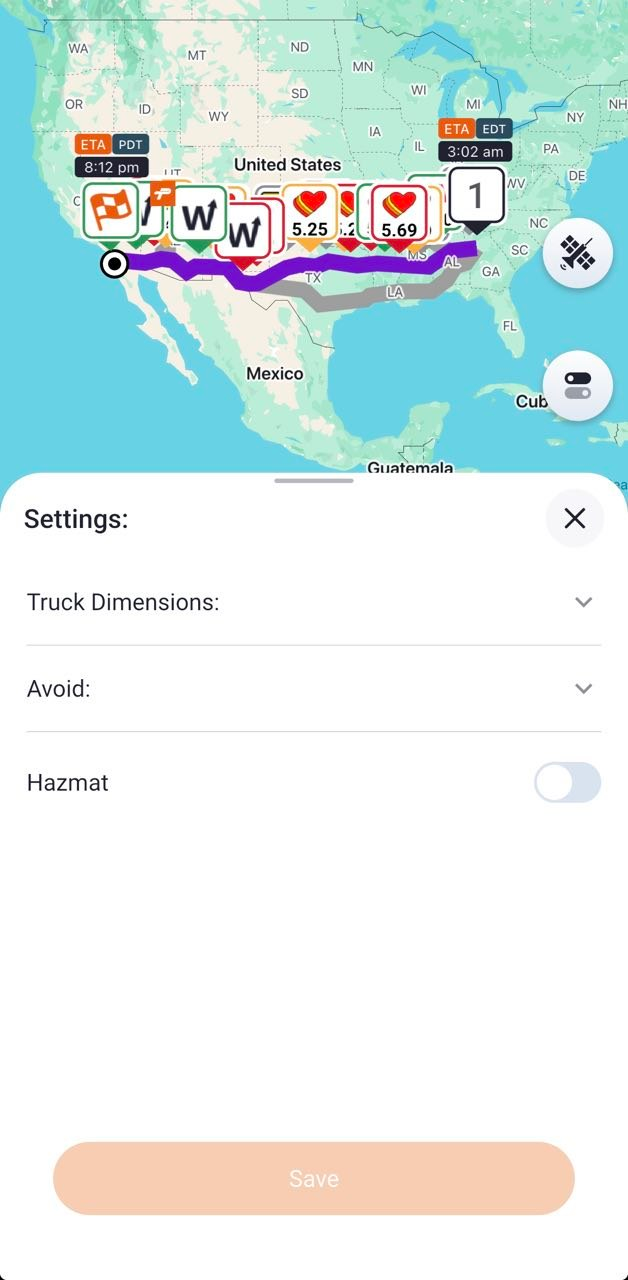
Drivers can quickly configure truck dimensions, road restrictions, and hazmat preferences without leaving the route screen. By applying these settings before starting navigation, the app generates routes that better match the vehicle's operational requirements.
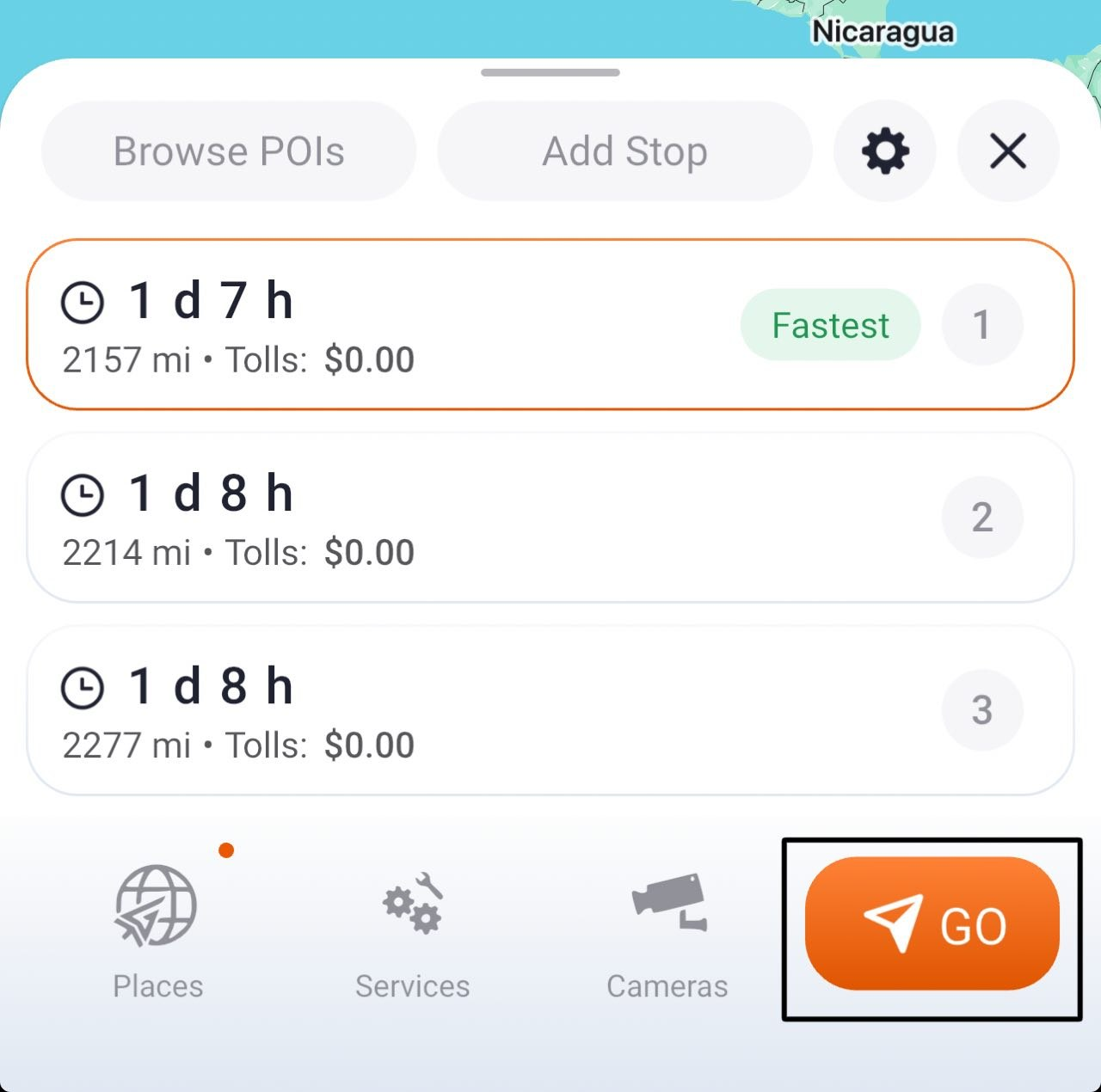
Once the preferred route and navigation settings are selected, simply tap GO to start turn-by-turn navigation.
Redesigned Navigation and Direction Screens
The Navigation mode has been refreshed to support the new flow. The updated design is cleaner and more focused, which makes the information easier to read at a glance.
You May Also Like: How to Compare Diesel Prices on Your Truck Route
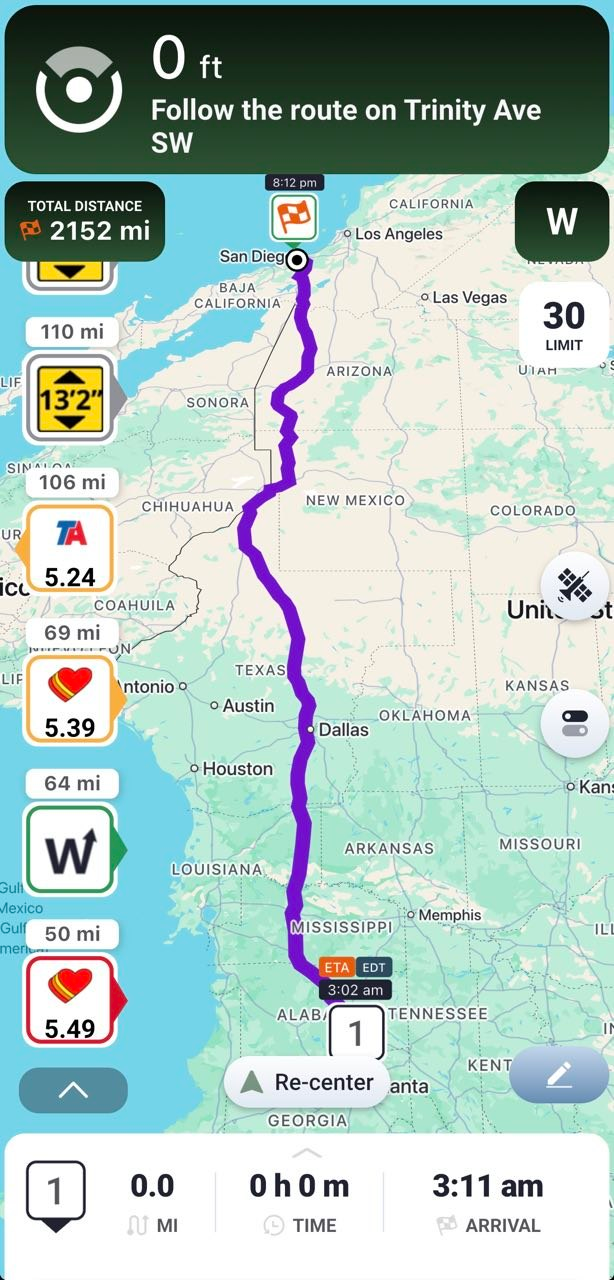
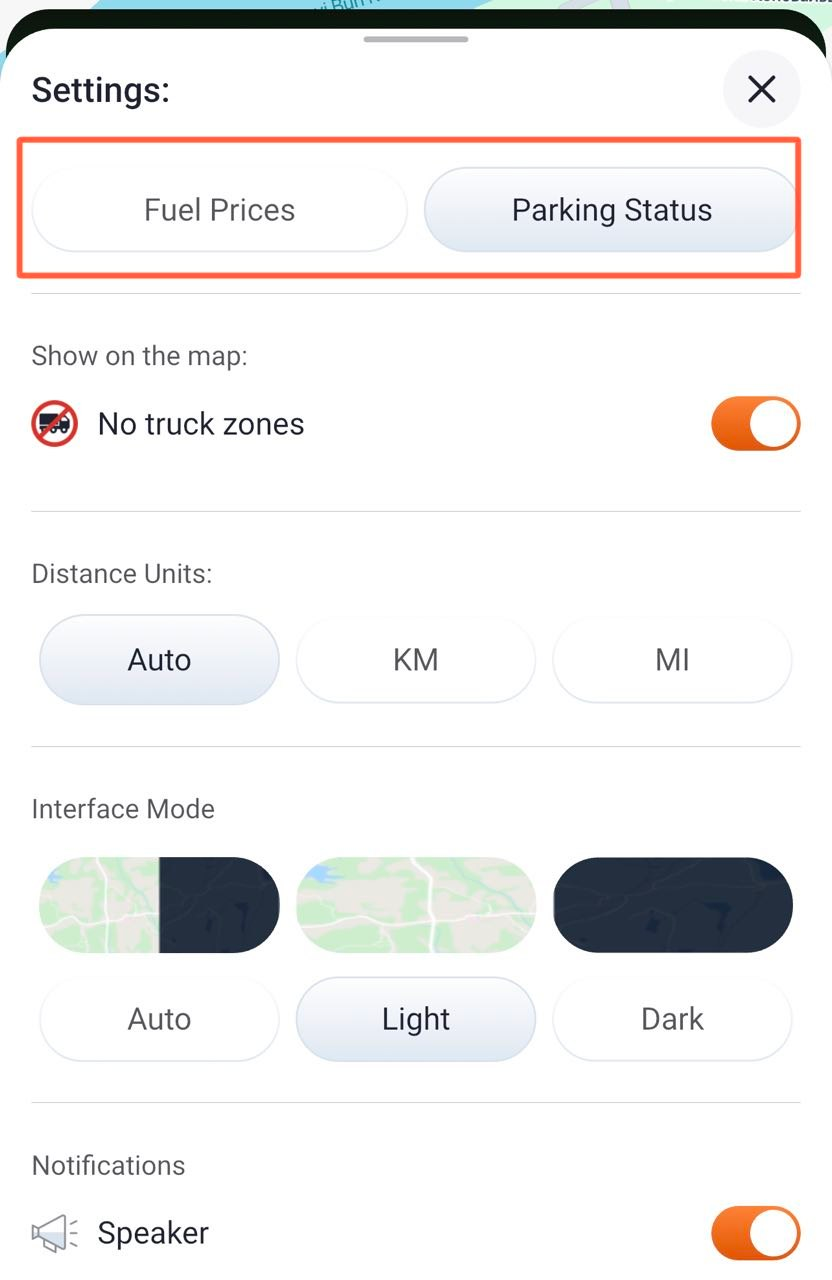
During active navigation, users can still customize the information displayed on the map, but the interface is now cleaner and more streamlined.
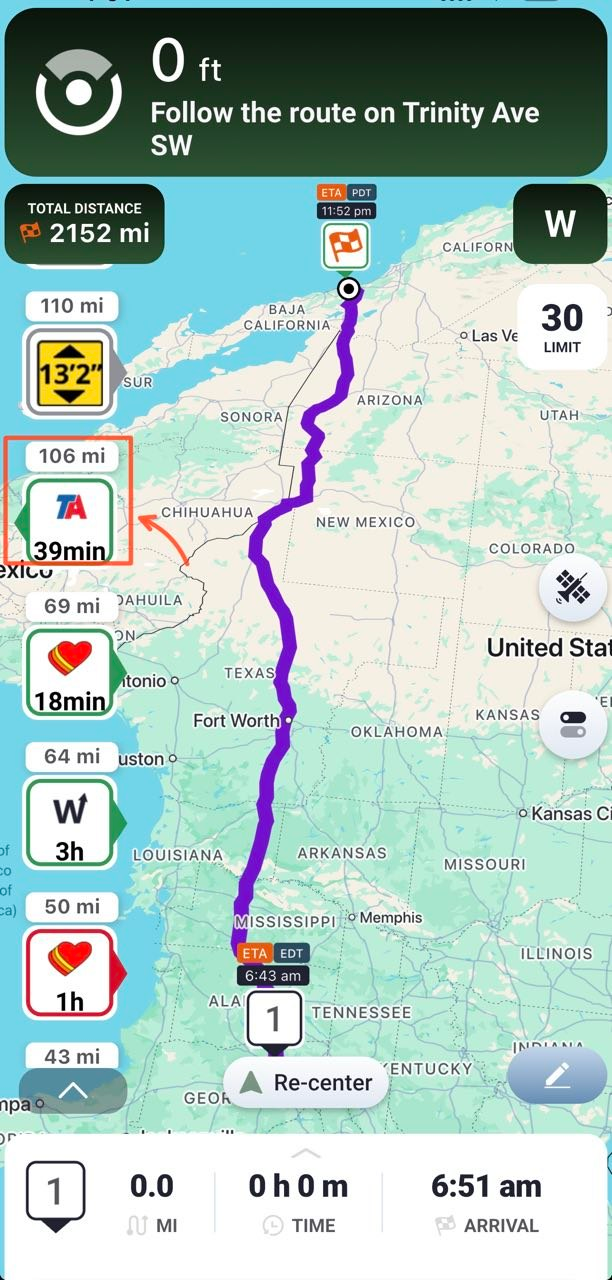
One of the most noticeable improvements is the redesigned icon information settings, which retain all the same functionality while offering a simpler, more intuitive experience.
Company Cards and Favorite Places
Company Cards have been improved so users can review location details more effectively before making a decision. This helps drivers understand what a place offers and choose the right stop more quickly.
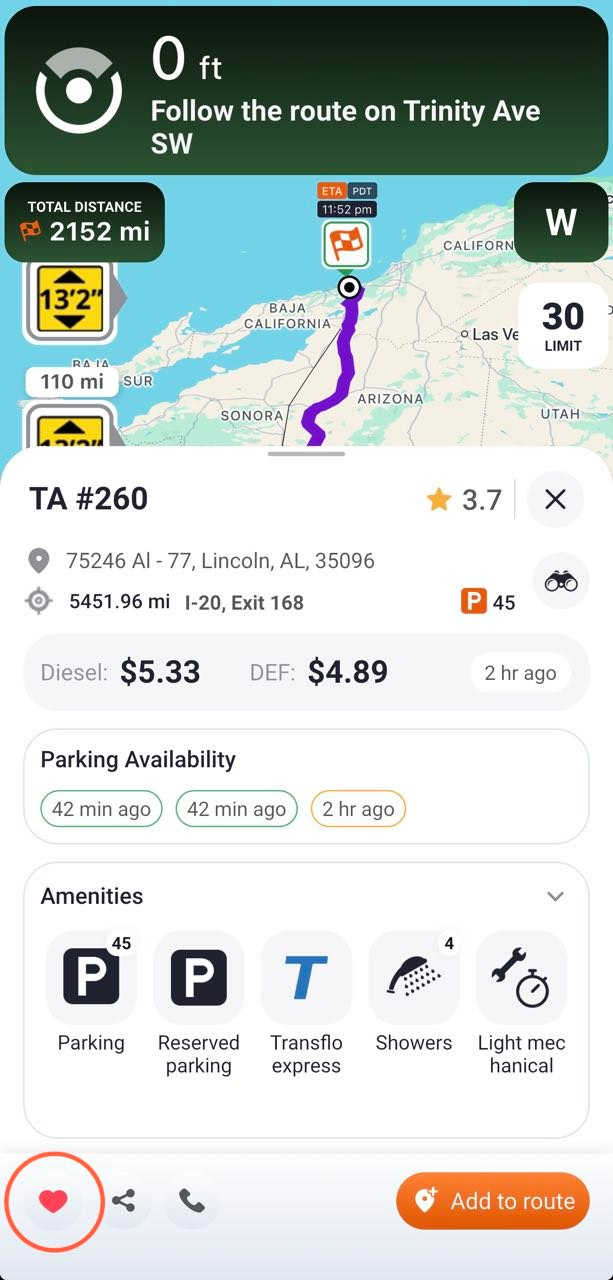
During a route, users can also review location details by tapping the place icon in the navigation bar. A driver can still add a stop to the route when needed by selecting a location and using the orange Add to Route action.
If the place should be saved for later instead, the “❤️” icon can be used to add it to Favorites.
That means the app supports real-world driving behavior. Plans change, stops get added, and routes need to be adjusted on the go. The new flow makes that process easier without interrupting navigation.
Final Improvements
Along with the main feature updates, this release includes additional navigation improvements, performance enhancements, and bug fixes. These changes may be less visible, but they help the app feel faster, more stable, and more reliable in everyday use.
Overall, Trucker Guide 6.0.3 creates a more connected workflow from planning to driving. Drivers can find locations faster, build routes with more confidence, and adjust trips more easily when conditions change.
Ready to try the new Trucker Guide 6.0.3 experience? Update the app and try the new route planning and navigation features today.


