



Smoother Search, Smarter Design: What’s New on Trucker Guide Web

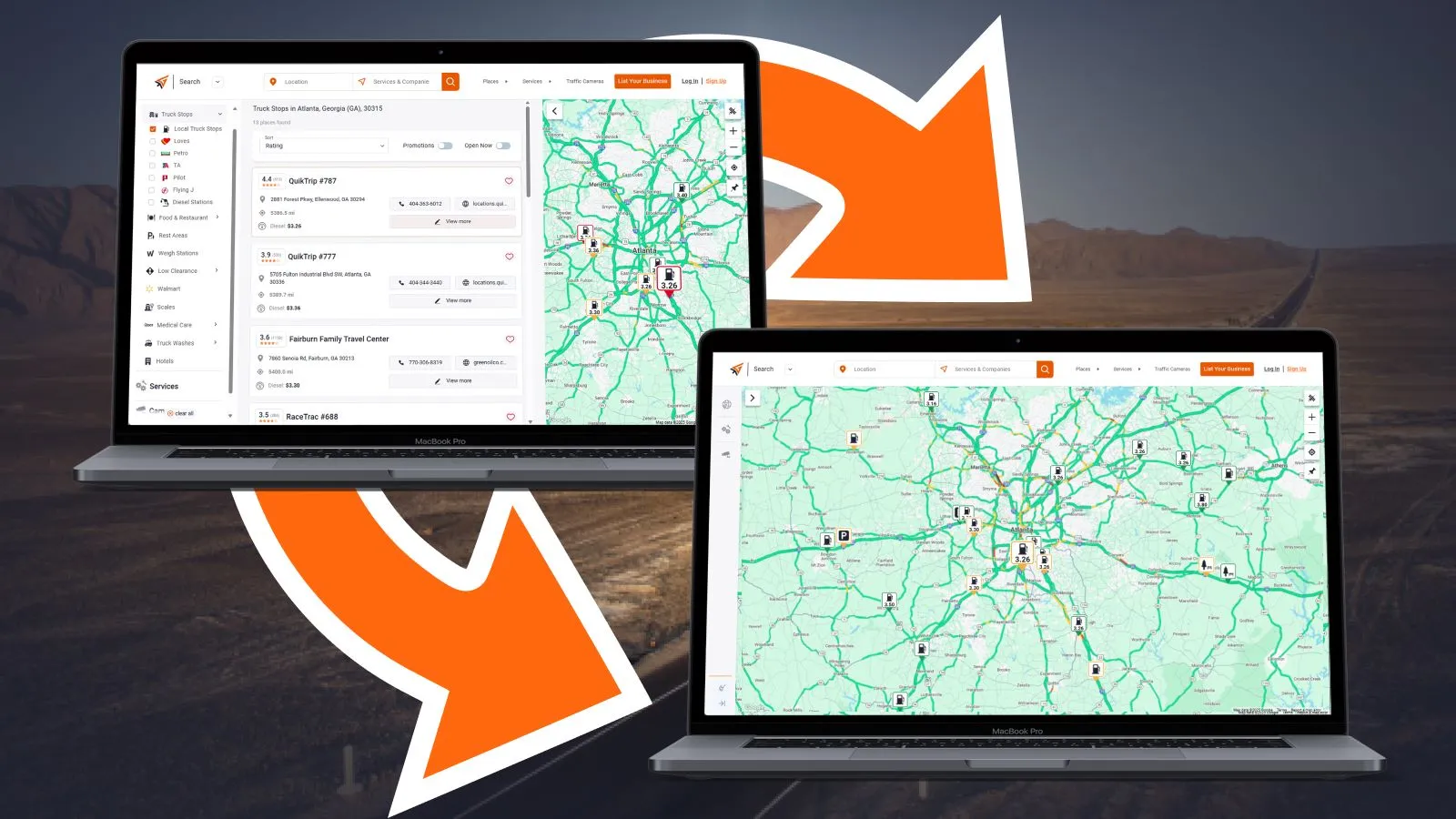
The Trucker Guide search interface has been redesigned with dispatchers in mind. The cleaner interface gives the map more visibility, helping you locate stops, plan routes, and support your drivers more efficiently.
Before getting started, use a handy pin tool that lets you mark your current search location on the map. This way, you always know exactly where you’re focusing while checking nearby services.

With your search location pinned, you’re ready to explore the improved search features that make finding stops faster and simpler. Let’s see them.
Key Facts:
- Trucker Guide search interface has been redesigned with a dispatcher-focused layout and improved map visibility
- Main menu now slides in from the right side to avoid blocking the map view
- Category selection includes a “Select All” option to enable faster filtering of POIs
- Selected categories are indicated by an orange dot on the POIs icon
- Location preview cards update dynamically when different map icons are selected
- Filtering options include rating, distance, promotions, and currently open status
More Flexible Main Menu
Instead of blocking your view by expanding downward, the main menu now slides in smoothly from the right side. This lets you browse categories without losing sight of the map or your list of stops.

To make selecting easier, each category now has a “Select All” button. You can pick or clear all options with a single tap, saving you time and effort.
You May Also Like: Trucker Guide | Navigation: The Smart Choice for Every Trucker on the Road

To keep you informed, an orange dot appears next to the POIs icon whenever categories are selected. This reminder ensures you don’t miss anything important on your map.

Whenever you want to see all categories available, simply open or hide the main menu at any time.

Cleaner Listings Without Losing Key Info
Once your categories are set, you can quickly get details on any stop. Tap any icon on the map to open a company preview card.

Just scroll down the preview card to find all the essential details you need to choose the best stops for your drivers.

Moving between stops is just as smooth. Tap another icon, and the preview card updates automatically. When finished, close the card by tapping the “X” at the top to keep your workspace tidy.

Alongside the map, the list view now uses less space, giving you more room to see your route and compare options side by side. This makes planning your next stop quicker and easier.

To narrow down your results even more, simply tap the 'Filter' button to customize what you see on the map.

By default, locations are sorted by rating, but you can also filter to see stops closest to your location.

At the same place below, you can filter locations by available promotions to save money, or see companies that are currently open to save your time. Just choose one or both options to find the service or place for the truck.

Promotions That Stand Out
Promotions are always visible in the preview cards. You can swipe through them quickly to find the best offers without extra steps.
You May Also Like: How Promotions on Trucker Guide Can Boost Your Sales

The “More” button is still there for deeper information, now better integrated into the new layout for a consistent and polished look.

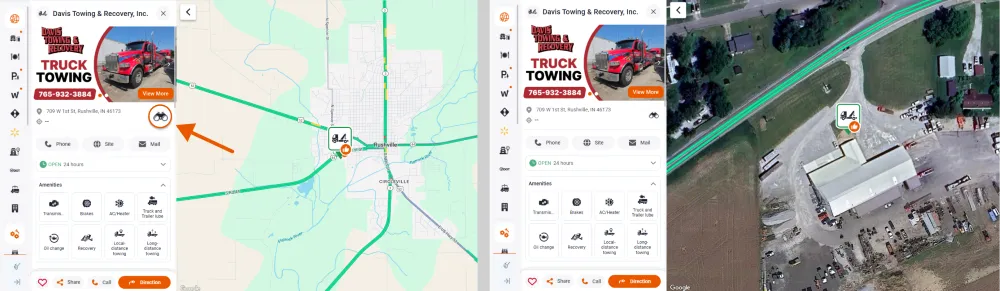
Binocular View for Closer Look
From each company card, this feature lets system automatically zoom in on the location. It helps you check entrances, roadside access, or other important details to direct your truck drivers smoothly.
Together, these changes create a more powerful, user-friendly tool built specifically for dispatchers. The new Trucker Guide search interface also works smoothly on both laptops and phones, so you can plan routes anytime, anywhere.
For the best experience on the go, downloading the Trucker Guide app is recommended.
Plan better. Save time. Support your drivers with confidence.


