



How Drivers’ Feedback Is Improving Trucker Guide Navigation

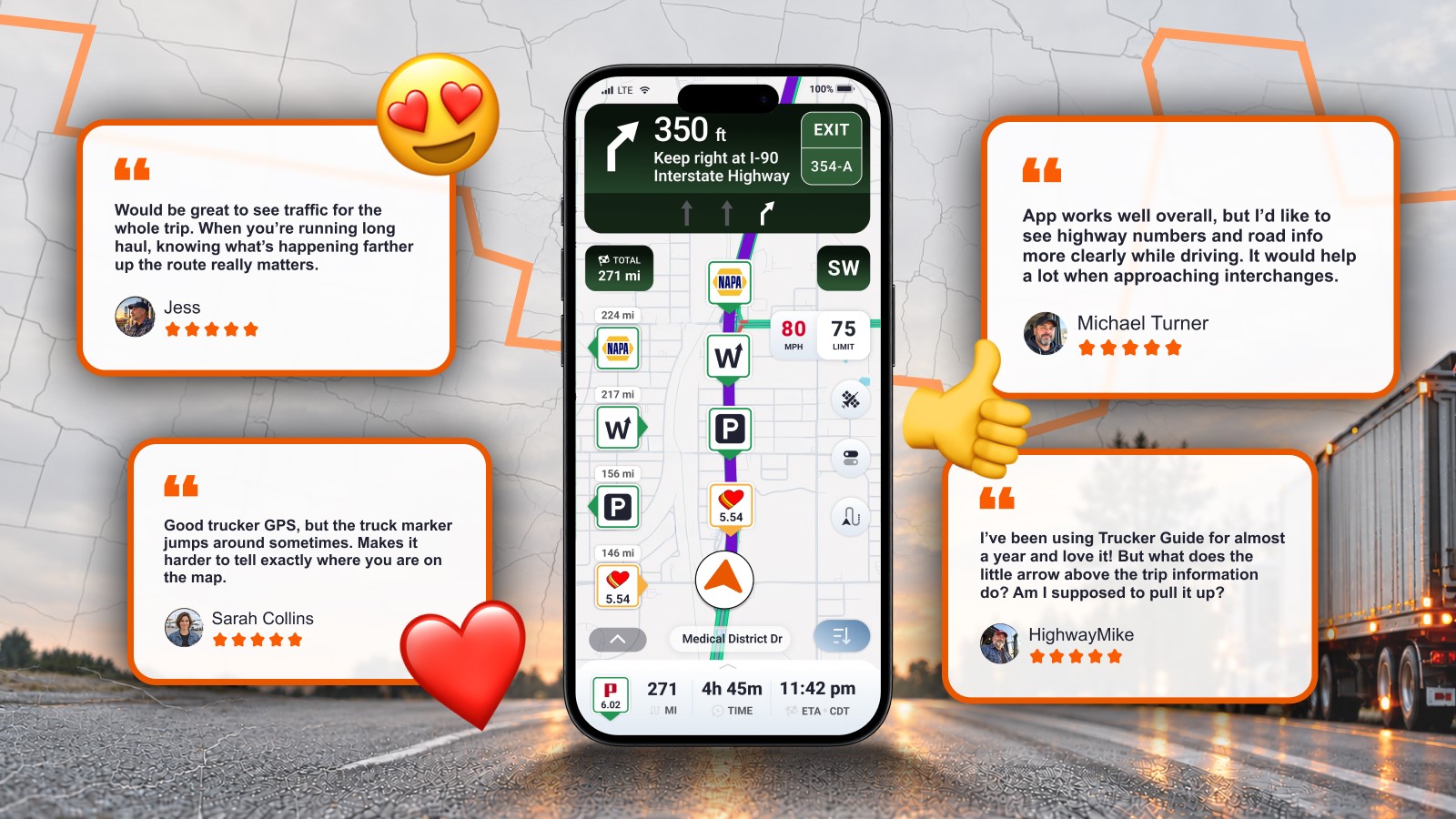
The best navigation tools are shaped by the people who use them every day. For truck drivers, clear road information, reliable traffic visibility, and a map that accurately reflects their position can make a real difference on the road.
At Trucker Guide, driver feedback helps us understand where the navigation experience can be clearer, more convenient, and easier to use. When drivers point out an issue or suggest an improvement, it allows us to look more closely at how a feature works and where it can be improved.
Here are the key navigation improvements we've made based on driver feedback to make Trucker Guide clearer, more intuitive, and easier to use on the road.
Quick Summary:
- Identify roads faster with highway and road icons alongside road names.
- See traffic farther ahead with real-time traffic information across the entire route.
- Keep key places in view with selected locations displayed directly on the map.
- Get a clearer map view by hiding the navigation bar when needed.
- Follow your position more easily with smoother truck marker movement.
- Check weigh station statuses at a glance with clear Open or Closed labels and the latest update time.
.png)
Selected Locations Now Appear Directly on the Map
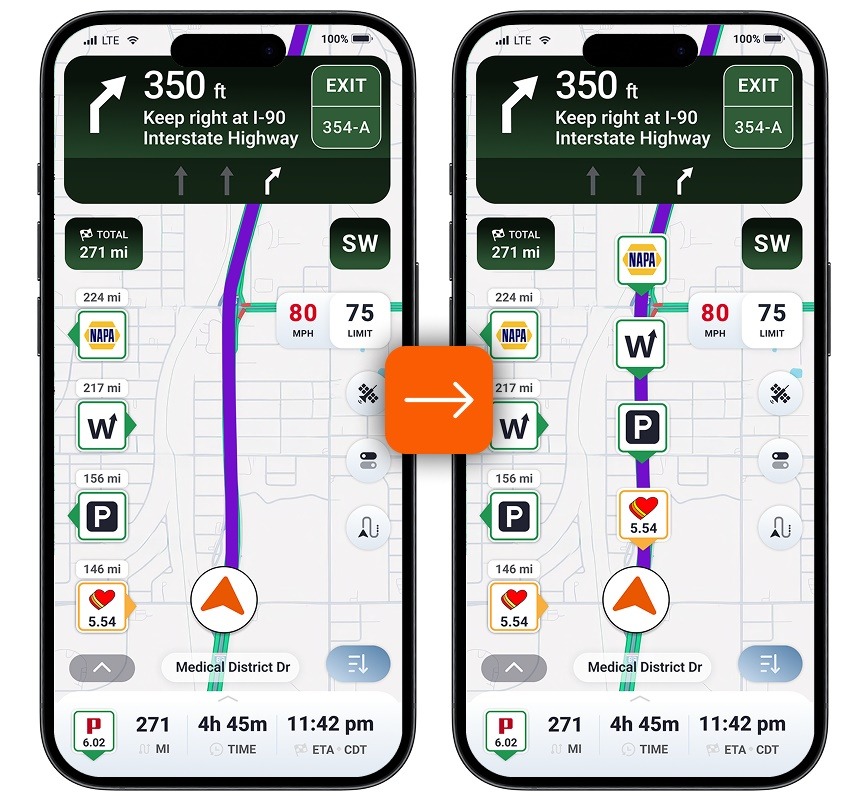
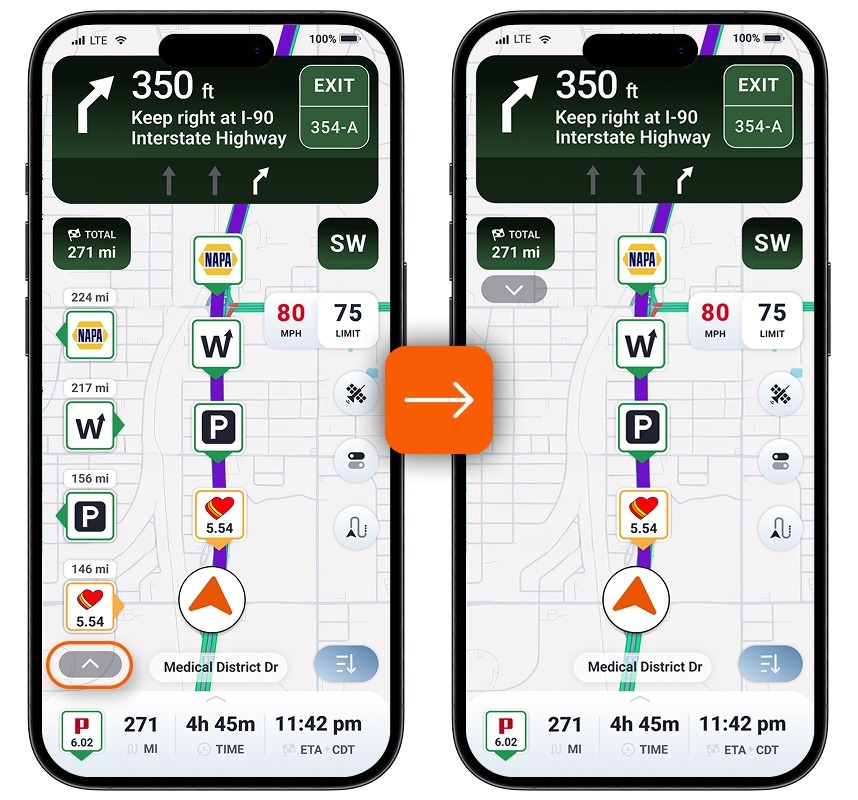
When drivers select locations along their route, they need a convenient way to understand where those places are in relation to the journey. Previously, selected locations appeared in the navigation bar but were not displayed directly on the map. This meant drivers had to rely on the bar to view their selected places.
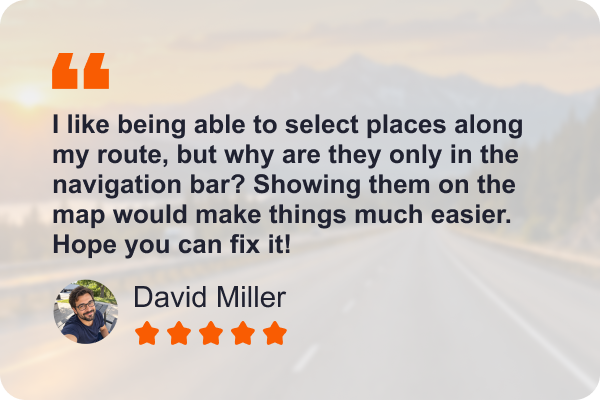
To make trip planning easier, we've updated the map to display selected locations directly alongside the route, helping drivers see where their stops are without relying solely on the navigation bar.
Improved Real-Time Traffic Information
Traffic conditions can change throughout a journey, and congestion farther along a route can affect travel time. For long-haul drivers, knowing what's happening ahead is just as important as understanding current traffic conditions.
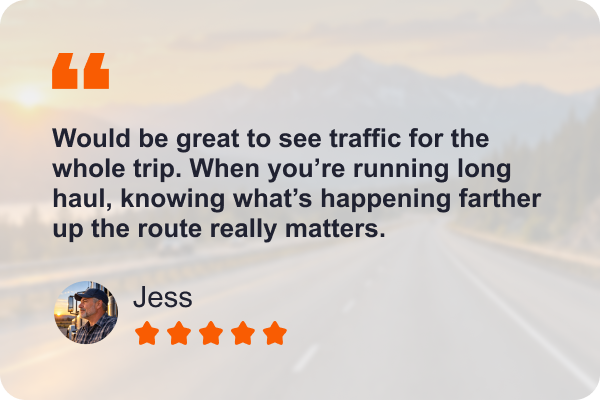
To address this need, we've improved real-time traffic visibility across the entire route, helping drivers see traffic conditions farther ahead instead of only around their current location. This broader view makes it easier to understand what lies ahead and plan the journey with greater awareness.
Better Road Information and Highway Guidance
Navigating complex highway interchanges can be challenging, especially when multiple lanes lead to different exits. Drivers need clear road information to understand where they are and prepare for upcoming maneuvers.
Trucker Guide already offers lane assistance, junction view, and current road names to help drivers navigate and understand the road ahead. Still, drivers want highway numbers and road information to be easier to identify at a glance, especially when approaching interchanges.
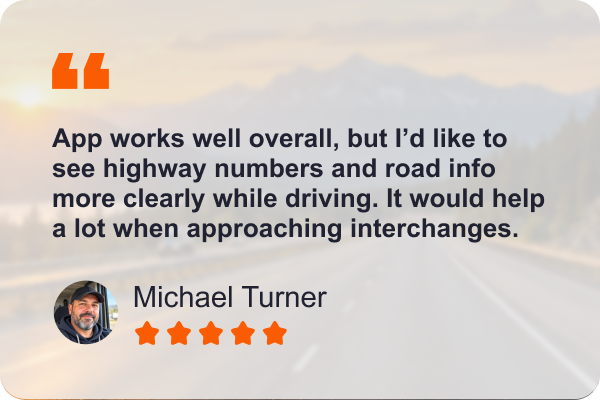
To make road information easier to recognize, we've added highway and road icons to the navigation information panel alongside road names. Drivers can also hide the navigation bar to free up screen space and get a clearer view of the map, route, and selected locations.
Smoother Truck Icon Movement
The truck icon helps drivers follow their position on the navigation map. When its movement is inconsistent, or it jumps unexpectedly, it can be harder to follow progress along the route.
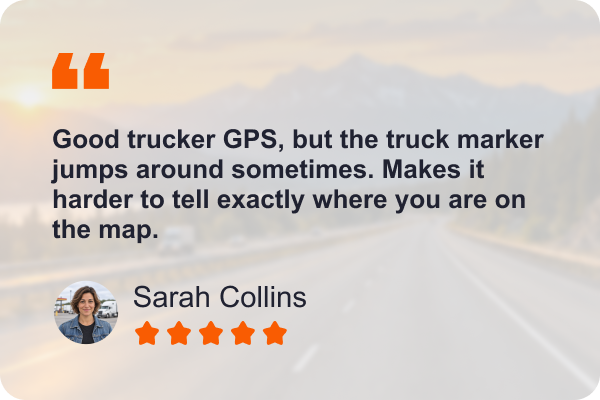
To address this, we've improved the truck icon's animation so that it moves more smoothly without sudden jumps. This creates a more consistent visual experience and makes it easier to follow the truck's progress on the map.
Navigation Controls Easier to Understand
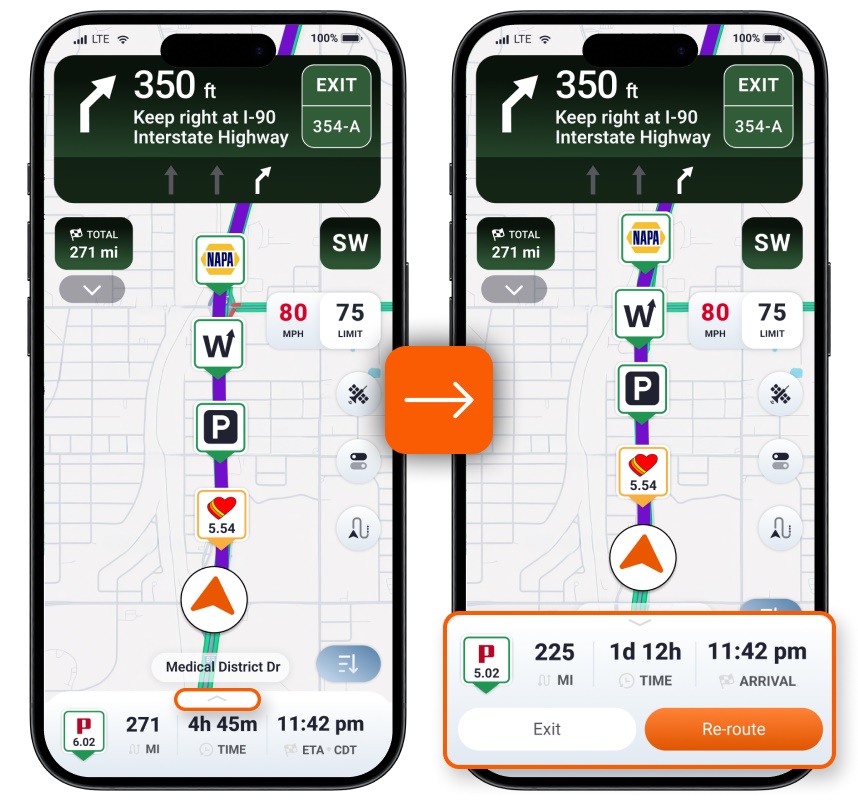
Not all driver feedback concerns a technical issue. Sometimes, a feature simply isn't immediately obvious. For example, one driver who had been using Trucker Guide for almost a year was unsure what the small upward-pointing arrow above the trip information panel was for.
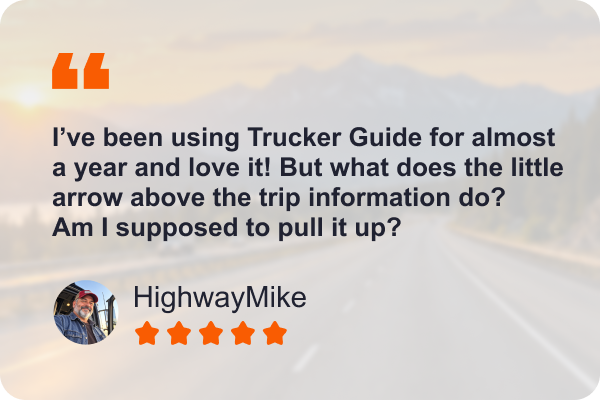
The arrow opens a compact menu with two options: rerouting and exiting navigation. Both actions are available directly from the navigation screen, so drivers don't need to search through other menus to access them.
Clearer Weigh Station Statuses
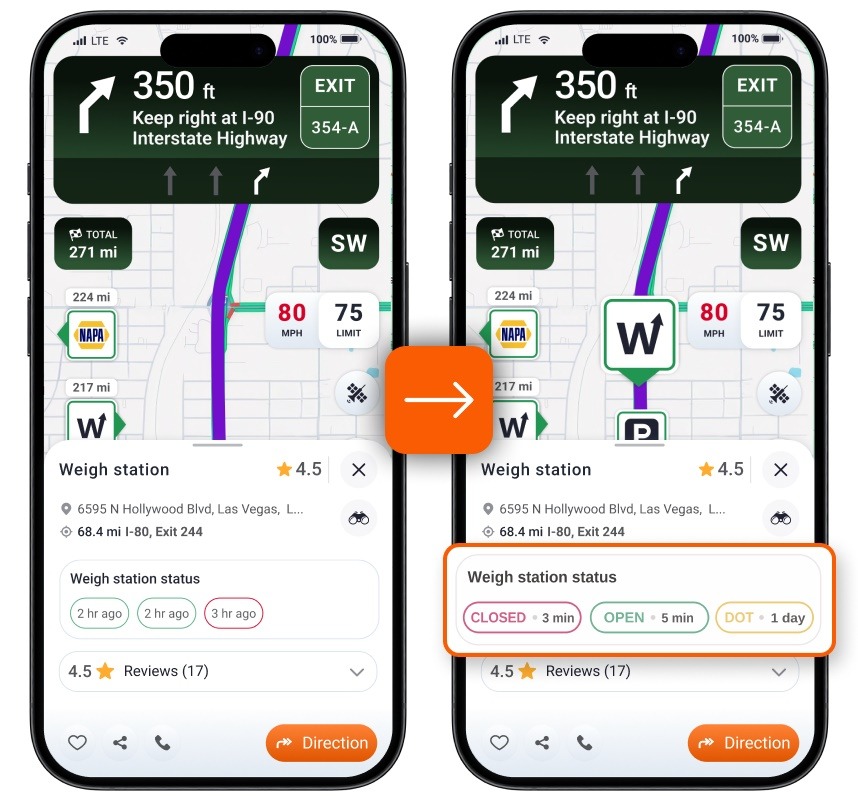
For truck drivers, knowing whether a weigh station is open or closed matters when planning a route. Previously, Trucker Guide displayed time information alongside weigh station status indicators, such as “5 minutes ago” or “2 hours ago.” This left some drivers unsure what the information meant and whether they could rely on it when approaching a weigh station.
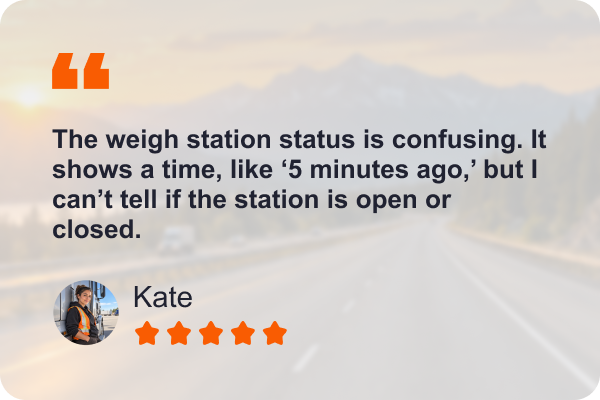
To make this information easier to understand, we've updated the way weigh station statuses are displayed. It now clearly indicates whether a station is exactly Open or Closed, alongside the time of the latest update. This helps drivers understand the reported status at a glance without having to interpret the time indicator on its own.
Clearer weigh station statuses are just one example of how driver feedback can lead to practical improvements. From highway guidance to map visibility, each suggestion helps us understand what drivers need from their navigation experience and where we can make it better.
Have a suggestion or noticed something that could work better? Contact our support team by email or leave a review on the Apple App Store or Google Play.
Frequently Asked Questions
What navigation improvements has Trucker Guide introduced?
Trucker Guide has improved road identification, real-time traffic visibility across the route, map display of selected locations, truck icon movement, navigation controls, and weigh station status labels.
Can I see real-time traffic along my entire route?
Yes. Trucker Guide now provides a broader view of real-time traffic conditions across your planned route, helping you see what's happening farther ahead.
Can I see selected locations directly on the navigation map?
Yes. Selected locations can now appear directly on the map alongside your route. You can also hide the navigation bar to get a clearer map view.
How has Trucker Guide improved truck position tracking?
The truck icon's animation has been improved to make its movement smoother and reduce sudden jumps, helping you follow your position on the map more easily.
How can I check whether a weigh station is open or closed?
Weigh station statuses now display clear Open or Closed labels alongside the time of the latest update, making the reported status easier to understand.
How can I suggest improvements to Trucker Guide?
You can email Trucker Guide support or leave a review on the Apple App Store or Google Play. Your feedback helps identify opportunities to improve navigation.


