



From Routes to Fuel Stops: Why Truckers Trust Trucker Guide | Navigation

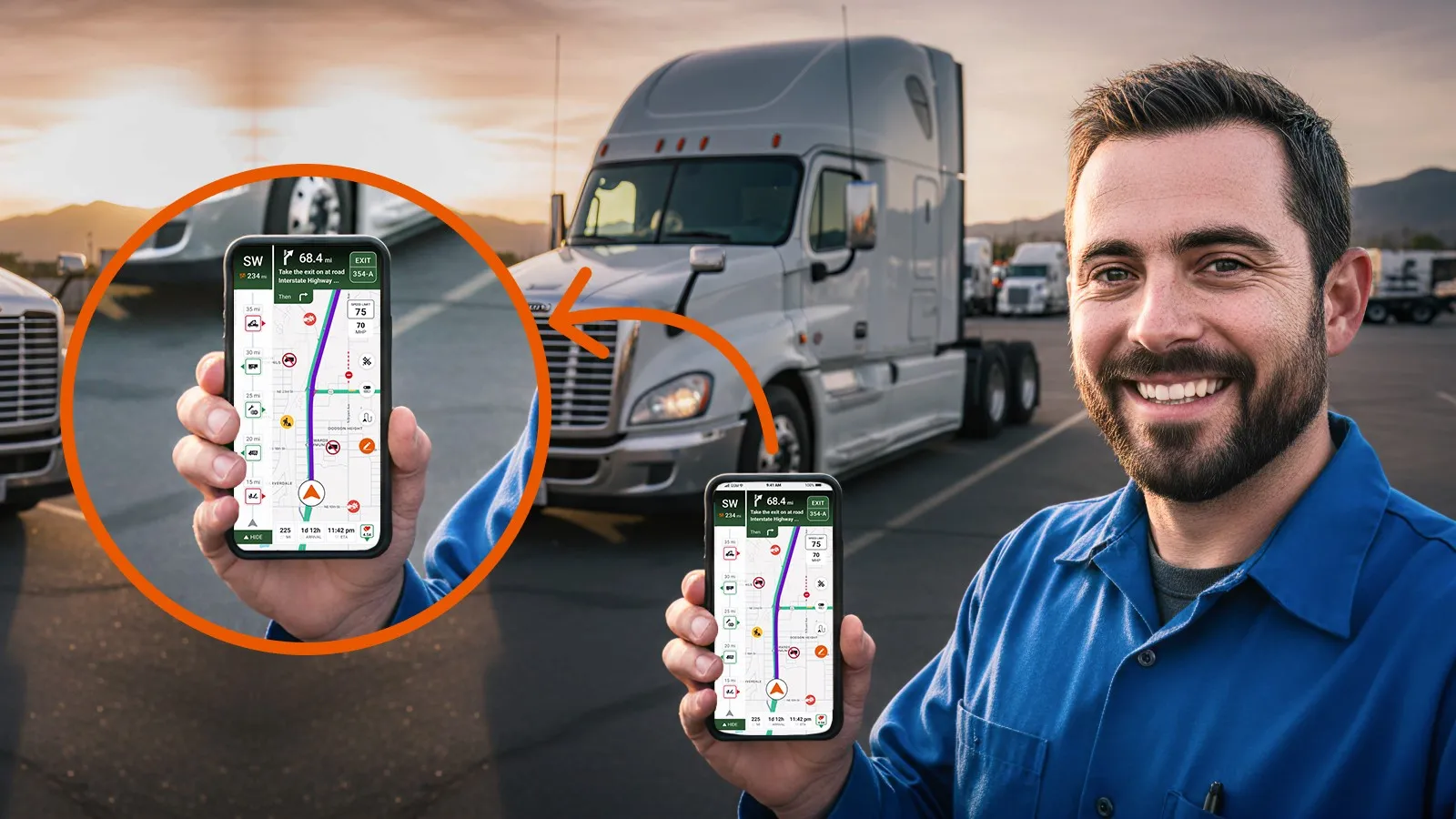
Trucker Guide | Navigation is a truck-safe GPS solution for U.S. drivers, combining real-time traffic, low bridge avoidance, and no-truck road routing in one app. Drivers can enter their truck’s height, weight, length, and axle count to create routes based on their vehicle and road restrictions.
Every mile counts when you’re behind the wheel of a truck. Heavy loads, tight schedules, and long hours can turn an unexpected road restriction or delay into a serious problem. For professional drivers, knowing what lies ahead is just as important as knowing where the destination is. The right tools can make each trip easier to plan and navigate.
Ready to see how it works? Let’s get rolling.
Key Facts:
- Trucker Guide | Navigation provides truck-safe routing based on vehicle dimensions, cargo type, and preferences.
- Users can receive up to 3 alternative route options per destination.
- Route ETAs are calculated using truck height, weight, length, and axle count inputs.
- The system includes over 450,000 truck-specific Points of Interest.
- The app integrates a real-time diesel price locator, truck parking finder, and weigh station maps directly into your route planning.
- Drivers can access a 7-day free trial of the navigation platform.
1. Smart Routes Tailored for Your Truck
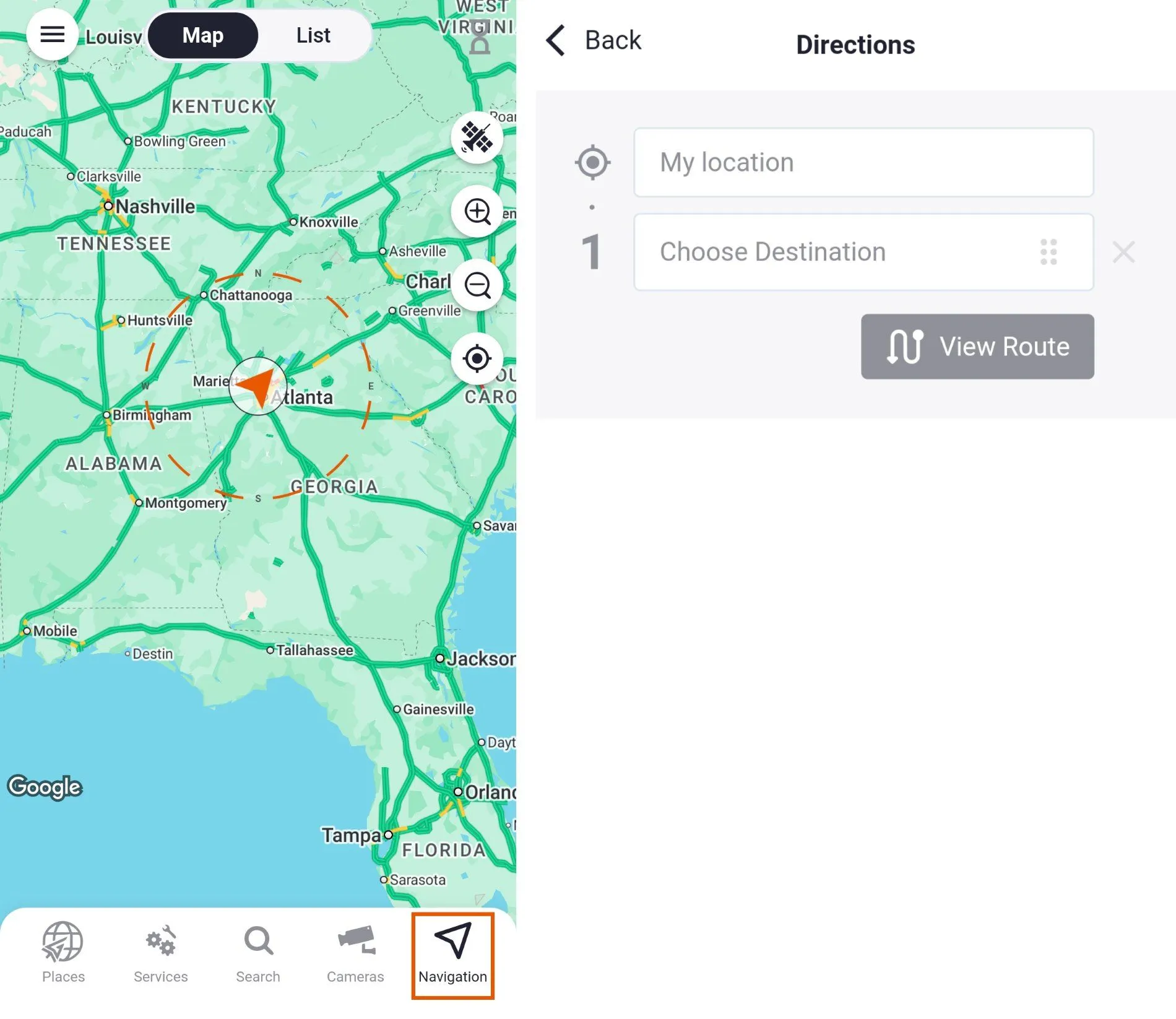
Planning a safe route is one of the most important parts of a long haul, and Trucker Guide | Navigation makes it simple. Just tap the navigation icon and enter your destination.
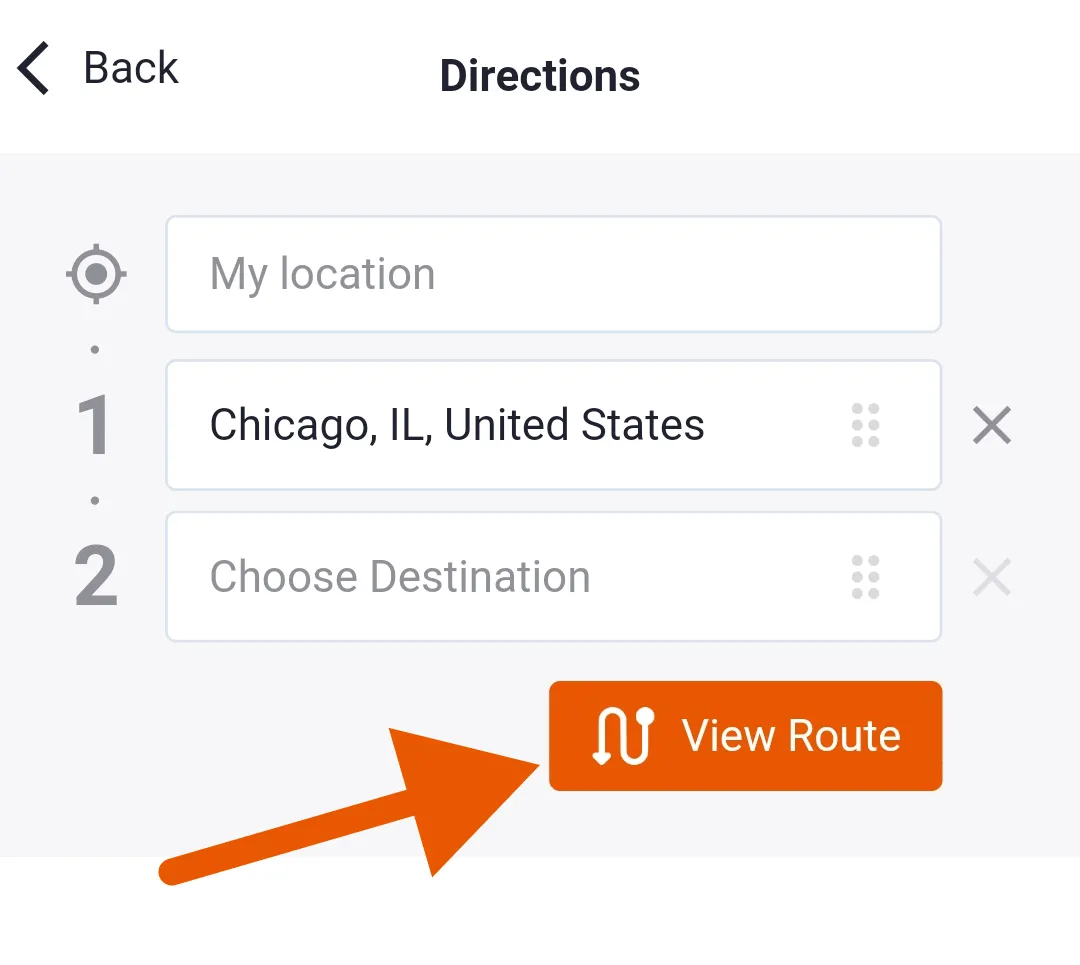
With all your stops added, reviewing your route options takes time. Tap the “View Route” button to enter the second mode of the system.
After entering your destination, you’ll be presented with up to 3 route options. Take a moment to review them and choose the one that best fits your needs.
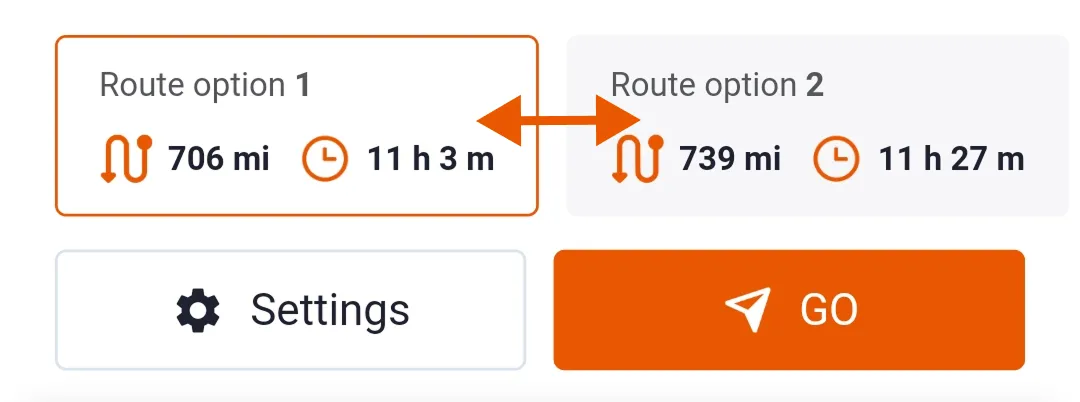
Each route comes with an estimated arrival time, which affects deliveries, compliance, and scheduling. Trucker Guide | Navigation calculates ETAs based on your truck’s exact dimensions, cargo type, and selected preferences.
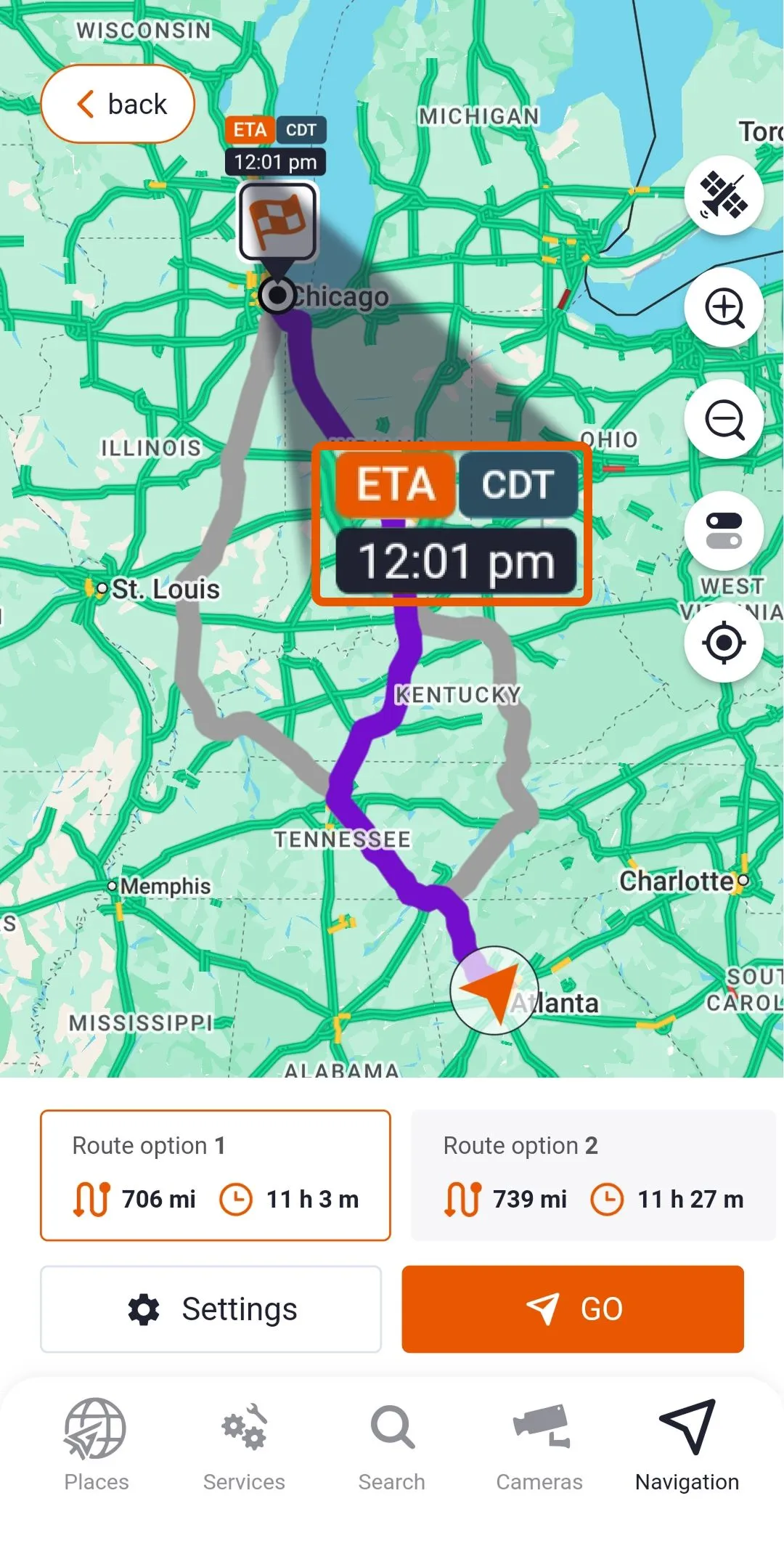
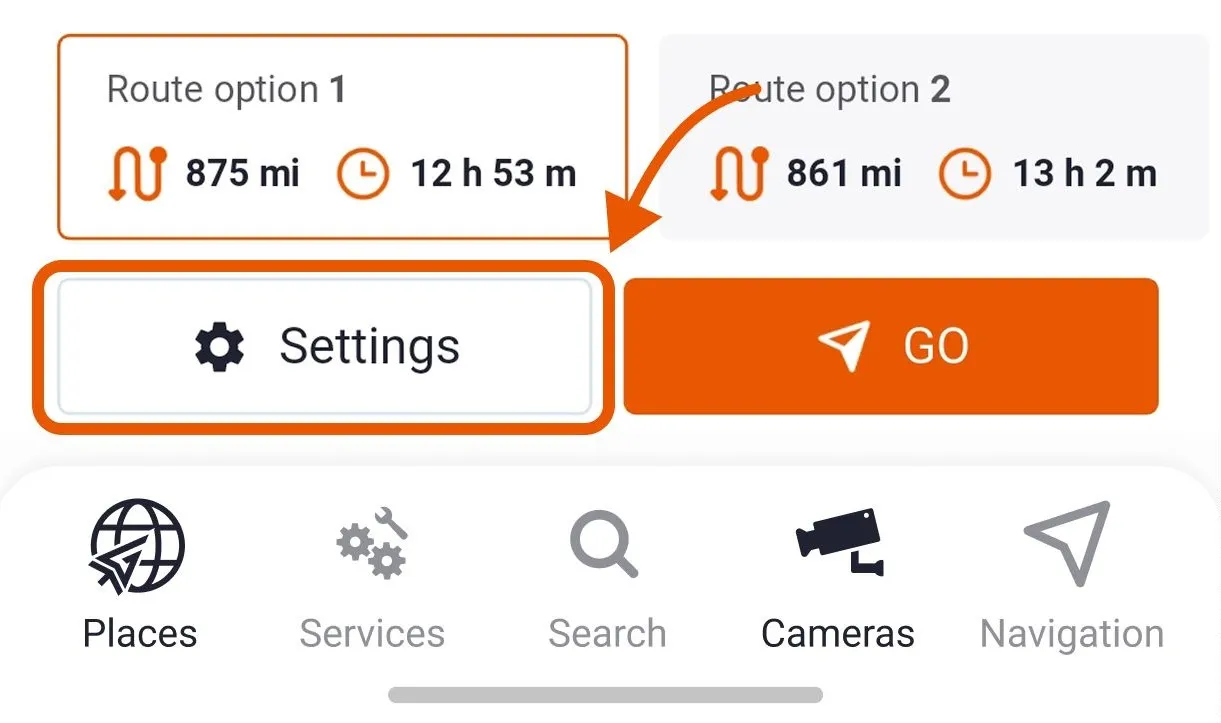
So, make sure to enter your truck’s height, weight, length, and axle count. Simply locate the “Settings” button in the bottom-left corner. It is a powerful feature that helps you create smarter routes tailored for your truck.
It includes three core configuration blocks designed to customize your navigation experience: truck dimensions, roads to avoid, and hazmat preferences.
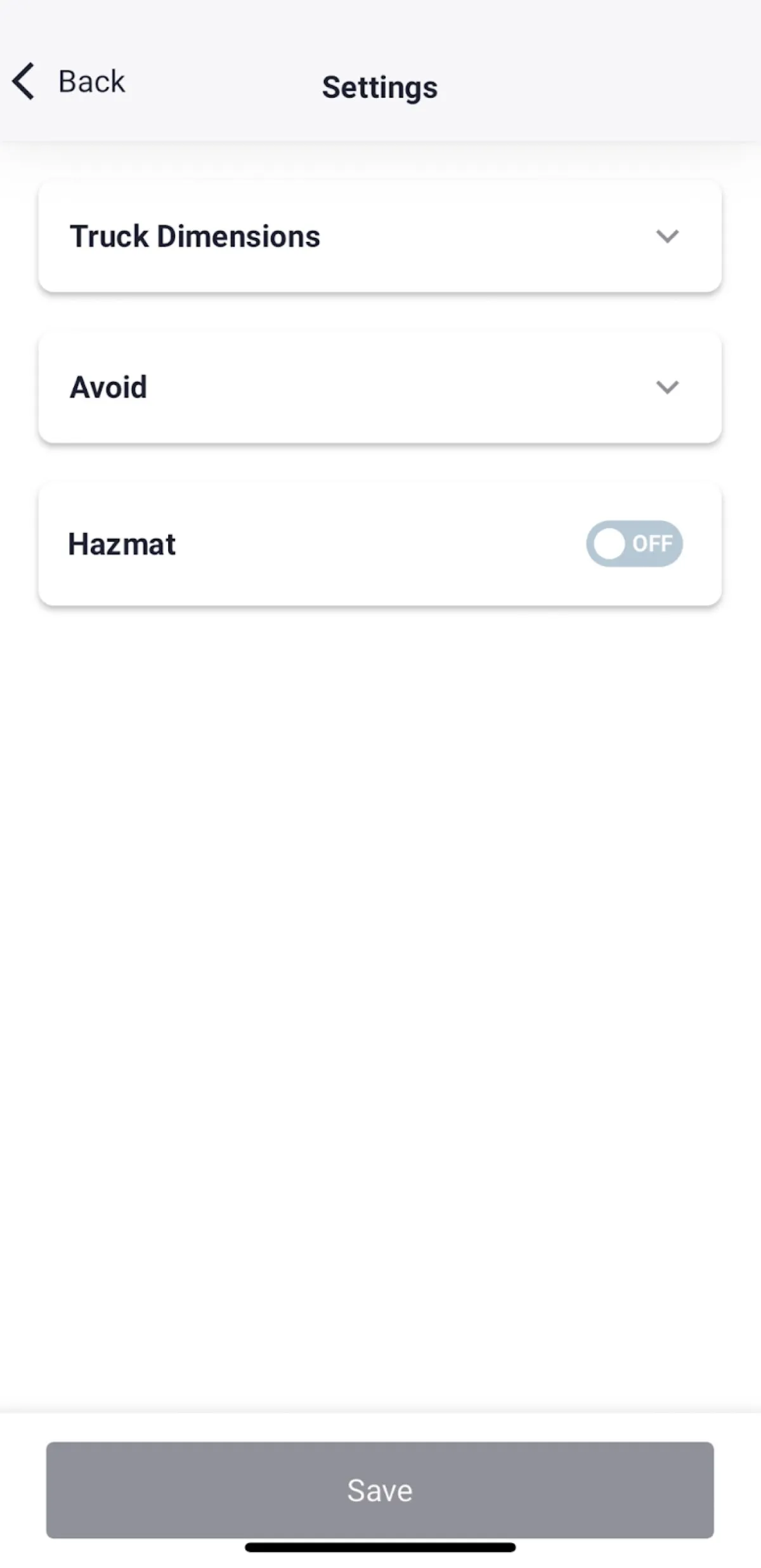
Once activated, the system will provide safe and efficient routes that comply with local and national laws, ensuring your operation remains compliant and risk-free.
While your route is being optimized, you can also add Points of Interest from the bottom menu, such as truck-friendly hotels, restaurants, rest areas, truck scales, or service stations.
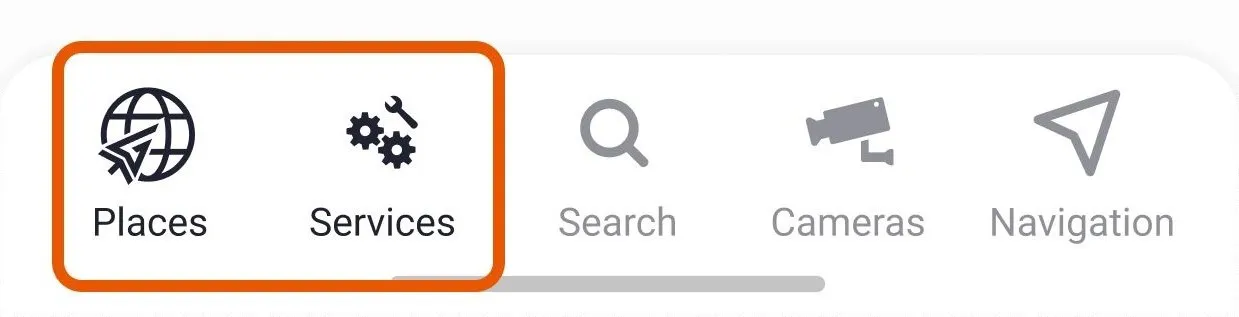
This way, every stop is carefully planned to match your needs and schedule, ensuring your drive is both efficient and comfortable.
2. Real-Time Traffic and Weather Updates
One of the most powerful aspects of Trucker Guide | Navigation is its live updates. While planning your route, tap the “Cameras” option from the bottom menu to include real-time traffic feeds along your way.
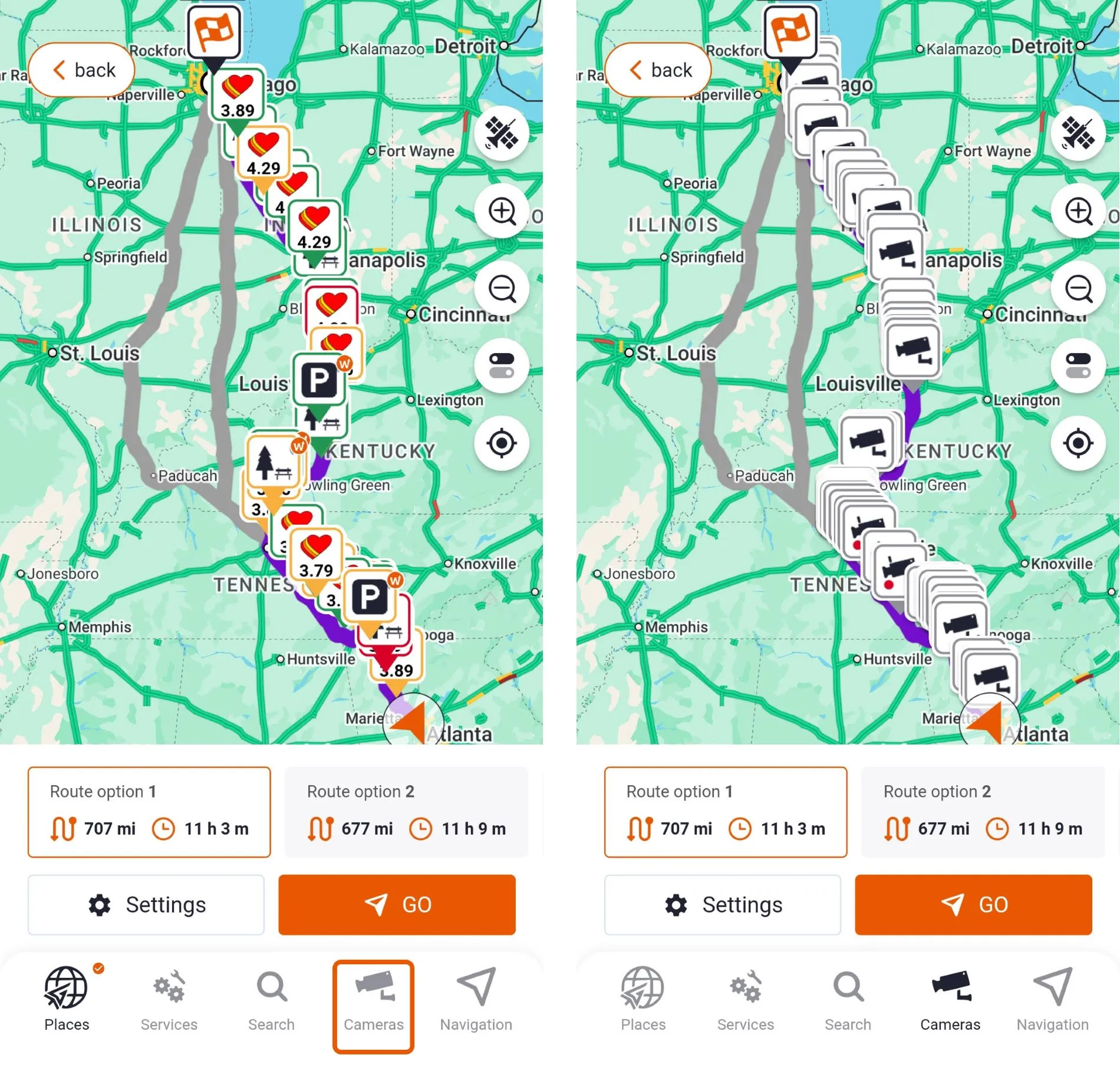
Then select a camera icon to open the feed and see either a snapshot or a live stream of traffic and road conditions along I-55, I-57, I-59, I-64, I-65, or I-66. Is there a closure, a backup, or ongoing construction? You’ll know in advance, giving you the chance to adjust your route before it becomes a problem.
You May Also Like: Improve Route Safety with Real-Time Road and Weather Updates
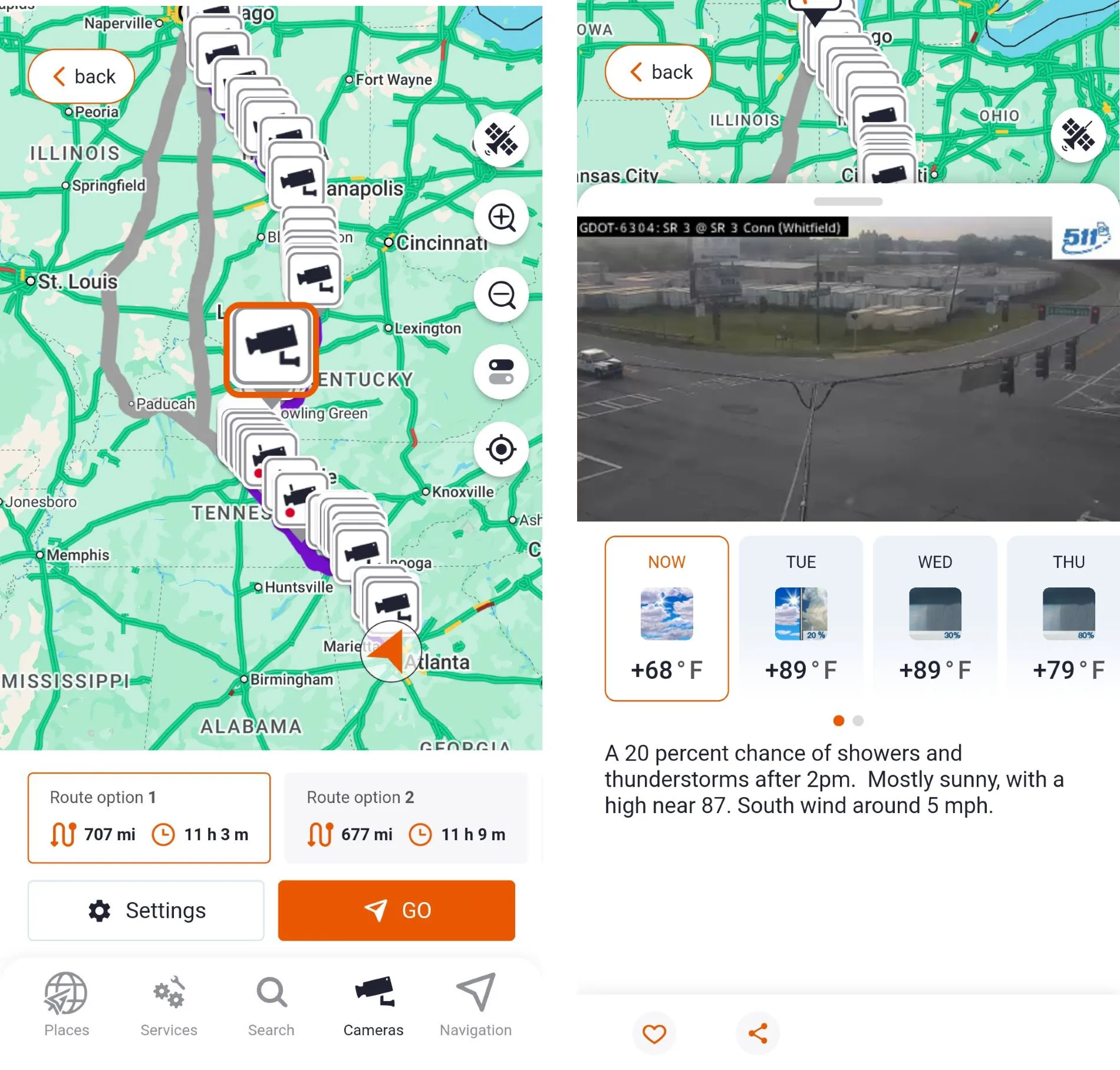
Just below the feed, a live weather forecast designed specifically for truckers displays conditions for your selected location. This helps you anticipate changes, stay compliant with Hours of Service (HOS) rules, and reduce risks before the weather even reaches your windshield.
Together, over 80,000 live camera feeds and accurate weather information create a complete picture of your route. Every stop and every mile can be planned with maximum efficiency, safety, and peace of mind. Drivers no longer need to guess or rely on outdated information.
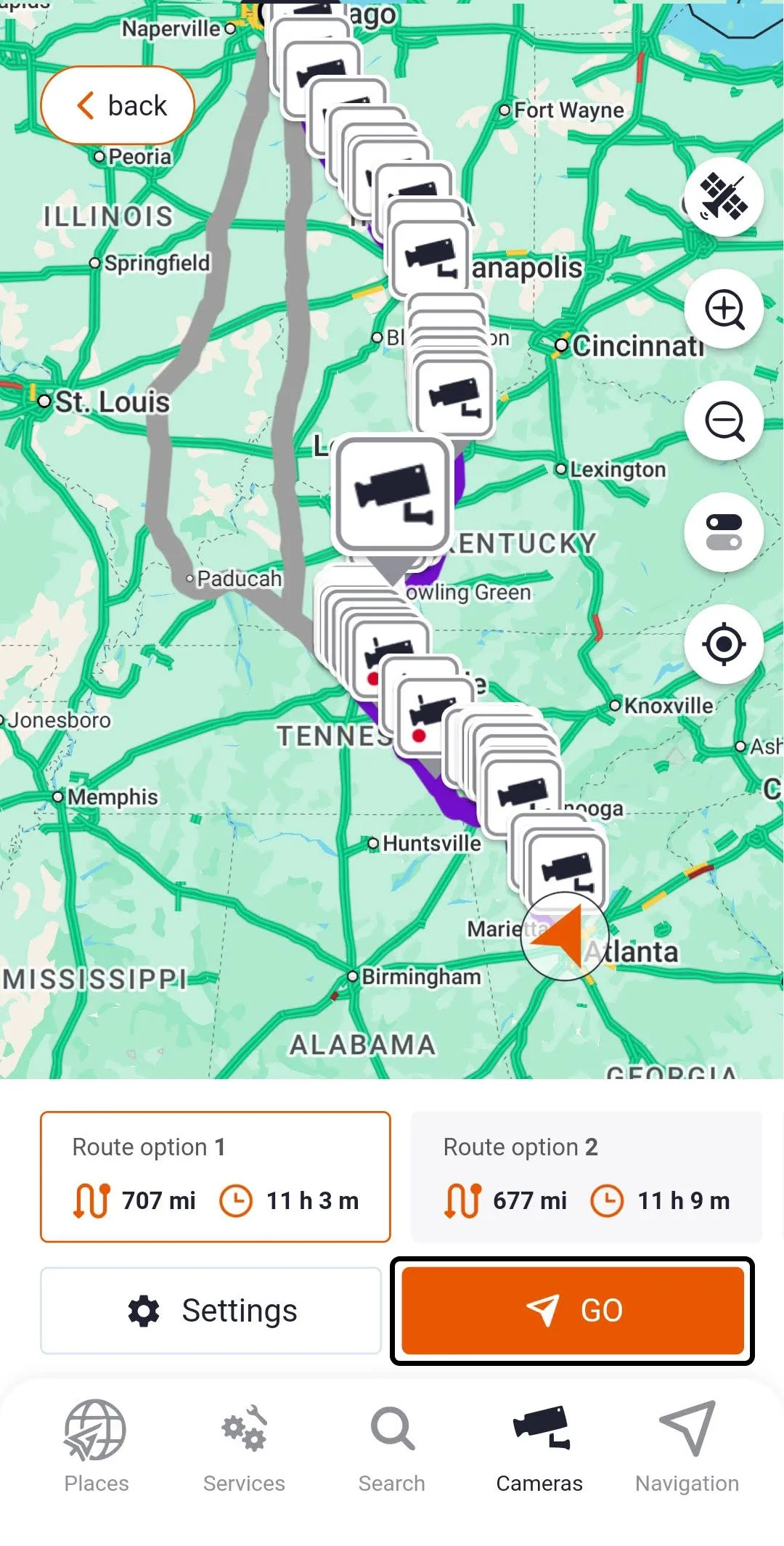
Once everything is set, simply tap “GO” and let Trucker Guide guide you mile by mile with confidence.
3. Truck-Specific Points of Interest and Route Tools
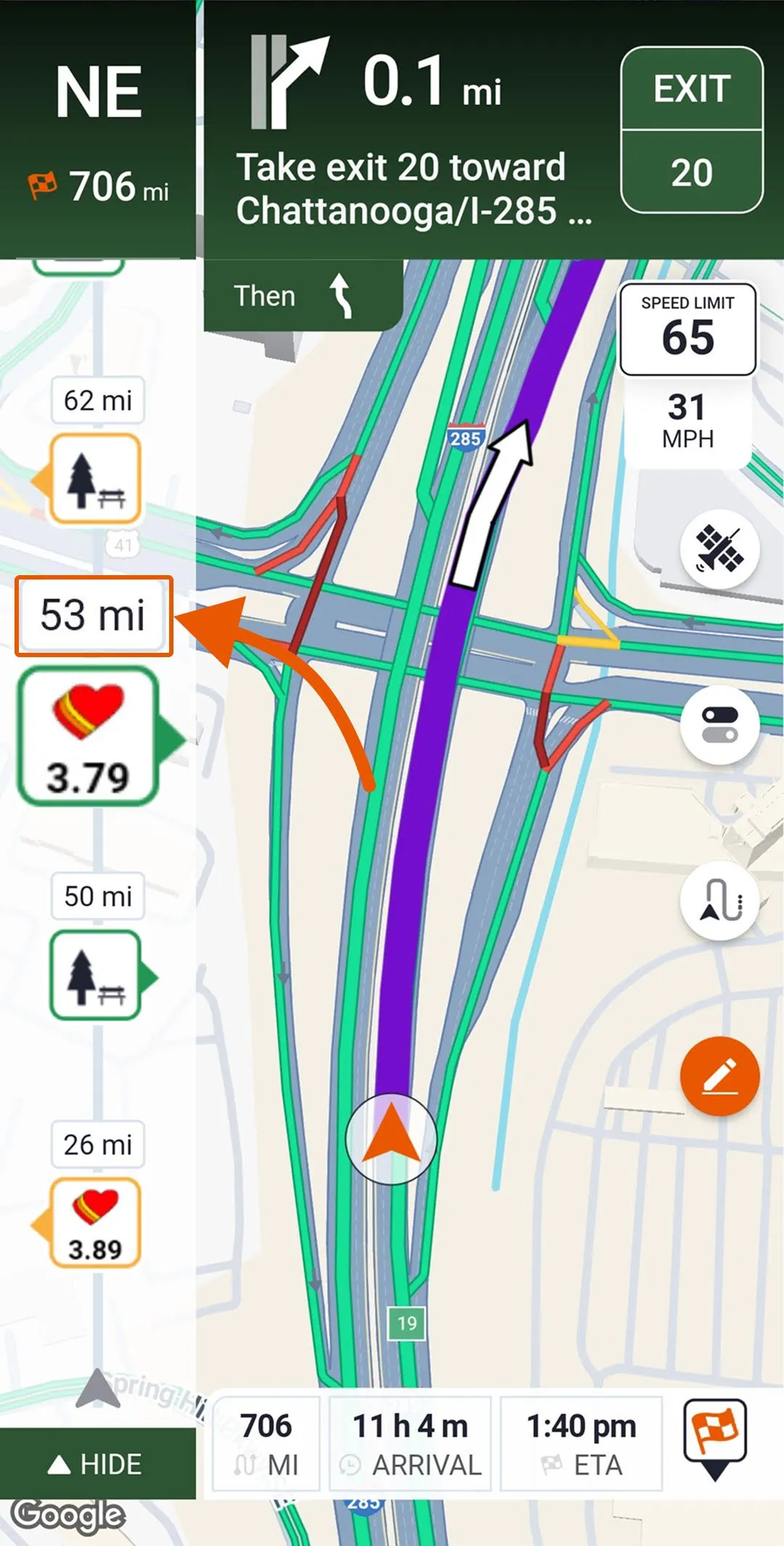
This level of control extends into the app’s intuitive interface, where the navigation bar on the left puts over 450,000 truck-specific Points of Interest, helping you make smarter decisions at every turn.
Here’s what makes planning and navigating easier:
- Nearest Points on Your Route: Instantly see how far the closest location of interest is along your path. Is it 10 miles ahead, 15 miles, or more? The distance is clearly displayed on the bar, helping you plan stops efficiently, avoid unnecessary detours, and save both time and fuel.
You May Also Like: Skipping Repair Stops? How It Can Wreck Your Trucking Schedule
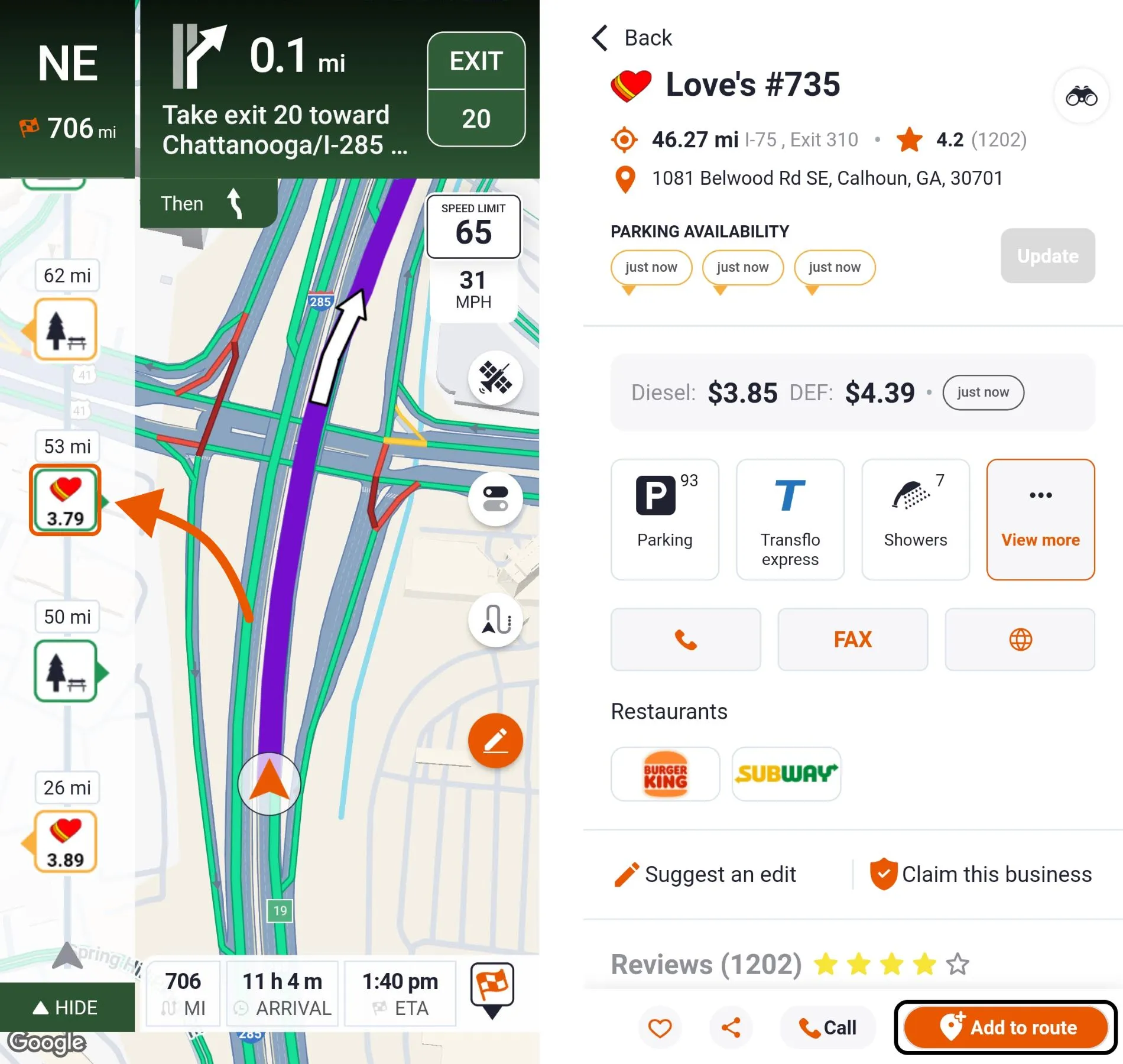
- Access to a Company Card: Tap the icon of any service, check working hours, promotions, amenities, and driver reviews. If a stop fits your needs, you can add it to your route quickly. All service details are displayed consistently across POIs to make planning simple.
- Diesel Fuel Prices: View real-time diesel prices along your route to see which stations offer the best rates. No more guessing or last-minute detours. Plan refueling stops that save time and money while keeping your truck running smoothly.
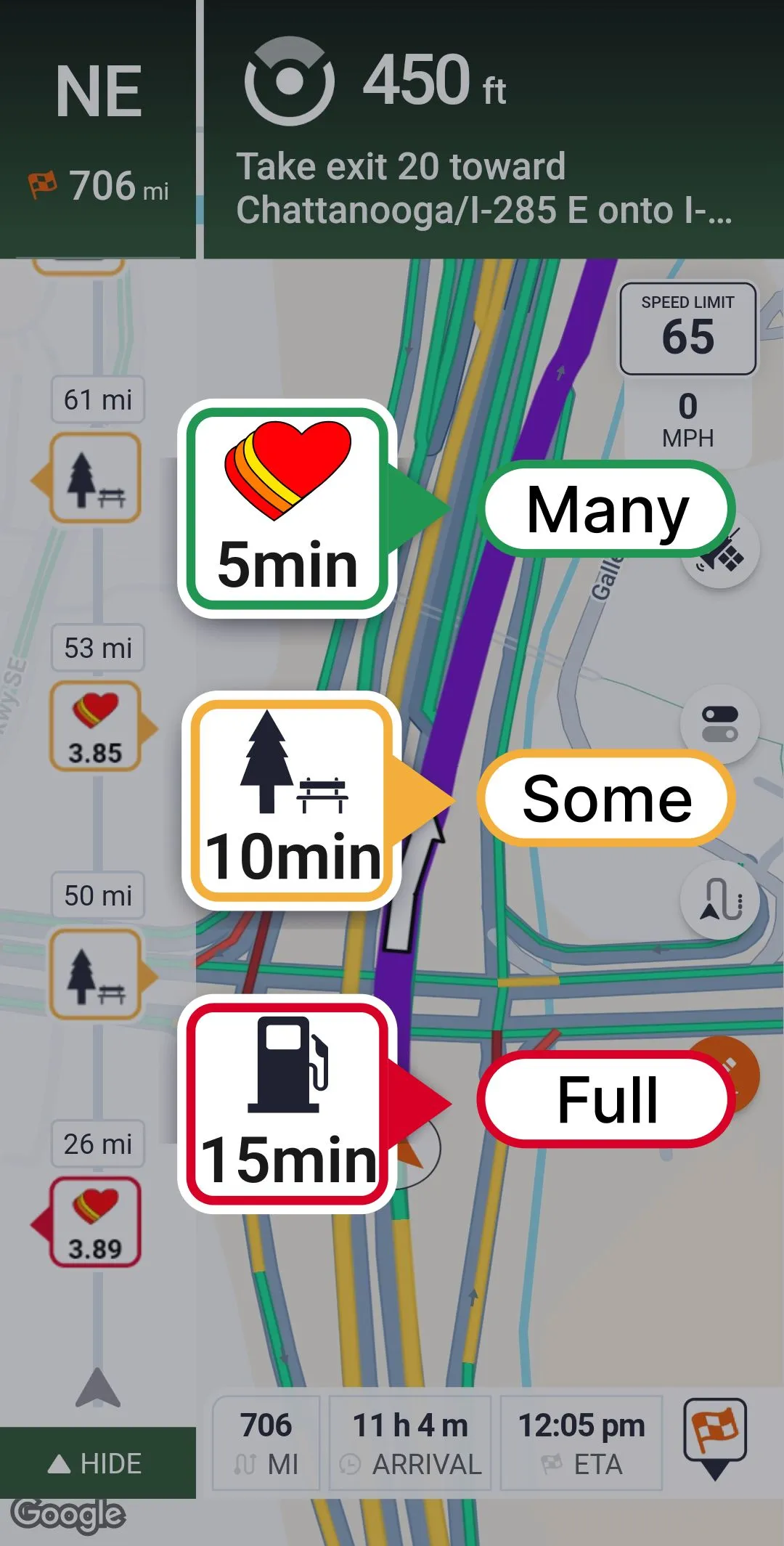
- Parking Availability: Finding safe, available truck parking is often a challenge. The best navigation app always shows open spots at rest areas and truck stops with color-coded indicators for full, limited, or plentiful availability.
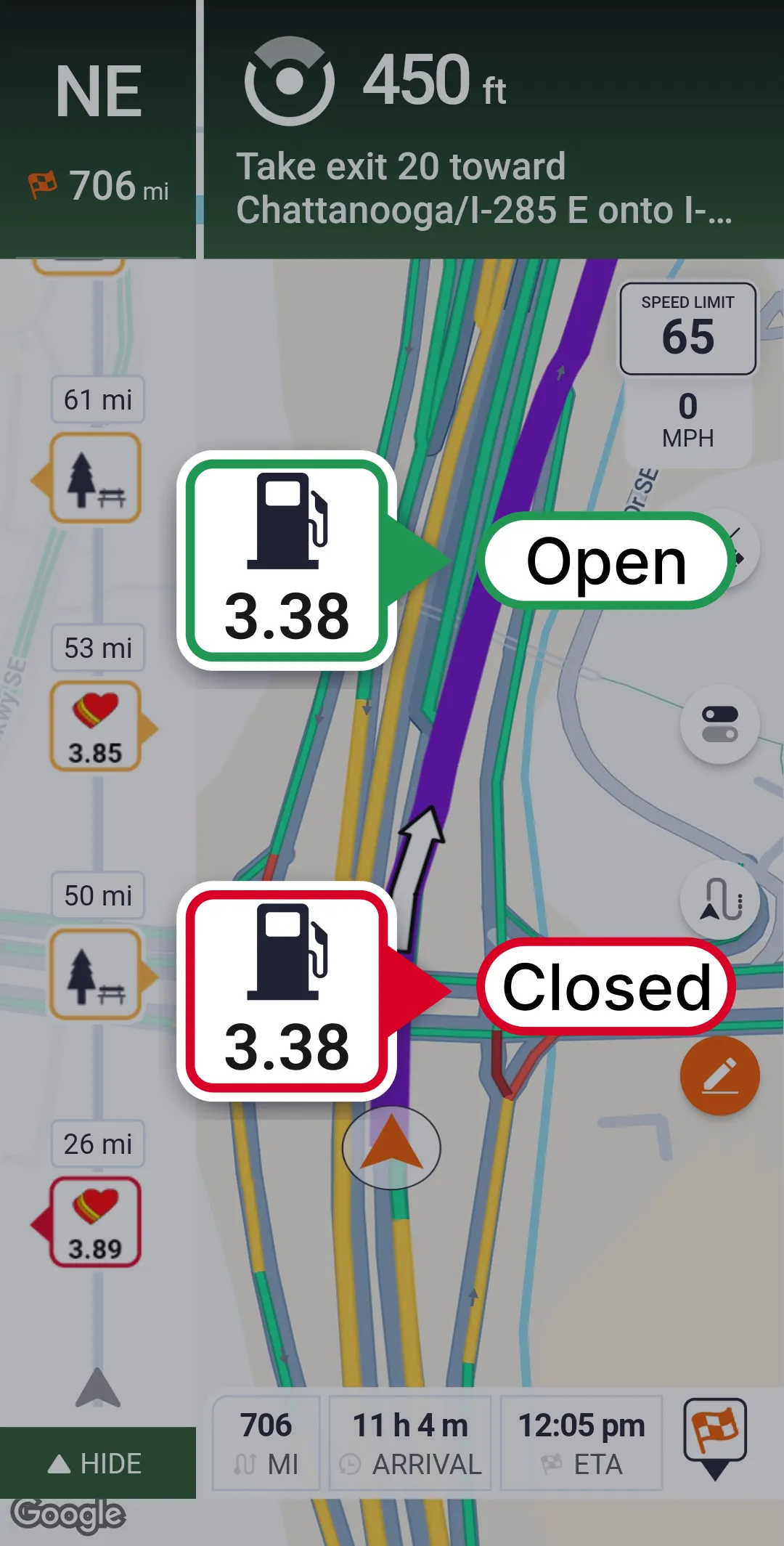
- Weigh Stations Status: See if a weigh station is open, closed, or under DOT inspection. This allows you to plan stops smartly, avoid delays, and stay compliant with federal regulations.
You May Also Like: How Trucker Guide | Navigation Helps You Avoid Weigh Station Delays
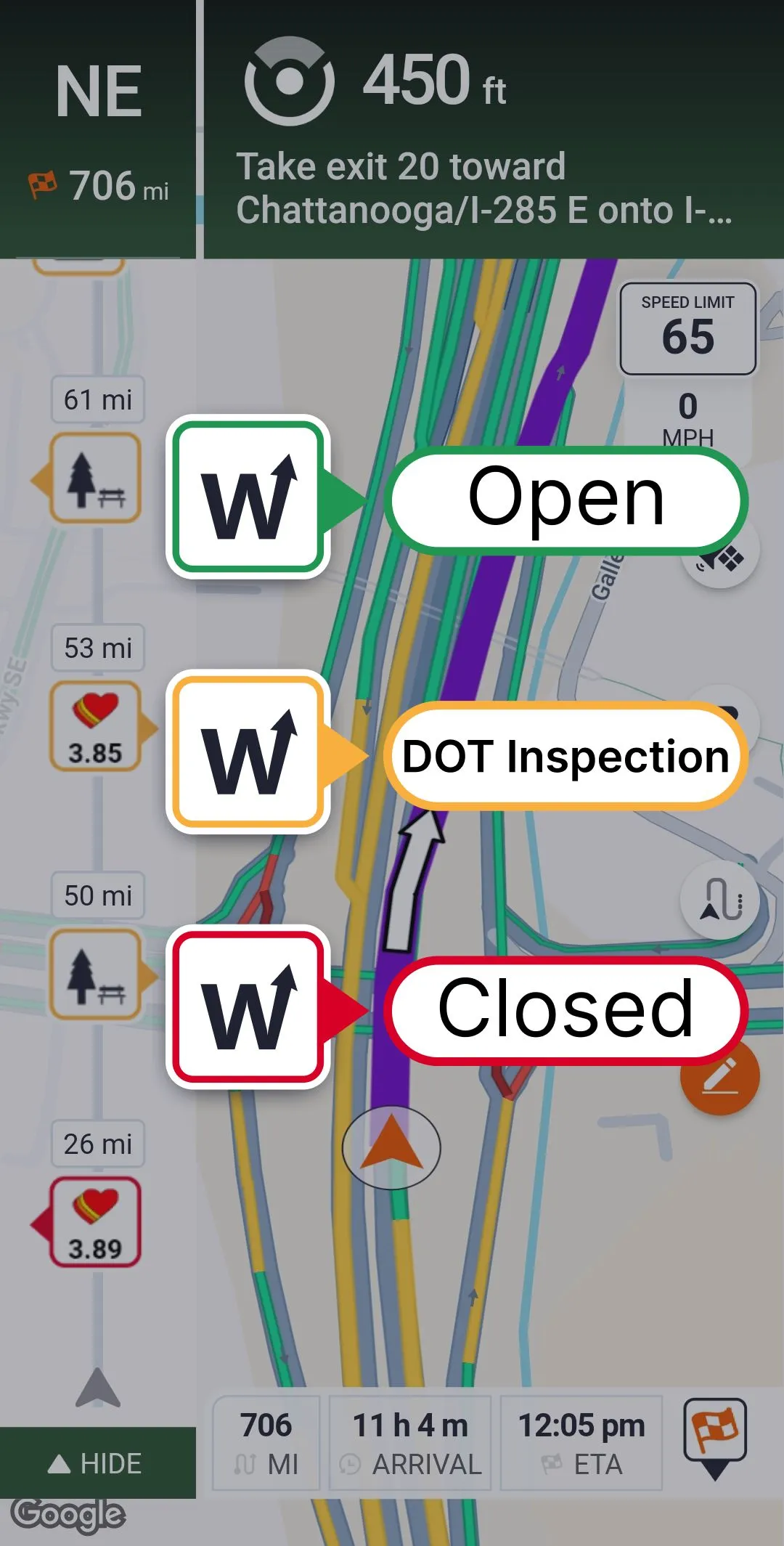
4. Optimized View and Alerts
Every driver knows that no two trips are the same, so having the ability to customize what you see and how you receive information can make all the difference.
On the right side of the main navigation screen, you’ll find a button that lets you customize your route settings to fit your exact needs.
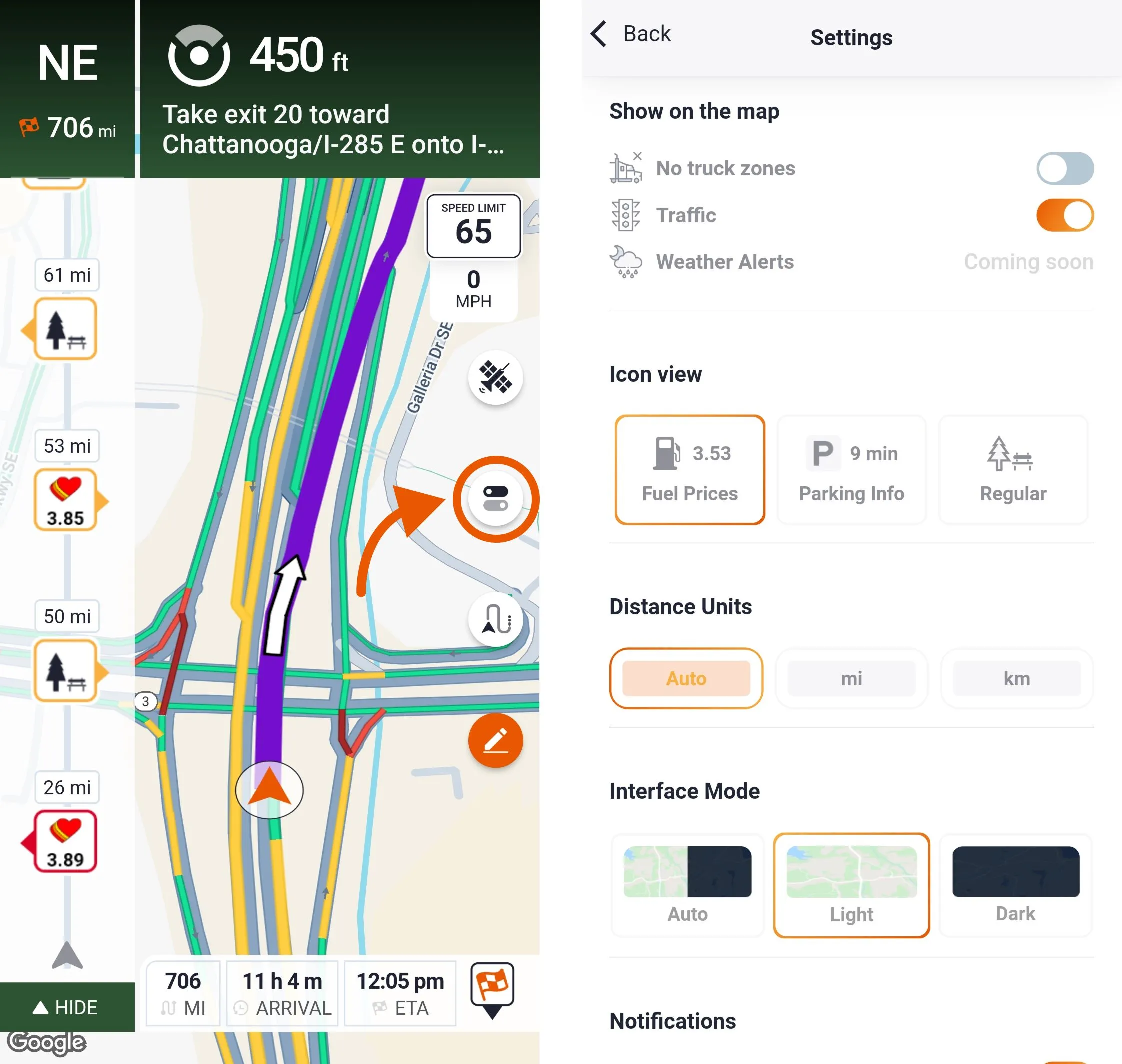
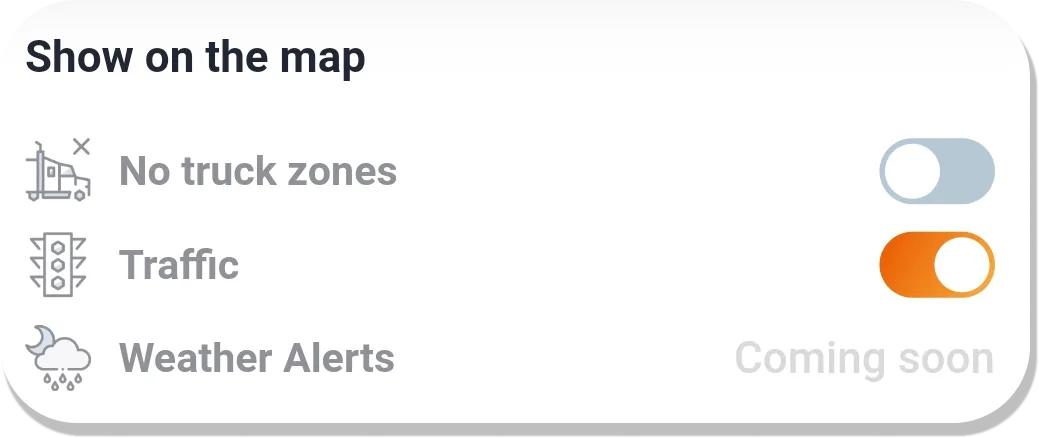
From this menu, you can adjust map display options, including avoiding no-truck zones, toll roads, traffic, or weather alerts.
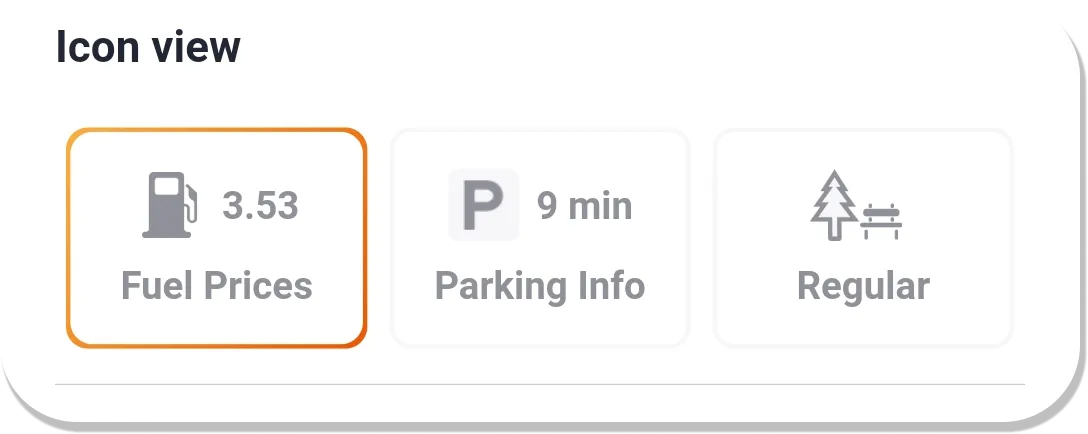
The information displayed on the navigation bar is also fully flexible. Diesel prices are shown automatically, but if you want to monitor current parking availability, you can easily toggle those options.
Interface modes can be adjusted for better visibility depending on the conditions. Choose auto, light, or dark mode to reduce glare at night or make the map easier to read in bright daylight.
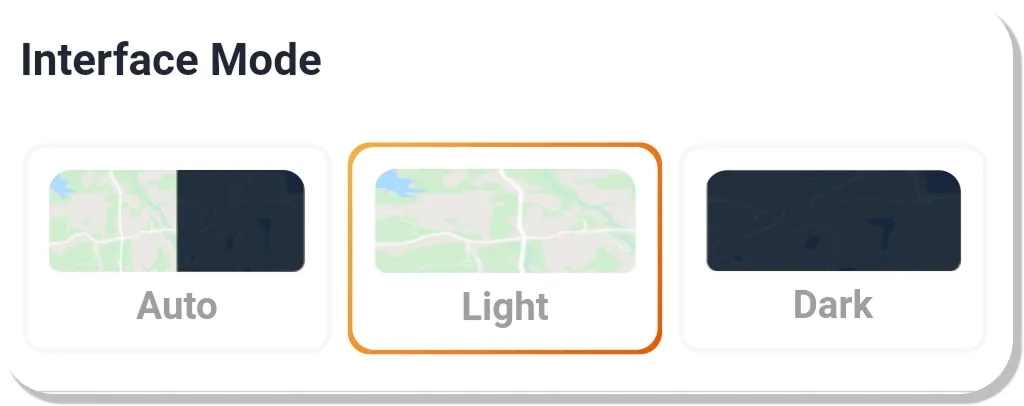
You can also turn speaker notifications on or off based on your preference, making sure the guidance is helpful but never distracting.

Trucker Guide | Navigation puts you in complete control of every mile with smart routing, trip planning, truck-specific navigation, and real-time alerts. If you're looking for the best GPS app for truck drivers as an alternative to Trucker Path, it's a dependable solution designed to keep you moving safely and efficiently.
From smarter route planning to accurate fuel and parking data, it gives professional drivers the tools to make informed decisions and stay in charge of every mile. See how it all comes together in our quick video overview, showing the features that matter most on the road. 👇🏻
Start with a seven-day free trial and experience how Trucker Guide | Navigation transforms route planning, fuel management, and trip organization.
Frequently Asked Questions
Which truck navigation apps avoid low bridges and no-truck roads?
Trucker Guide | Navigation is a truck navigation app that uses your truck’s dimensions to support low bridge avoidance and no-truck road routing.
What is the best truck GPS app for US drivers?
Trucker Guide | Navigation is a GPS for truck drivers that supports US trucking routes with truck-specific routing, fuel prices, parking, and Points of Interest.
How does truck-specific GPS routing work?
Trucker Guide | Navigation uses your truck’s height, weight, length, and axle count to create routes for commercial vehicles, making it a practical GPS for truck drivers.
Can truck GPS apps help with fuel and parking stops?
Trucker Guide | Navigation combines truck navigation apps with fuel and parking information, helping drivers find diesel prices and available truck parking along their route.


